How to Use the Featurebase MCP Server in BoltAI
Written By Daniel Nguyen
Featurebase is a product feedback platform for collecting feature requests, managing changelogs, and publishing Help Center content. With the Featurebase MCP server in BoltAI, you can connect BoltAI directly to your Featurebase workspace and use it in chat to research feedback, summarize trends, draft changelogs, and create help articles faster.
BoltAI supports two dedicated Featurebase connectors: Featurebase Reader for read-only tasks, and Featurebase Writer for drafting or updating content. In most cases, you only need to connect the one that matches your workflow.
Set Up Featurebase MCP in BoltAI
Setting up Featurebase MCP in BoltAI only takes a minute.
Open
Settings > Connectorsin BoltAI.Find
Featurebase Readerfor read-only access orFeaturebase Writerfor write access.Click
Connect.Complete the authentication flow.
Return to BoltAI when the connection is finished.
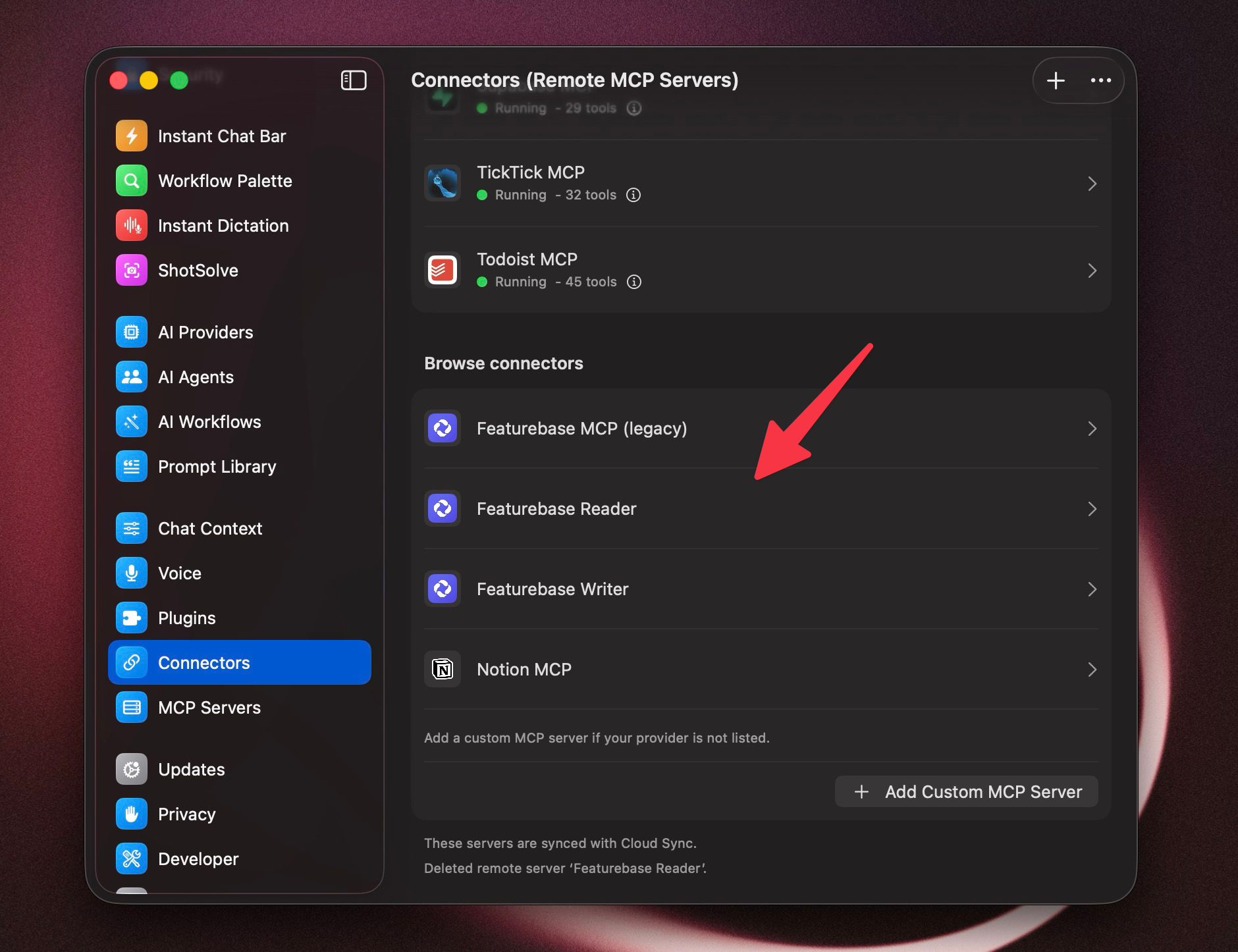
Once connected, BoltAI can use your Featurebase MCP server in tool-enabled chats.
Use Featurebase MCP in a Chat
After connecting the Featurebase MCP server, you can start using it directly in BoltAI chat.
Start a new chat in BoltAI.
Make sure
Tool Useis enabled.Open the tools menu from the composer toolbar.
Find the Featurebase MCP server you want to use and enable the relevant tools.
Send your message.
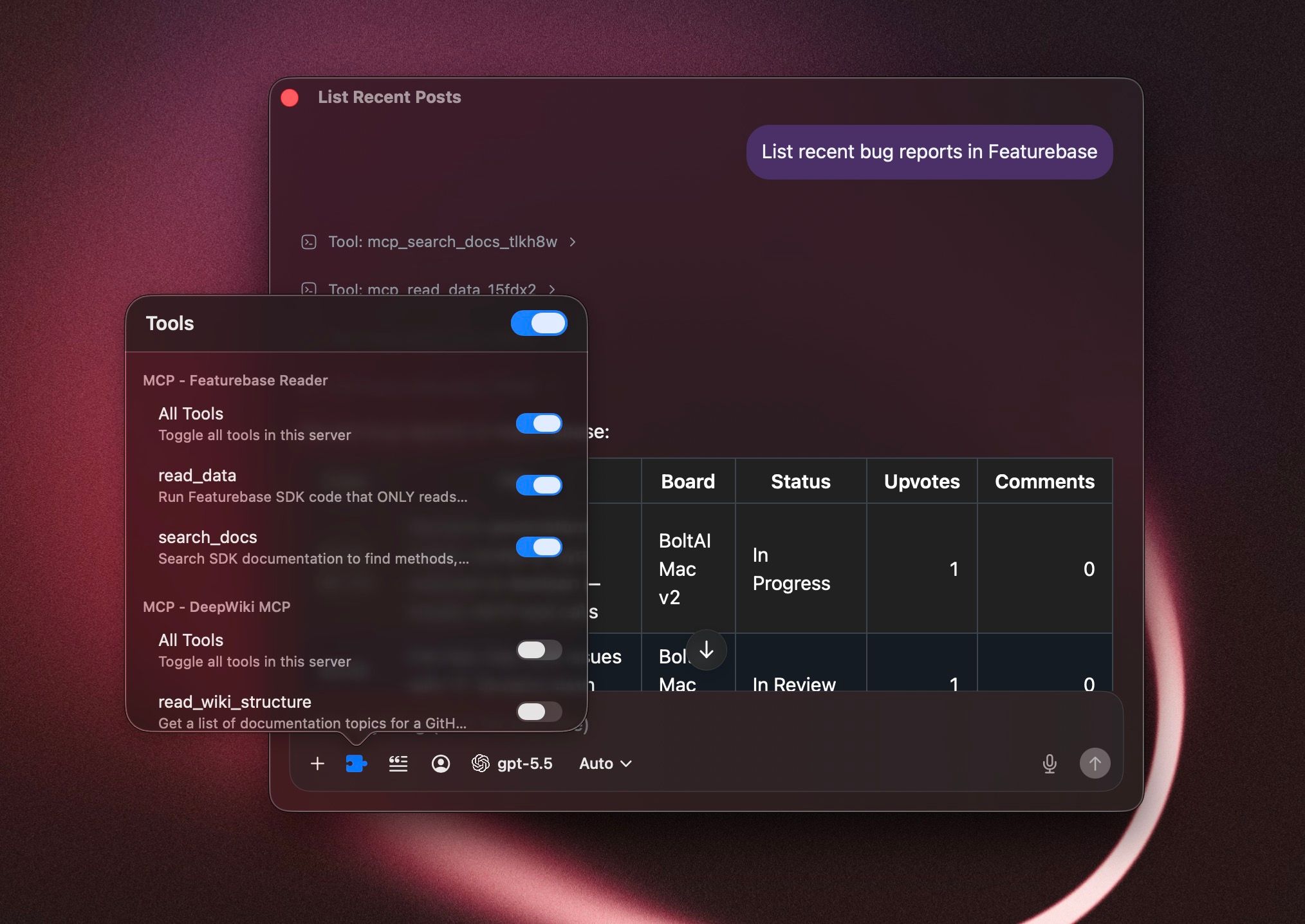
You can now ask BoltAI to search Featurebase content, summarize feedback, or help draft content depending on which connector you enabled.
What You Can Do with Featurebase MCP in BoltAI
Here are a few useful ways to use Featurebase MCP in BoltAI:
Search feedback posts by topic, keyword, urgency, or importance
Summarize customer feedback trends across related posts
Review comments and identify common product pain points
Group similar requests into clearer product themes
Draft changelog entries from product updates
Draft Help Center articles from internal notes or existing product context
Turn feedback discussions into action items or follow-up tasks
Prepare internal product summaries based on recent customer requests
For example, you can ask BoltAI to summarize the most common feedback around a feature, find high-priority posts on a topic, or draft a changelog update based on the latest shipped changes.
Notes and Caveats
Use
Featurebase Readerfor read-only research and analysis.Use
Featurebase Writerwhen you want BoltAI to help draft or update content.For the best control, enable only the Featurebase tools you need for the current chat.
If you are still using the older legacy Featurebase MCP server, switch to the dedicated
ReaderandWriterservers instead.The dedicated Reader and Writer connectors are safer and make it easier to control what BoltAI can access or change in each workflow.
If you mainly want to explore feedback and summarize posts, use Featurebase Reader. If you want help drafting changelogs or Help Center content, use Featurebase Writer.
Was this helpful?
Still need help? Ask the team