Sync your chats with Cloud Sync
Keep your chats, projects and settings on all your Macs with a BoltAI Cloud account.
Written By Daniel Nguyen
Cloud Sync keeps your chats, projects, agents and settings the same on every device where you sign in to your BoltAI Cloud account, including BoltAI Mobile. Cloud Sync and mobile access are part of the Updates & Sync Plan, where your license tier includes them. See Compare licenses.
The steps on this page are for BoltAI for Mac, where Cloud Sync is optional. In BoltAI Mobile you can keep new chats on the device only: in Settings › Account, set Chat Storage to This iPhone (or This iPad) instead of BoltAI Cloud. Switching doesn't move your existing chats. Your AI providers and settings still sync.
Keep your chats on all your Macs
- Open Settings › Cloud Sync (⌘ ,).
- Click Sign In. To create an account, click Sign up.
- Check that Cloud Sync is on. It's on by default.
- Sign in with the same account on your other Macs.
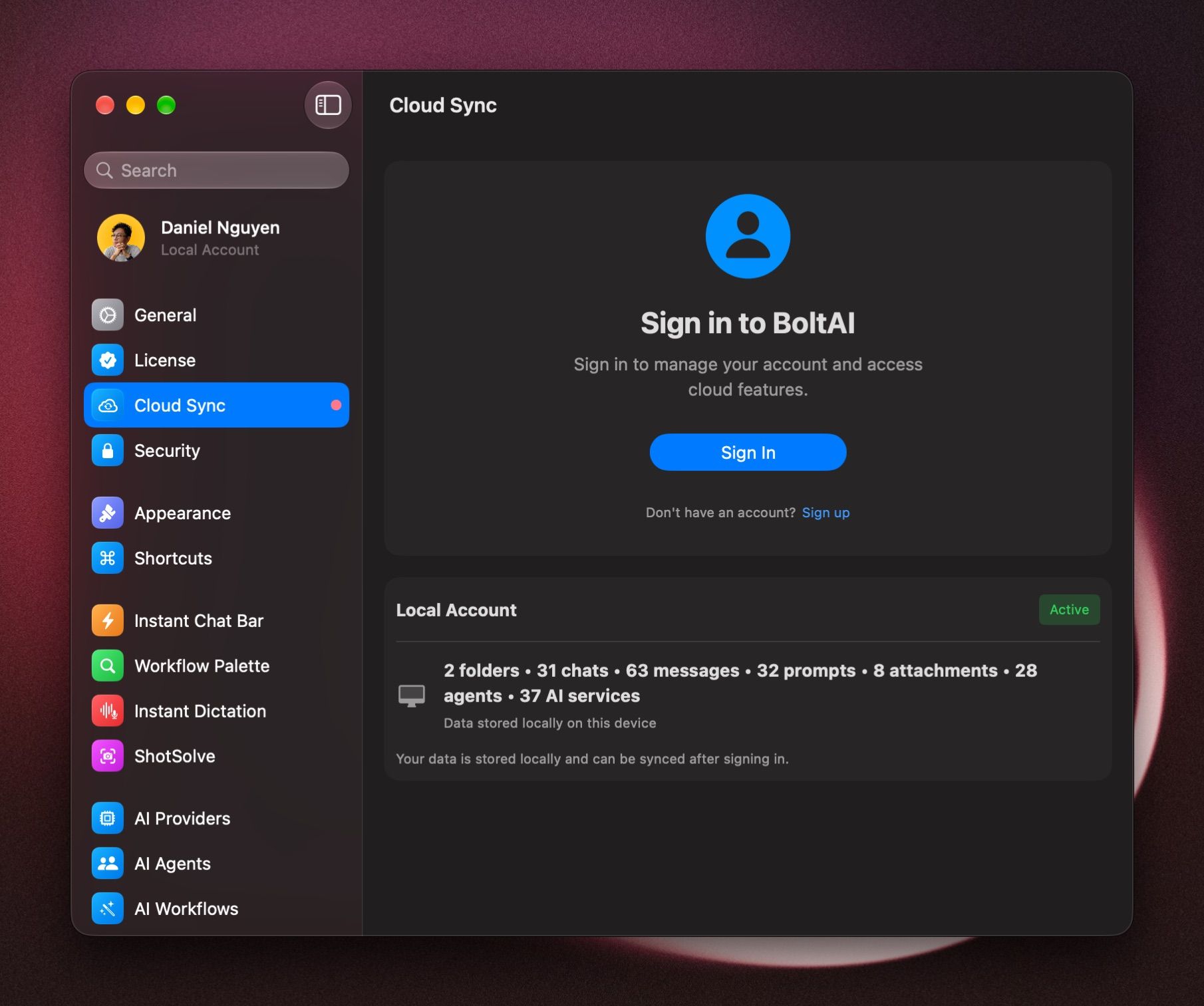
BoltAI syncs in the background. To sync right away, click Sync Now. The time of the last sync shows below it.
If you have a BoltAI license and see Cloud Account Link, click Link This Account so Cloud Sync recognizes your purchase. See Linking your Cloud Account.
Cloud Sync isn't available in the Setapp version of BoltAI.
Bring your existing chats into your account
If you used BoltAI before signing in, those chats are in your Local Account on this Mac. When you sign in, BoltAI asks what to do with them:
- Merge to Cloud adds them to your account, so they sync.
- Keep Local Data Separate leaves them on this Mac only.
To merge them later, open Settings › Cloud Sync and click Merge to Cloud under Local Account.
What syncs, and what stays on this Mac
These sync between your Macs:
- Chats, messages and attachments
- Projects
- AI providers and their API keys
- Agents, prompts, AI workflows and memories
- Connectors
These stay on this Mac:
- Models you download in Local Models
- Servers under Local MCP Servers in Settings › MCP Servers
- Folders you connect to a project
- Your Local Account data, until you merge it
Stop syncing this Mac
- Pause sync: turn off Cloud Sync in Settings › Cloud Sync.
- Sign out: click your account at the top of the Settings sidebar, click Sign Out, then Sign Out and Keep Local Copy. BoltAI switches to your Local Account. Your cloud data stays on this Mac for when you sign in again.
Fix sync problems
- Sync paused due to large pending data: click Sync Now.
- Sign In Required: click Sign In Again. This can happen after you change your password or multi-factor authentication.
- Sync Error: click Export diagnostics…. See How to export diagnostics for Cloud Sync issues.
Was this helpful?
Still need help? Ask the team