Chat parameters in the Inspector
Configuration profiles, Chat Context, Agent Loop Control and LLM parameters for the current chat.
Written By Daniel Nguyen
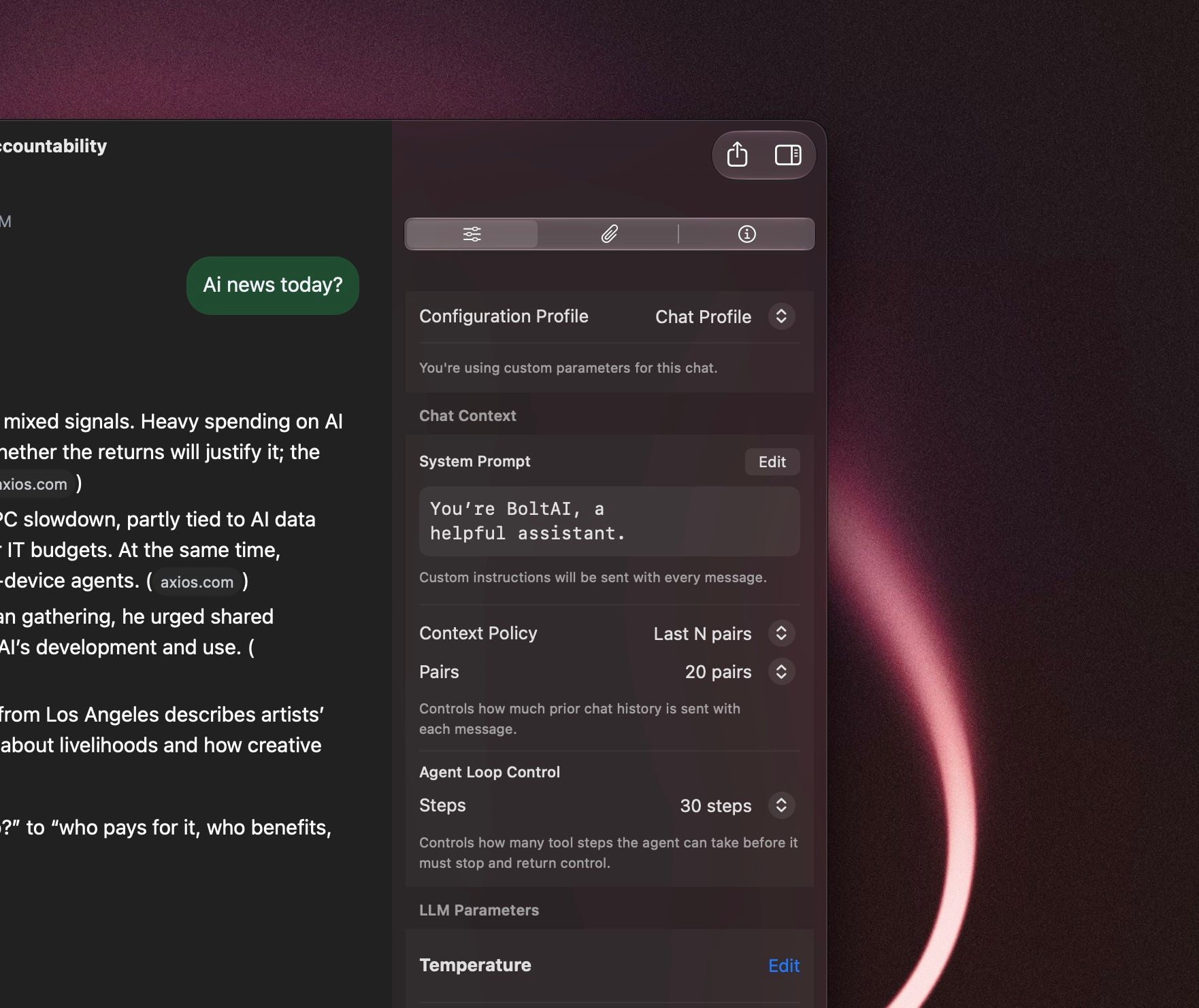
The Inspector shows the settings the current chat uses. Open it with ⌘I or View › Toggle Inspector, then choose the first tab (the sliders icon).
It has three sections:
Configuration Profile
Chat Context: the system prompt, how much history is sent, and how many tool steps the model can take
LLM Parameters
Configuration Profile
The profile decides where this chat's settings come from.
Changing a value in the Inspector switches the chat to Chat Profile. The new value applies to this chat only and doesn't change your defaults, the project or the agent.
Chat Context
System Prompt
The instructions sent with every message in this chat. Click Edit to change them.
Context Policy
How many earlier messages are sent with each new message.
A pair is one message from you and the reply to it.
Choose N in Pairs (1 to 50).
Files attached to the messages that are sent go with them every time.
Project files and agent files are sent with every message, whatever this setting is.
Context limit. Every model has a maximum amount of text it can read in one request, called its context window. With All messages, a long chat sends everything each time:
Each reply costs more.
Replies can take longer or time out.
The chat can go past the model's context window, and the provider then returns an error.
For long chats, use Last N pairs, or start a new chat.
Reset Chat Context. Choose Conversation › Reset Chat Context, or type /clear-context, to start fresh in the same chat. Earlier messages stay on screen but aren't sent anymore.
Agent Loop Control
Steps is the most tool calls the model can make in one reply, for example web searches or MCP tools, before it has to stop and answer.
Raise it for long research or multi-tool tasks.
Lower it to keep replies quick and cheap.
It doesn't change how much chat history is sent.
LLM Parameters
These control how the model writes. Each one shows its current value; use Edit to change it and Reset to go back to the profile's value. Some appear only for models that support them.
If you're not sure, leave these at their defaults. Most models work best that way.
Was this helpful?
Still need help? Ask the team