Which permissions does BoltAI require?
Written By Daniel Nguyen
BoltAI does not require every macOS permission to use the app. Most permissions are optional and only needed when you turn on features that interact with other apps, record audio, capture the screen, or send notifications.
You can always use normal chat, copy/paste manually, and read replies aloud without granting Accessibility or Microphone access.
Quick summary
Accessibility
BoltAI asks for Accessibility only when a feature needs to interact with other apps.
BoltAI uses Accessibility to:
read selected text from the frontmost app
detect the active text field or caret position
send paste/copy keystrokes for workflow output or dictation
paste generated text back into another app
Features that may need Accessibility:
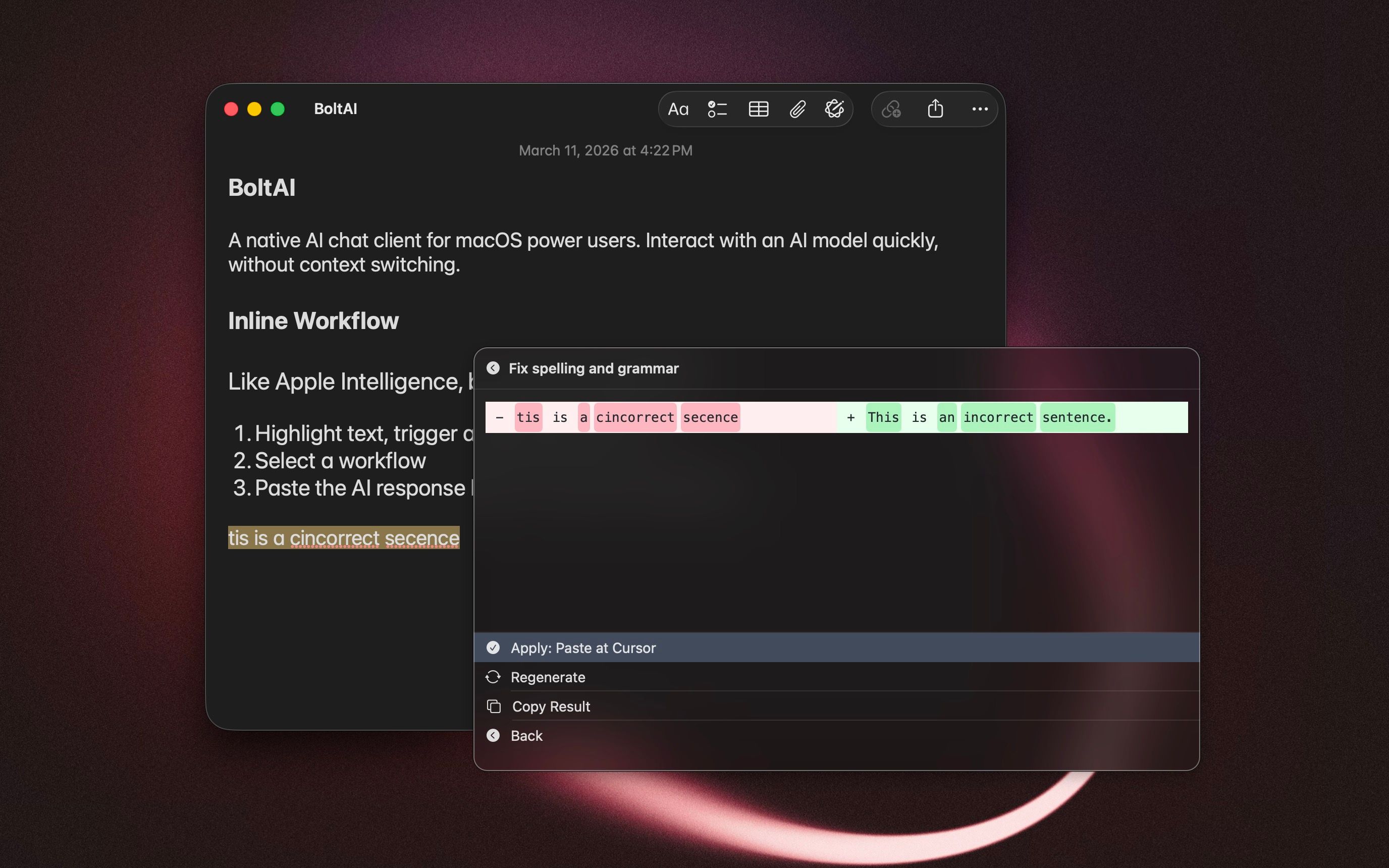
Workflow Palette
workflow actions like paste at cursor or replace selection
Instant Chat Bar’s “Auto attach selected text or files”
Instant Dictation when output is set to “Paste to Active App”
Not required for:
normal chat
opening the Instant Chat Bar
Read Aloud
manually copying and pasting text
Microphone
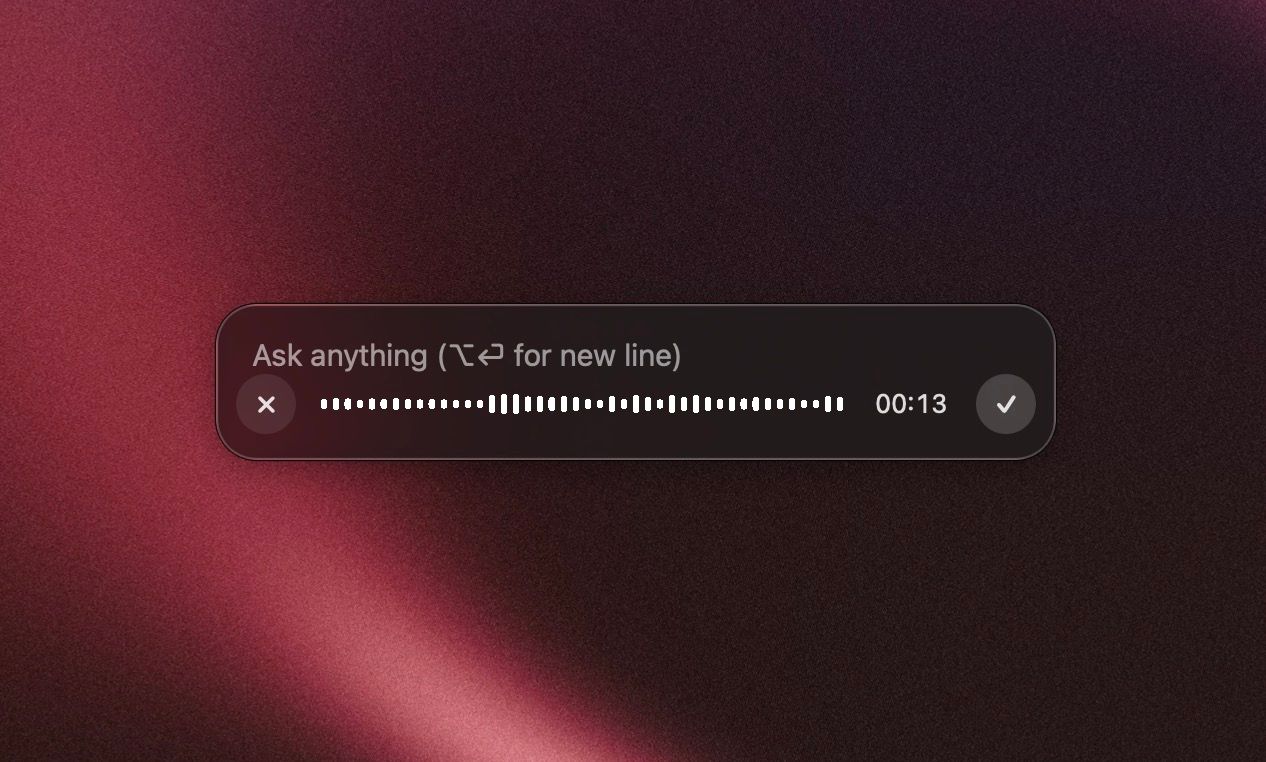
BoltAI asks for Microphone access only for voice input.
This can happen when you:
click the mic button next to the message box
open Voice Input Setup
use Instant Dictation
use cloud or local speech-to-text engines
BoltAI uses the microphone to record your speech and convert it to text. If you choose a cloud speech-to-text provider such as OpenAI, Groq, or Setapp, the recorded audio is sent to that selected provider for transcription. If you choose an on-device engine, transcription runs locally where supported.
The speaker / Read Aloud button does not need Microphone access.
Speech Recognition
Speech Recognition permission is used for Apple’s built-in speech-to-text engine.
BoltAI uses it when you choose Apple Speech Recognition for voice input. Other transcription providers may only need Microphone access, because the transcription happens through the selected provider or local model instead of Apple Speech Recognition.
Screen Recording
Screen Recording is needed for Chat with Screenshot / ShotSolve.
When you use the screenshot shortcut, BoltAI invokes macOS screenshot capture, lets you select a region or window, then attaches the captured image to the Instant Chat Bar.
BoltAI does not need Screen Recording for normal attachments, file uploads, or regular chat.
Notifications
BoltAI asks for Notifications if reply-finished notifications are enabled.
BoltAI uses notifications to let you know when a reply finishes in the background. If you turn this off, chat still works normally; you just will not receive macOS alerts.
File access
BoltAI is sandboxed, so it can only access files through allowed paths or files you choose.
BoltAI may access files when you:
attach files to a message
drag and drop files into BoltAI
import chat exports
export data
select a local executable or config file for an integration
BoltAI does not require Full Disk Access for normal use.
For local integrations, BoltAI may read or write specific configuration locations, such as local MCP configuration, Codex/Gemini/Claude/Cursor-related config files, or AWS profiles, only when those integrations are used.
Clipboard access
Clipboard access is not usually shown as a macOS permission prompt, but BoltAI uses the clipboard for some convenience features.
BoltAI may read or write clipboard content when you:
click Copy on a message
use Instant Dictation, which copies the transcript
enable Instant Chat Bar auto-attach clipboard content
run workflows that use clipboard input
use workflow actions that paste output into another app
use Chat with Screenshot, because macOS screenshot capture places the image on the clipboard
You can avoid these workflows and copy/paste manually if preferred.
Read Aloud
Read Aloud converts text to speech. It does not record audio and does not require Microphone access.
By default, BoltAI uses Apple’s built-in text-to-speech engine for Read Aloud. If you choose a cloud TTS provider, the text is sent to that provider to generate audio.
How to reduce permission prompts
If you prefer a minimal-permission setup:
leave Workflow Palette unset or disabled
do not enable Instant Chat Bar auto-attach selected text
set Instant Dictation output to “Copy to Clipboard” instead of “Paste to Active App”
avoid the mic button and Instant Dictation if you do not want Microphone access
avoid Chat with Screenshot if you do not want Screen Recording access
turn off reply-finished notifications in Settings
BoltAI should only ask for a permission when you use or configure a feature that needs it.
Was this helpful?
Still need help? Ask the team