Prompt Library and Memories
Save instructions you reuse, insert them in any chat, and manage what BoltAI remembers about you.
Written By Daniel Nguyen
Prompt Library
The Prompt Library keeps the instructions you use often, so you don't type them again. BoltAI comes with ready-made prompts, such as Concise Email Reply, Decision Memo (Options Analysis) and Executive Brief from Document.
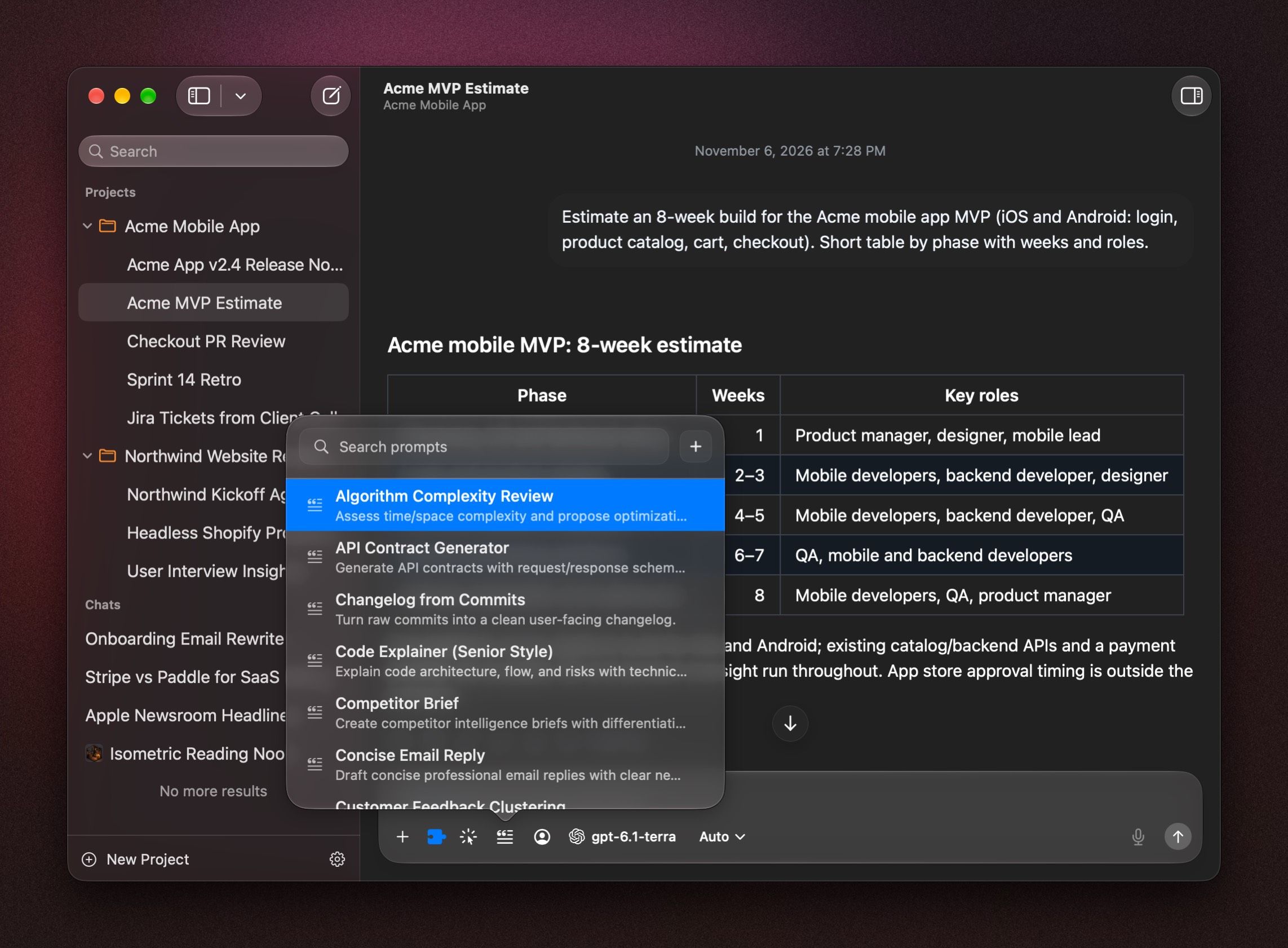
Insert a prompt
- Click the Prompts button in the message box, press ⇧ ⌘ P, or type /prompts.
- Type a few letters to find the prompt.
- Click it. The text goes into the message box, ready to edit and send.
Save a new prompt
- Open Settings › Prompt Library and click +.
- Give it a Name, an optional Description, and the Prompt Text.
- Click Create.
To save a message as a prompt, open More under it and choose Create a Prompt….
Edit or delete prompts
Open Settings › Prompt Library, find the prompt, and edit or delete it.
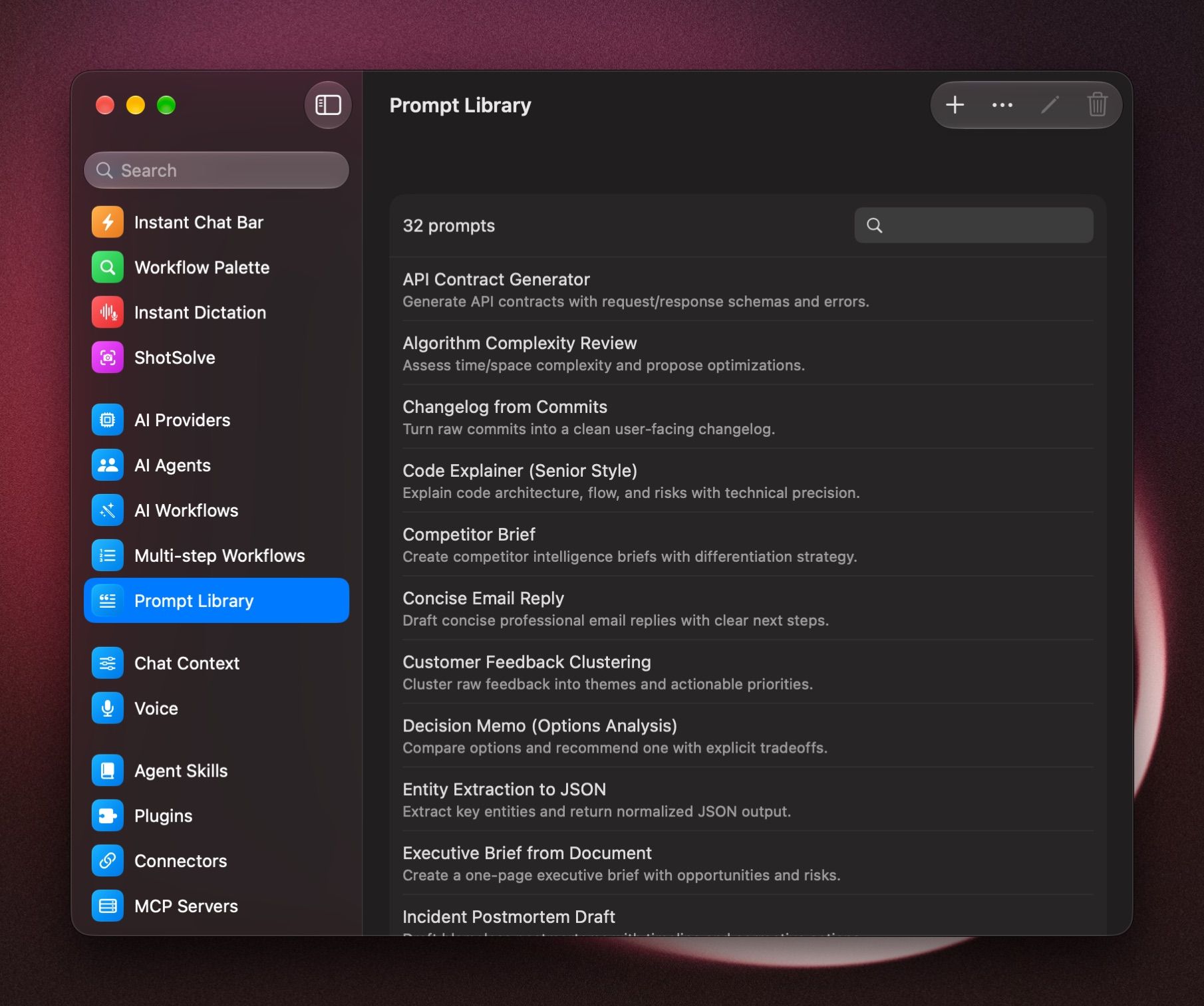
To remove copies of the same prompt, open the ⋯ menu and choose Dedupe….
Memories
BoltAI can remember things about you, such as your name, your job or how you like answers, and use them in later chats.
Turn on memory
- In a chat, open the Tools menu and turn on Memory. See Tools in a chat.
- Tell it what to remember, for example Remember that I'm a teacher and prefer short answers.
BoltAI also saves useful facts on its own while you chat, and uses them when they help. Use a model that supports tools.
Temporary chats don't use or create memories.
View, edit or delete memories
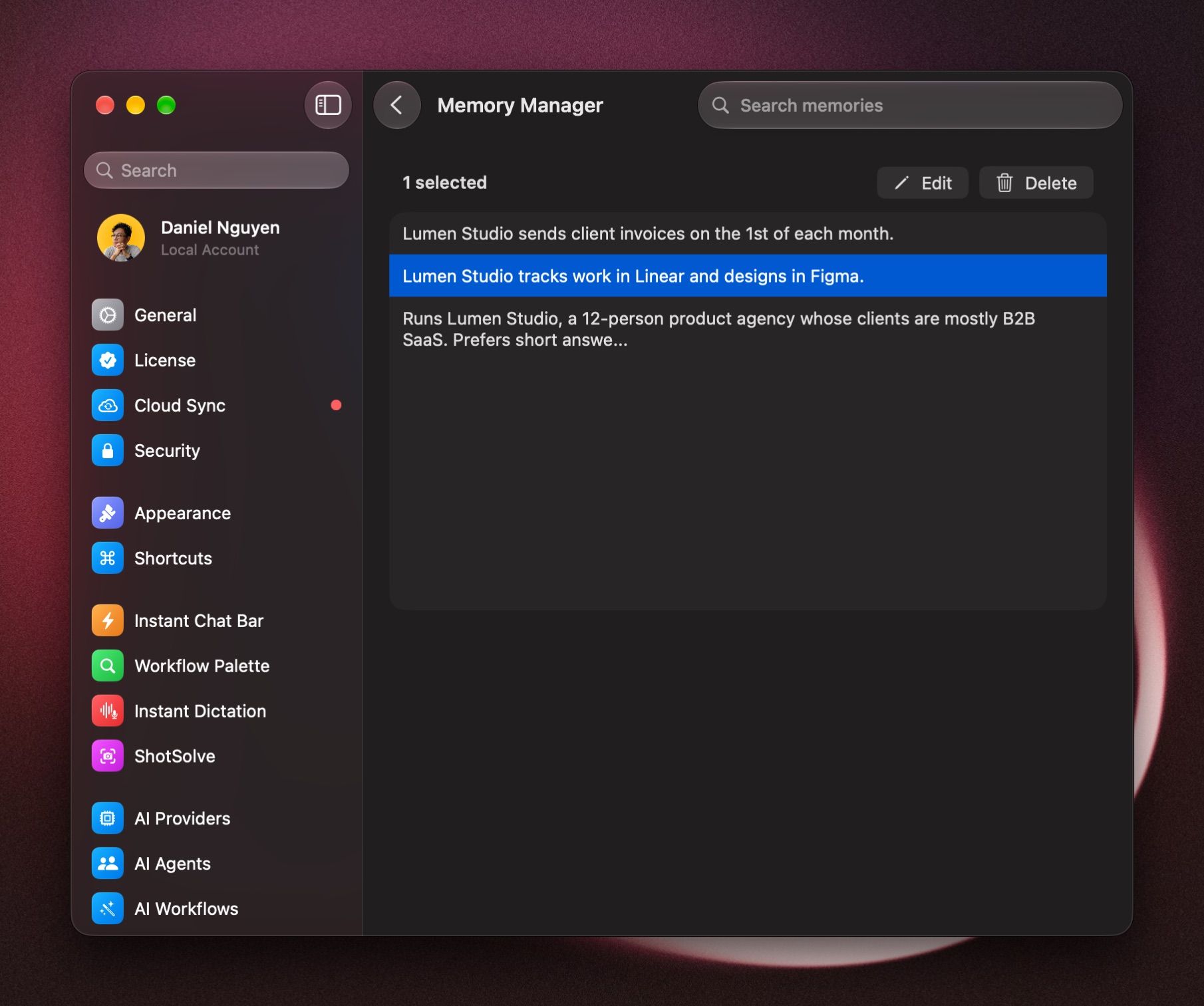
- Open Settings › Plugins and click Memories.
- Search for a memory, then select it and click Edit or Delete.
Was this helpful?
Still need help? Ask the team