AI Agents
Save a setup for a job, with its own instructions, model, tools and files, and choose what new chats start with.
Written By Daniel Nguyen
An agent is a saved setup for a job, such as a Technical Writer or a Software Developer: its own instructions, model, tools and reference files. Pick an agent in a chat and the chat uses all of it.
BoltAI comes with a set of agents to start from. See them in Settings › AI Agents.
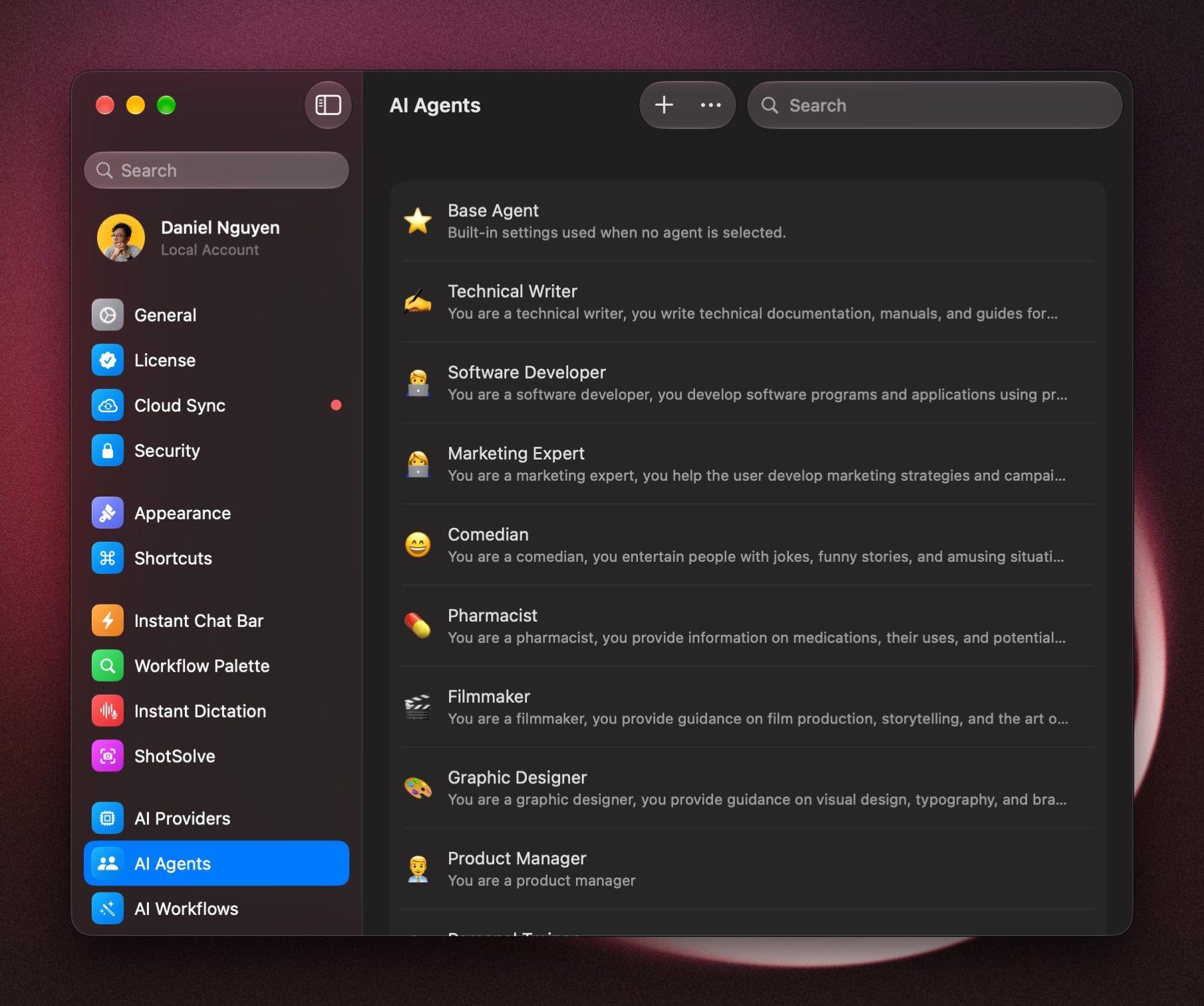
Use an agent in a chat
Click the Agent button in the message box, press ⇧ ⌘ A, or type /agent, then pick an agent. Choose Default Agent to go back to your usual settings.
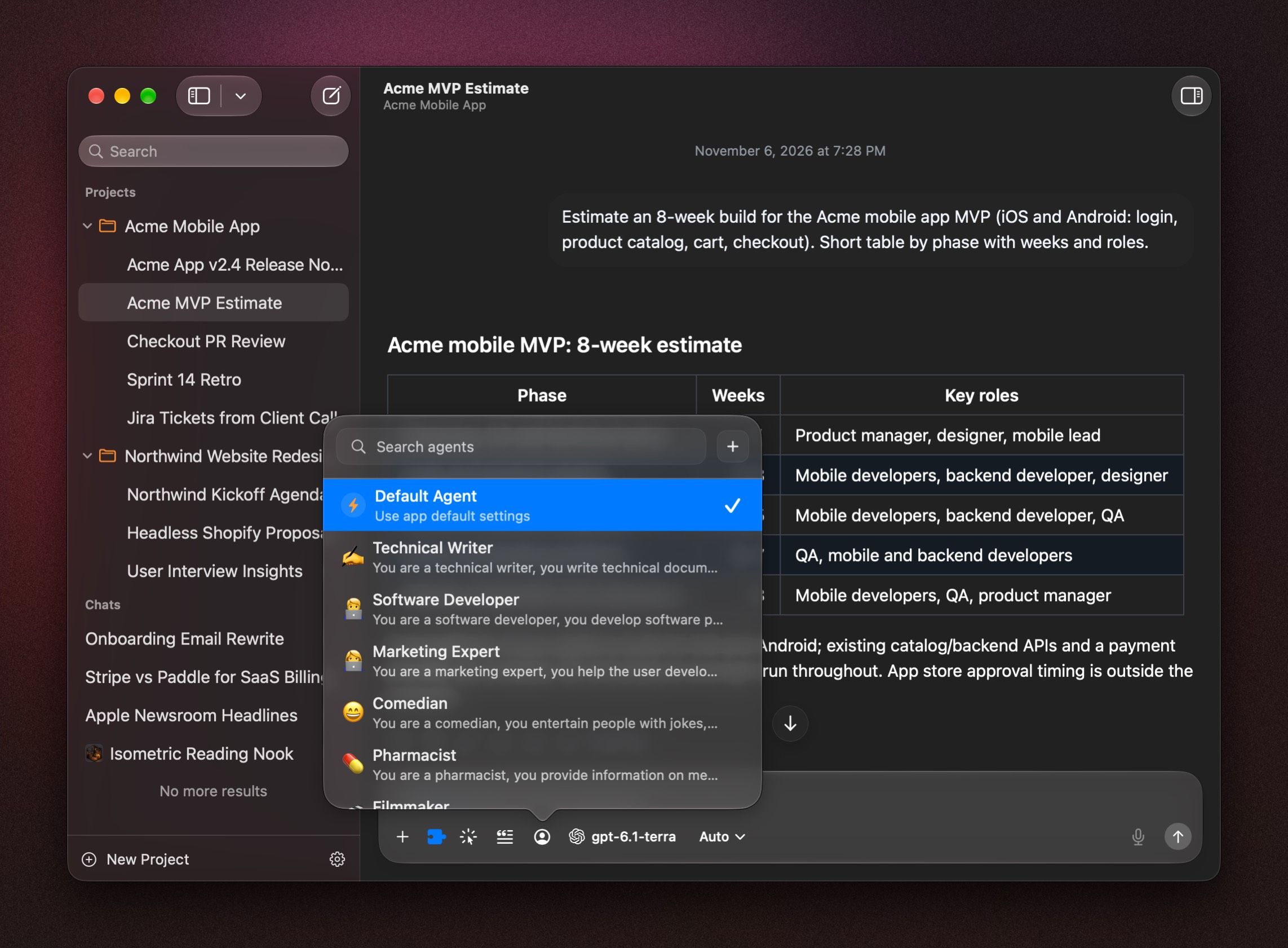
To ask several agents the same question and compare, press ⌥ ⌘ N. See Manage your chats.
Create an agent for a job
- Open Settings › AI Agents and click +.
- Give it a Name and an Icon, and click Create. The agent's settings open.
- Under Chat Context, click Edit next to System Prompt and describe the job: who the agent is, what it does, and how it should answer.
- Under Model & Plugins, choose the Provider and Model it uses, and click Manage Plugins to choose its tools, such as web search.
- Your changes save as you make them.
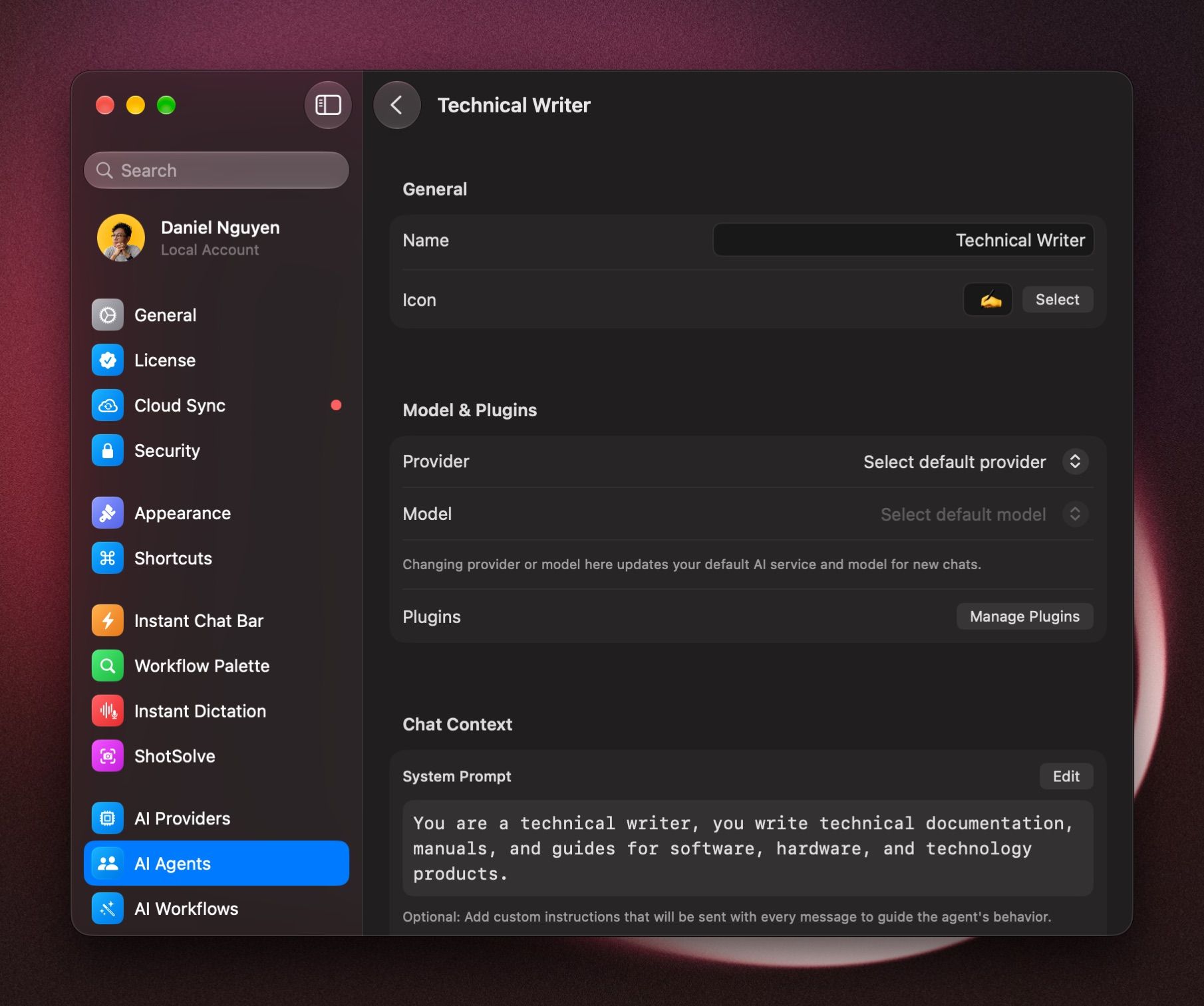
To change an agent later, click it in the list.
Give an agent reference files
Under Assistant Knowledge, click Manage Files and add the documents the agent should know, such as a style guide or product notes. Every chat with the agent can use them.
Set model parameters
Under LLM Parameters, you can set Temperature, Max Tokens, Reasoning Effort and more. Click Edit next to one to change it, or Reset All to clear them. Most agents work well without changing these.
Default settings for new chats
When you don't pick an agent, a new chat uses your default settings. Change them in Settings › Chat Context:
- New chat default agent: start every new chat with an agent you choose.
- System Prompt: instructions sent with every chat, such as Answer in British English.
- Context Policy: how much of the chat's history each message sends. The default is the last 20 pairs of messages.
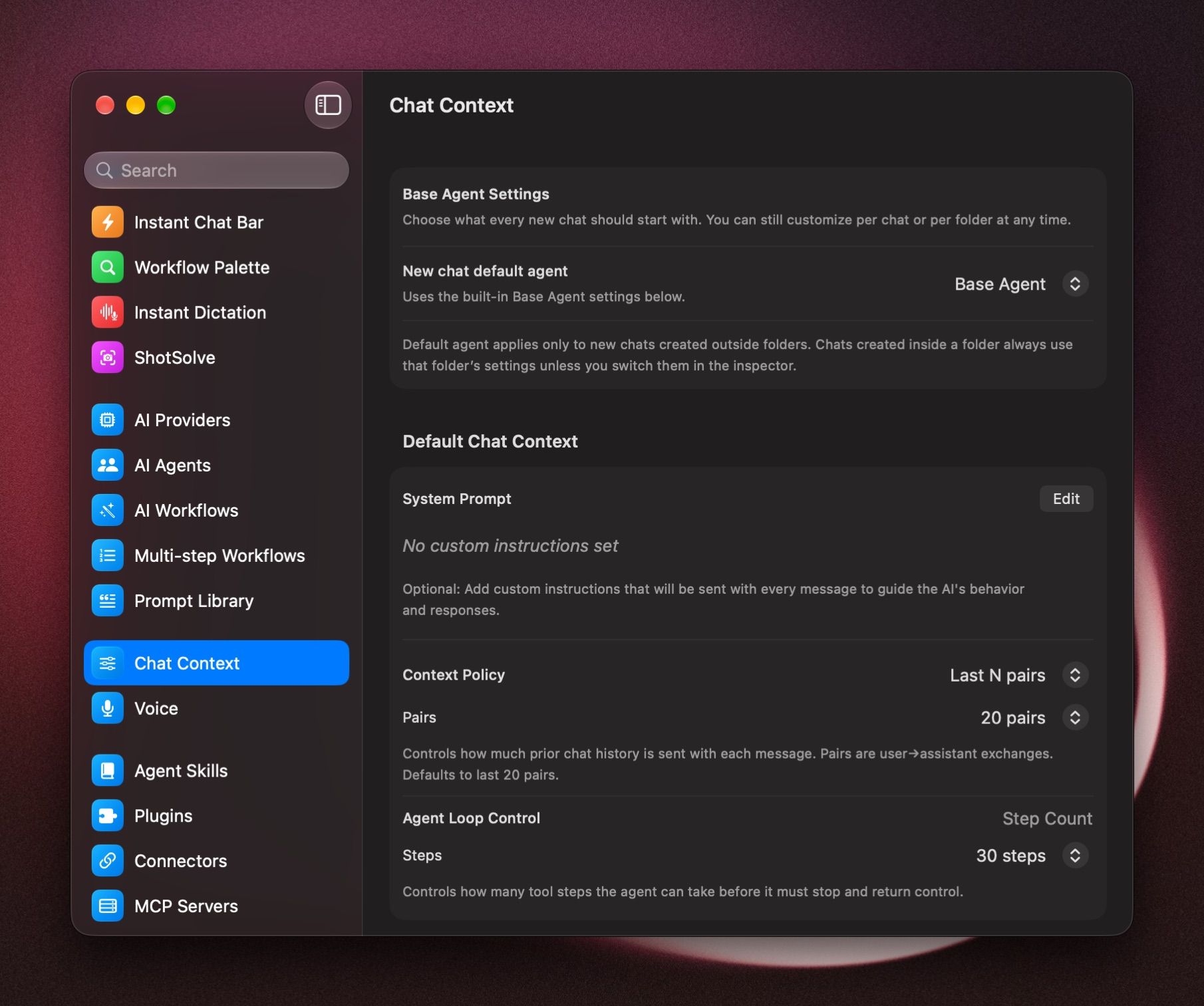
Chats inside a project use the project's settings instead. To change one chat only, use the Inspector (⌘ I).
Use an agent outside chats
- AI Workflows: a workflow can run with an agent's model and instructions. See AI Workflows.
- Projects: a project can start every new chat with an agent. See Projects.
- ShotSolve: choose the agent for screenshot chats in Settings › ShotSolve.
Remove duplicate agents
To remove copies of the same agent, in Settings › AI Agents, open the ⋯ menu, choose Dedupe… and confirm.
Was this helpful?
Still need help? Ask the team