Run BoltAI in the background
Keep BoltAI in the notification area, open it when you sign in, get notified when replies finish, and use global shortcuts and links.
Written By Daniel Nguyen
Keep BoltAI ready while you work in other apps, so its shortcuts and the Instant Chat Bar are always a keypress away.
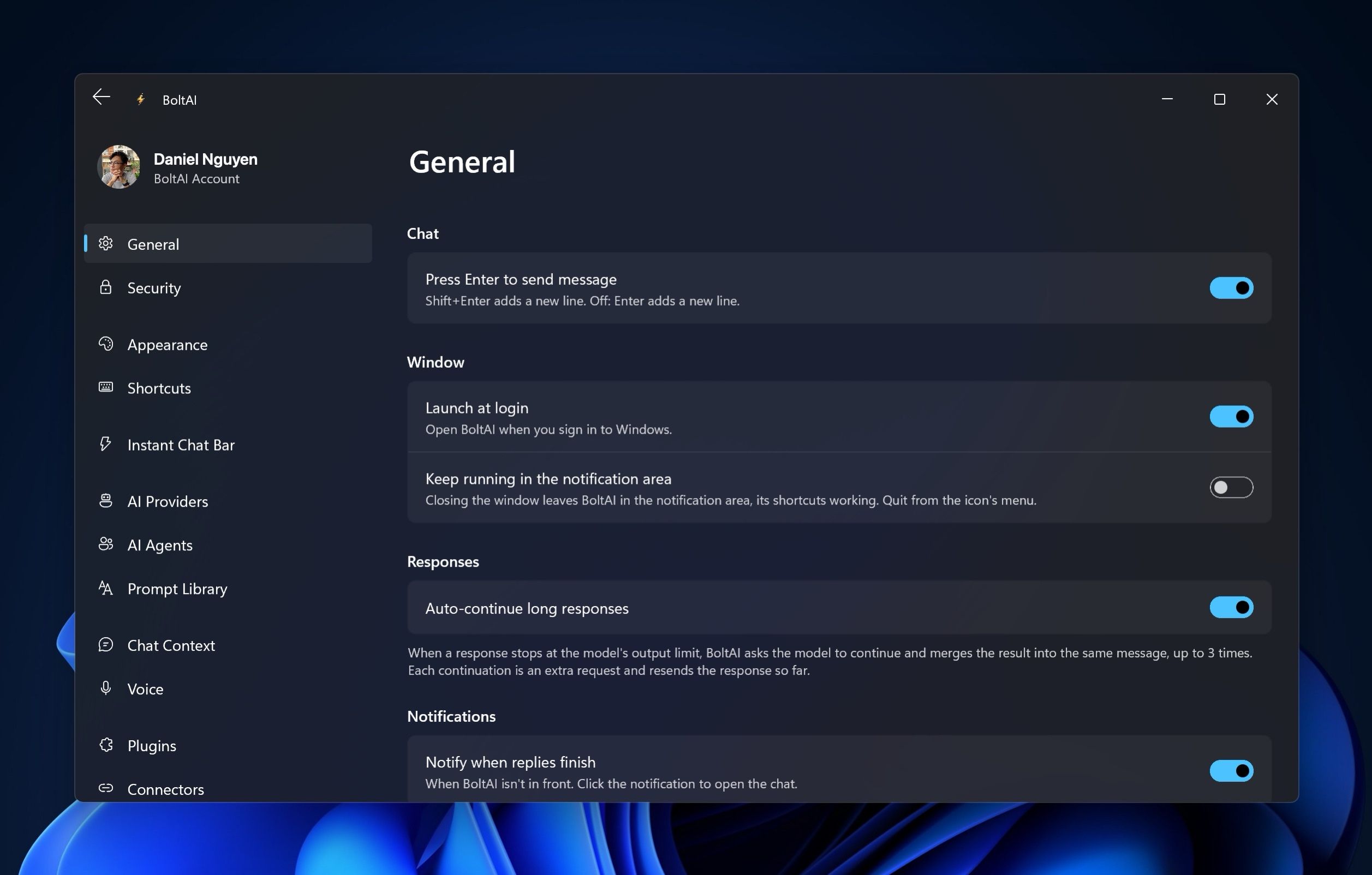
Keep BoltAI running when you close the window
By default, closing the window quits BoltAI. To keep it running:
- Open Settings › General (Ctrl+,).
- Under Window, turn on Keep running in the notification area.
Closing the window then leaves BoltAI in the notification area, and its shortcuts keep working.
Use the notification area icon
The BoltAI icon sits in the notification area at the right end of the taskbar. If you don't see it, click the arrow that shows hidden icons.
- Click the icon to show the BoltAI window.
- Right-click it for Open BoltAI, New Chat, Instant Chat, Settings… and Quit BoltAI.
To quit BoltAI while it runs in the background, right-click the icon and choose Quit BoltAI.
Open BoltAI when you sign in to Windows
- Open Settings › General.
- Under Window, turn on Launch at login.
Get notified when a reply finishes
Notify when replies finish is on by default, in Settings › General under Notifications. When a reply finishes while you're in another app, Windows shows a notification with the chat's title and the start of the reply. Click it to open the chat.
You don't get a notification when BoltAI is in front.
Use global shortcuts
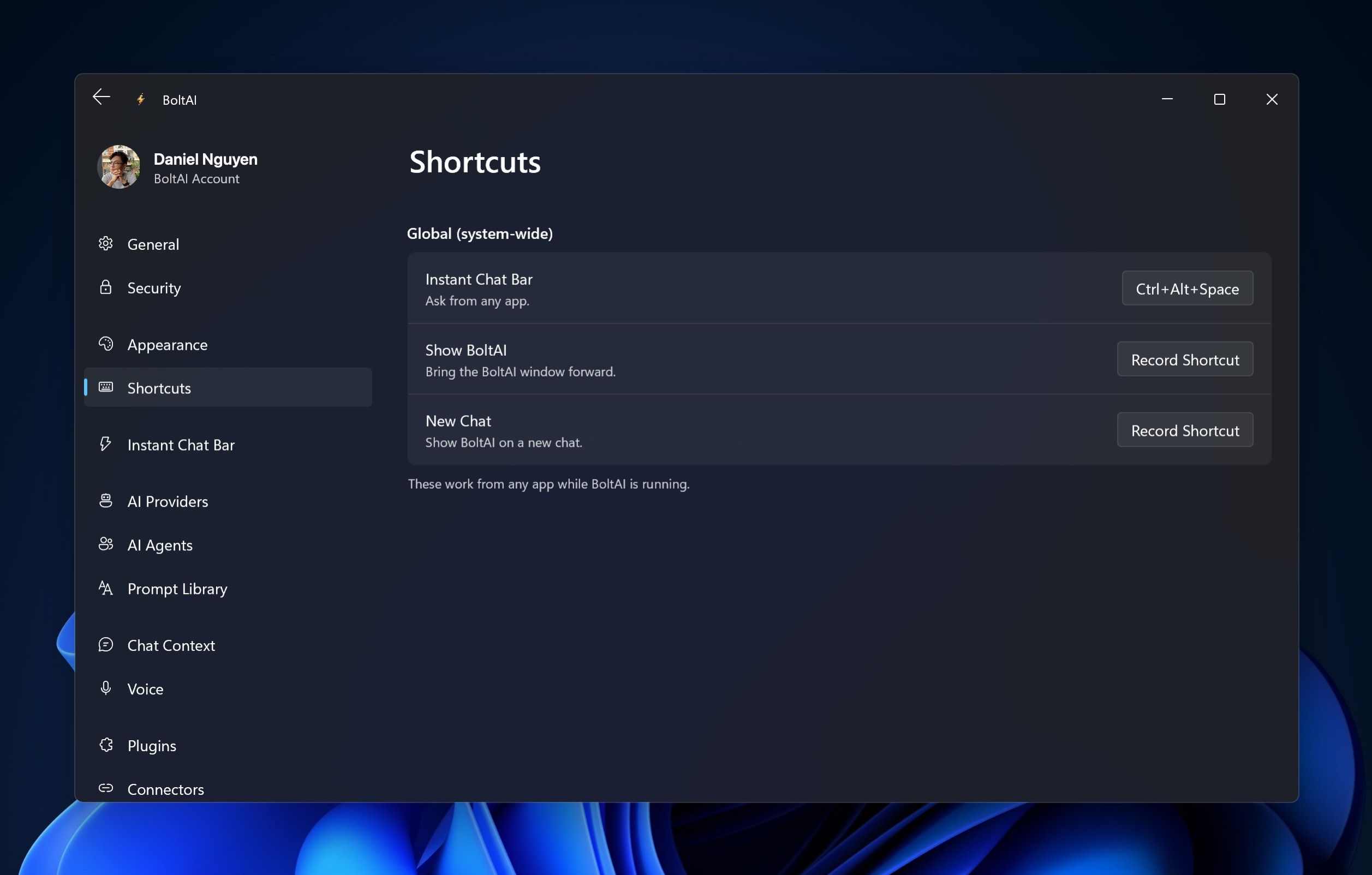
Global shortcuts work from any app while BoltAI is running:
- Instant Chat Bar: Ctrl+Alt+Space. See Instant Chat Bar.
- Show BoltAI: brings the BoltAI window forward. No keys until you set them.
- New Chat: shows BoltAI on a new chat. No keys until you set them.
To set or change one:
- Open Settings › Shortcuts.
- Click the keys next to the shortcut, or Record Shortcut.
- Press the new keys and click Save. To remove a shortcut, click Clear.
A shortcut needs Ctrl, Alt or the Windows key, unless it's a function key such as F9. If you see "Another app uses this shortcut. Choose another.", pick different keys.
Open BoltAI from a link
BoltAI opens bolt:// links from any app, even when its window is closed.
- A chat: right-click the chat in the sidebar and choose Copy Deep Link. See Link to a chat from your notes.
- A new chat: use
bolt://new-chat?message=followed by your text, for examplebolt://new-chat?message=Translate%20to%20French. Add&autosend=trueto send it right away.
These links only work in your own BoltAI.
Was this helpful?
Still need help? Ask the team