Instant Chat Bar
Ask AI a quick question from any app with Ctrl+Alt+Space, without switching to BoltAI.
Written By Daniel Nguyen
The Instant Chat Bar lets you ask a quick question from any app, without switching to BoltAI. Press Ctrl+Alt+Space, type, and press Enter.
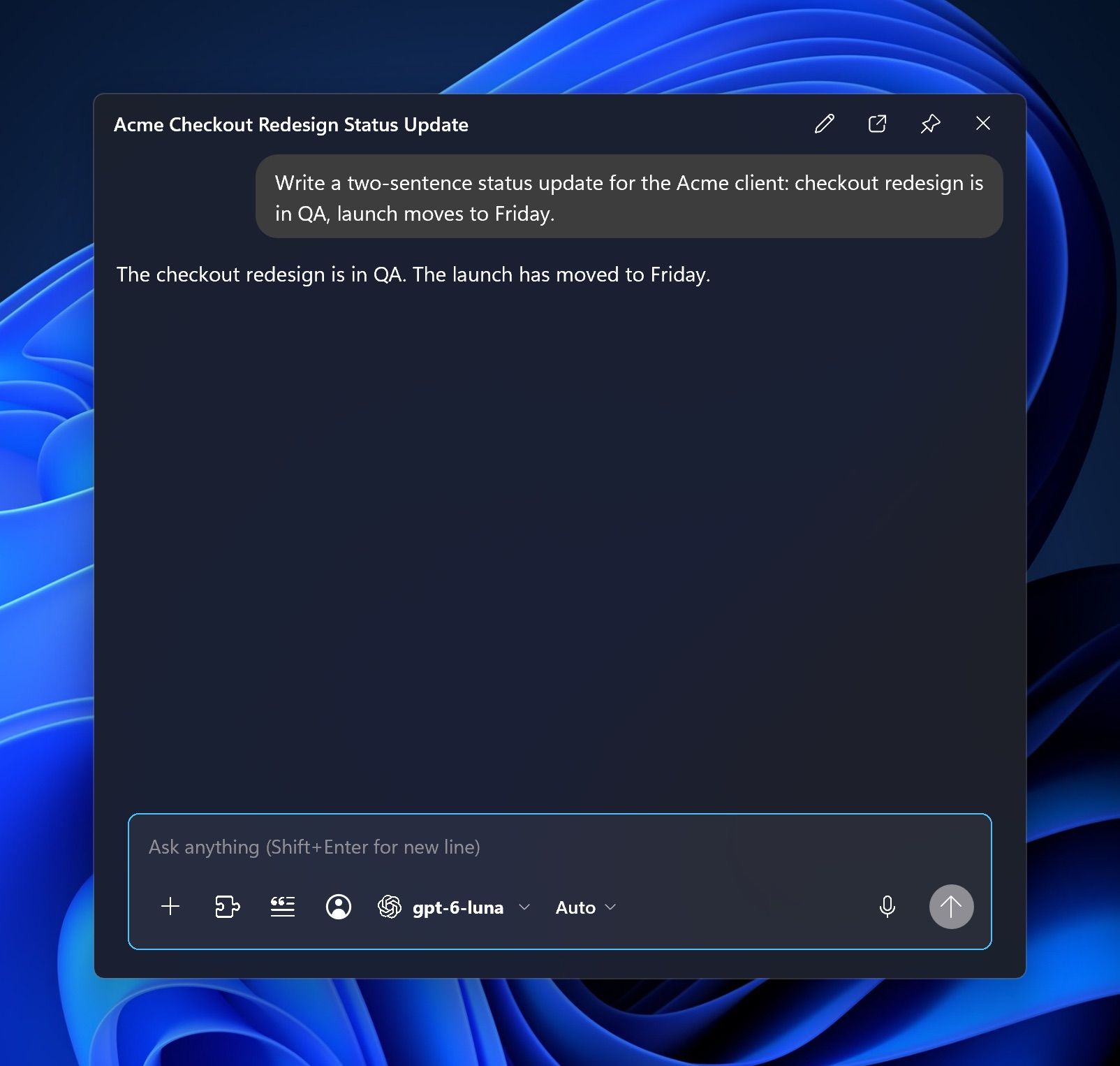
Ask a quick question
- Press Ctrl+Alt+Space in any app. The bar opens above the taskbar.
- Type your question and press Enter.
The bar grows into a small chat with the reply. Type a follow-up the same way.
The bar has the same message box as the main window, so you can change the model, agent and tools. See The message box.
You can also right-click the BoltAI icon in the notification area and choose Instant Chat.
The shortcut works while BoltAI is running. To keep it running after you close the window, see Run BoltAI in the background.
Continue in the main window
The bar's chats are saved with your other chats. To keep going in the main window, click Open in BoltAI at the top of the bar.
To start over in the bar, click New chat or press Ctrl+N.
Hide, pin or move the bar
- Press Esc, or click another window, to hide the bar. Press Ctrl+Alt+Space again to bring it back with the same chat.
- Click Pin to keep the bar open while you work in other windows. Click it again to unpin.
- Drag the bar by its edges, or by the chat's title once it shows a reply.
Attach a screenshot or files
Copy an image or files, then press Ctrl+V in the bar. You can also click + in the message box.
To attach what you copied every time, open Settings › Instant Chat Bar (Ctrl+,) and turn on Auto attach clipboard content. When the bar opens on a new chat, BoltAI attaches the text or image you last copied.
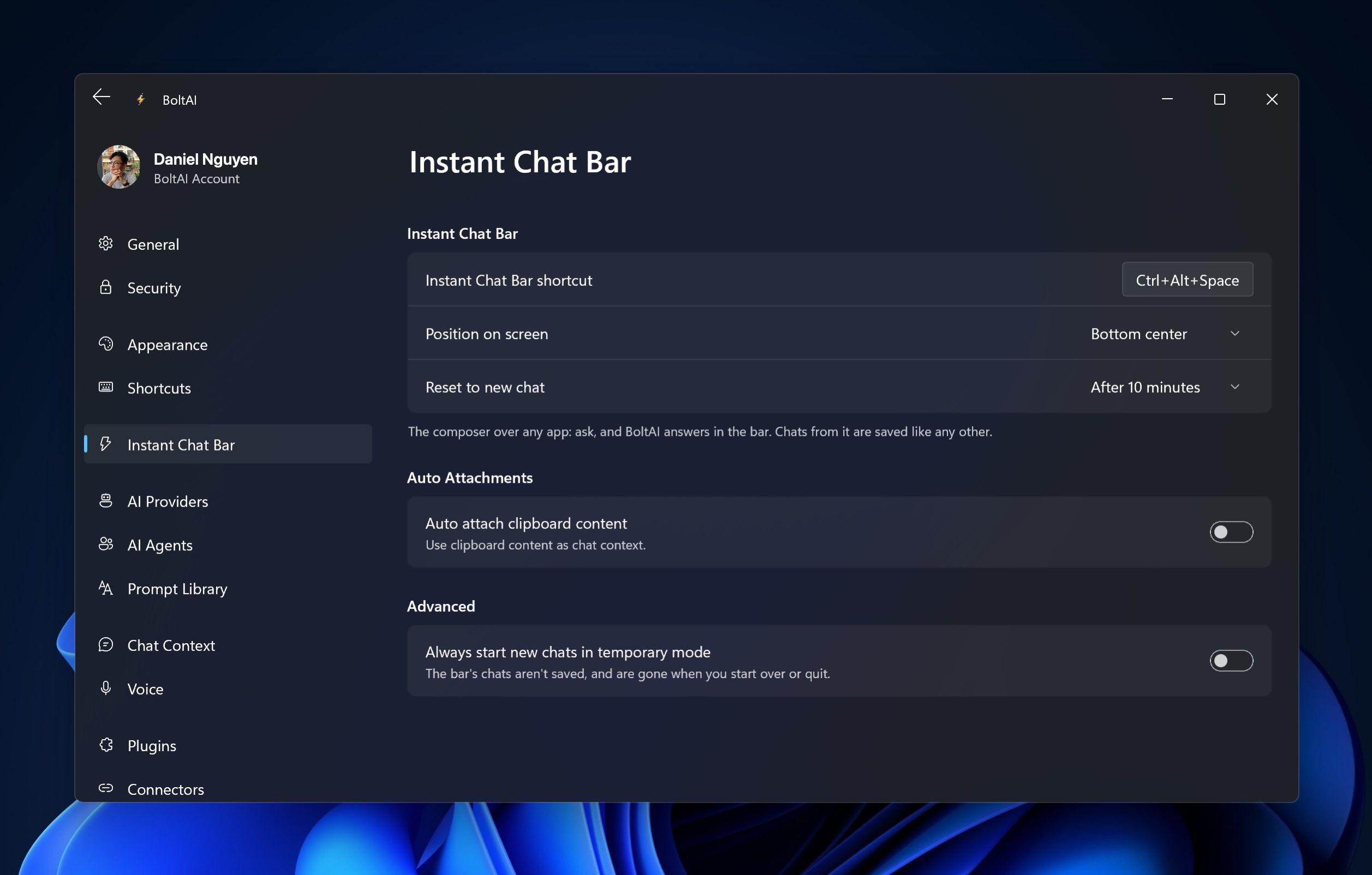
Choose when it starts a new chat
Reset to new chat decides when the bar starts a new chat after you last used it: Immediately, After 10 minutes, After 15 minutes, After 30 minutes or Never.
Make its chats temporary
Turn on Always start new chats in temporary mode. The bar's chats are then not saved, and are gone when you start over or quit BoltAI.
Change the shortcut or position
In Settings › Instant Chat Bar:
- To change the shortcut, click the keys next to Instant Chat Bar shortcut, press the new keys, and click Save.
- Set Position on screen to Bottom left, Bottom center, Bottom right, or Remember last position.
Was this helpful?
Still need help? Ask the team