Privacy and your data
Where your chats are kept and what syncs, how to sync now, share crash reports, clear your history or delete your account.
Written By Daniel Nguyen
This page covers where BoltAI for Windows keeps your chats, what syncs with your account, and how to delete your data.
Your messages
Your messages, and the files you attach, go to the AI provider of the model you pick for the chat, such as OpenAI or Anthropic. That provider's own privacy terms apply. With Ollama or LM Studio, they go to that app instead.
Where your chats are kept
Settings › Account › Chat Storage shows where this account's chats, messages and projects are kept:
- BoltAI Cloud (the default): synced across your devices where you sign in to the same account.
- This Device: only on this PC, not synced.
To switch, see Choose where your chats are kept. Switching doesn't move or delete chats. The chats in the other place are hidden until you switch back.
What syncs, and what stays on this PC
These sync with your BoltAI account:
- Chats, messages, attachments and projects, when Chat Storage is BoltAI Cloud
- AI providers and their API keys
- Agents and prompts
- Connectors
These stay on this PC:
- Chats, messages, attachments and projects, when Chat Storage is This Device
- Local MCP servers in Settings › MCP Servers
- Folders and files you link to a project
- Sign-ins and custom headers for connectors
To encrypt your API keys with a passcode, see Protect your API keys with a passcode.
Sync now
BoltAI syncs your chats as you use it. To get the latest from your other devices right away, click the gear at the bottom of the sidebar and choose Sync Now.
Crash reports
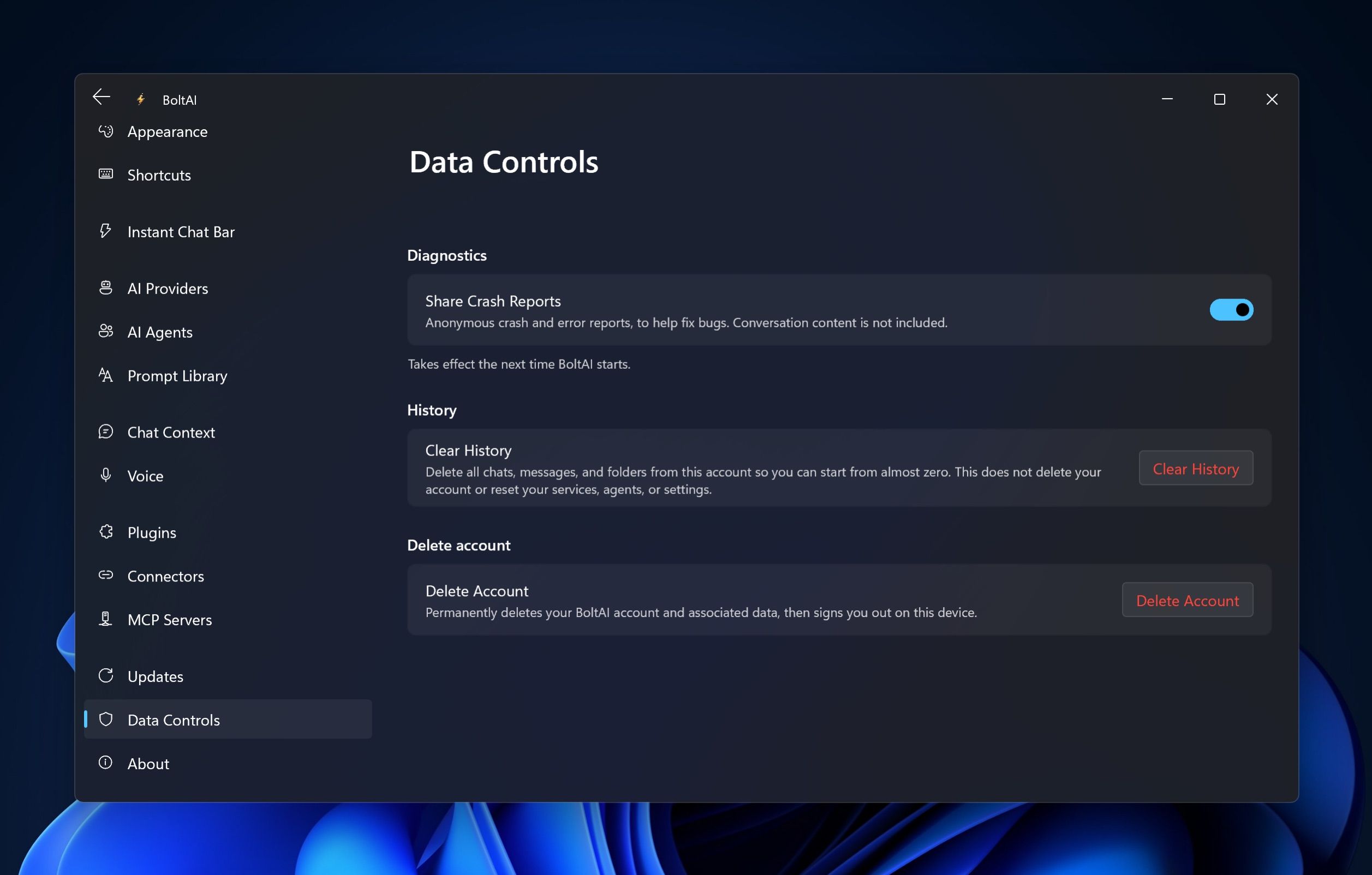
When you first open BoltAI, Help Improve BoltAI asks whether to Share Crash Reports. It's on unless you turn it off, and nothing is sent until you click Continue. In the app, crash reports are described as anonymous crash and error reports that don't include conversation content.
To change it later:
- Open Settings › Data Controls (Ctrl+,).
- Under Diagnostics, turn Share Crash Reports on or off.
- Restart BoltAI. The change takes effect the next time BoltAI starts.
This setting applies to every account that uses BoltAI on this PC.
Clear your chat history
- Open Settings › Data Controls.
- Under History, click Clear History, then Clear.
What it deletes depends on Chat Storage:
- BoltAI Cloud: all chats, messages and projects in your account. Your account, AI providers, agents and settings stay.
- This Device: all chats, messages, attachments and projects on this PC. Chats in BoltAI Cloud stay.
This can't be undone.
Delete chats left in BoltAI Cloud
If you switched Chat Storage to This Device, the chats you kept in BoltAI Cloud before are still there. To delete them, click Delete Chats in BoltAI Cloud in Settings › Data Controls, then Delete. This deletes those chats, attachments and projects on all your devices. Chats on this PC don't change.
Delete your account
- Open Settings › Data Controls.
- Click Delete Account.
- Type confirm and click OK.
This permanently deletes your BoltAI account and its data, including chats kept on this PC, and signs you out. It can't be undone.
Read the privacy policy
Open Settings › About and click Privacy Policy.
Was this helpful?
Still need help? Ask the team