Protect your API keys with a passcode
Encrypt your API keys with a passcode, unlock them on another device, and change, remove or reset the passcode.
Written By Daniel Nguyen
A passcode encrypts the API keys you add to BoltAI. Only you know it.
Set up a passcode
- Open Settings › Security (Ctrl+,).
- Next to Passcode, click Set Up….
- On the next page, click Set Up… next to Passcode Status.
- Type a passcode and click Continue. Type it again and click Confirm Passcode.
- When BoltAI asks Encrypt Existing Keys?, click Encrypt Now.
Keys you add after this are encrypted too.
If BoltAI shows Secure Your API Keys, click Set Up Now to start the same steps, or Remind Me Later.
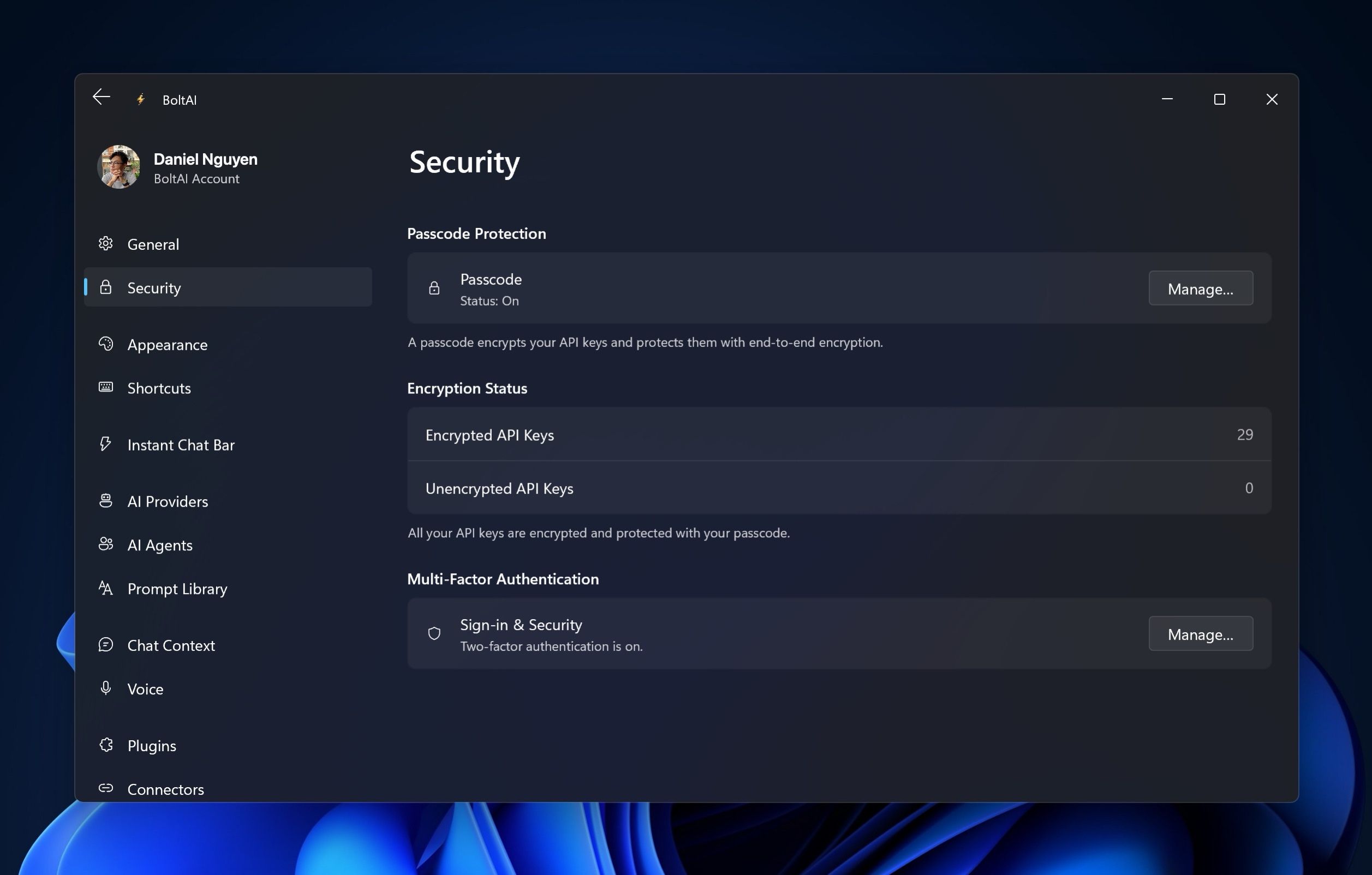
Check which keys are encrypted
In Settings › Security, under Encryption Status, Encrypted API Keys and Unencrypted API Keys show how many keys are in each state. If any key isn't encrypted, click Encrypt….
On a provider's page in Settings › AI Providers, the Encryption row shows whether that key is encrypted.
Unlock your keys on another device
On a device where you haven't entered your passcode yet, your encrypted keys are locked, and Passcode reads Status: Locked. BoltAI asks for your passcode in Unlock API Keys. Type it to unlock them.
You can also unlock in Settings › Security: click Manage… next to Passcode, then Enter Passcode.
Change or remove your passcode
In Settings › Security, click Manage… next to Passcode:
- Change Passcode: click Change…, enter your current passcode, then a new one.
- Remove Passcode: click Remove. This decrypts all your API keys and turns off passcode protection.
If you forgot your passcode
- In Settings › Security, click Manage… next to Passcode.
- Under Recovery, click Reset next to Forgot Passcode.
- Click Reset Security.
This removes passcode protection and permanently deletes your encrypted API keys. They can't be recovered, so add your keys again afterwards in Settings › AI Providers.
Was this helpful?
Still need help? Ask the team