How to import data from BoltAI v1 to v2?
Written By Daniel Nguyen
You can move your BoltAI v1 data to BoltAI v2 by exporting a JSON file from v1, then importing that file into v2.
1. Export your data from BoltAI v1
Open BoltAI v1.
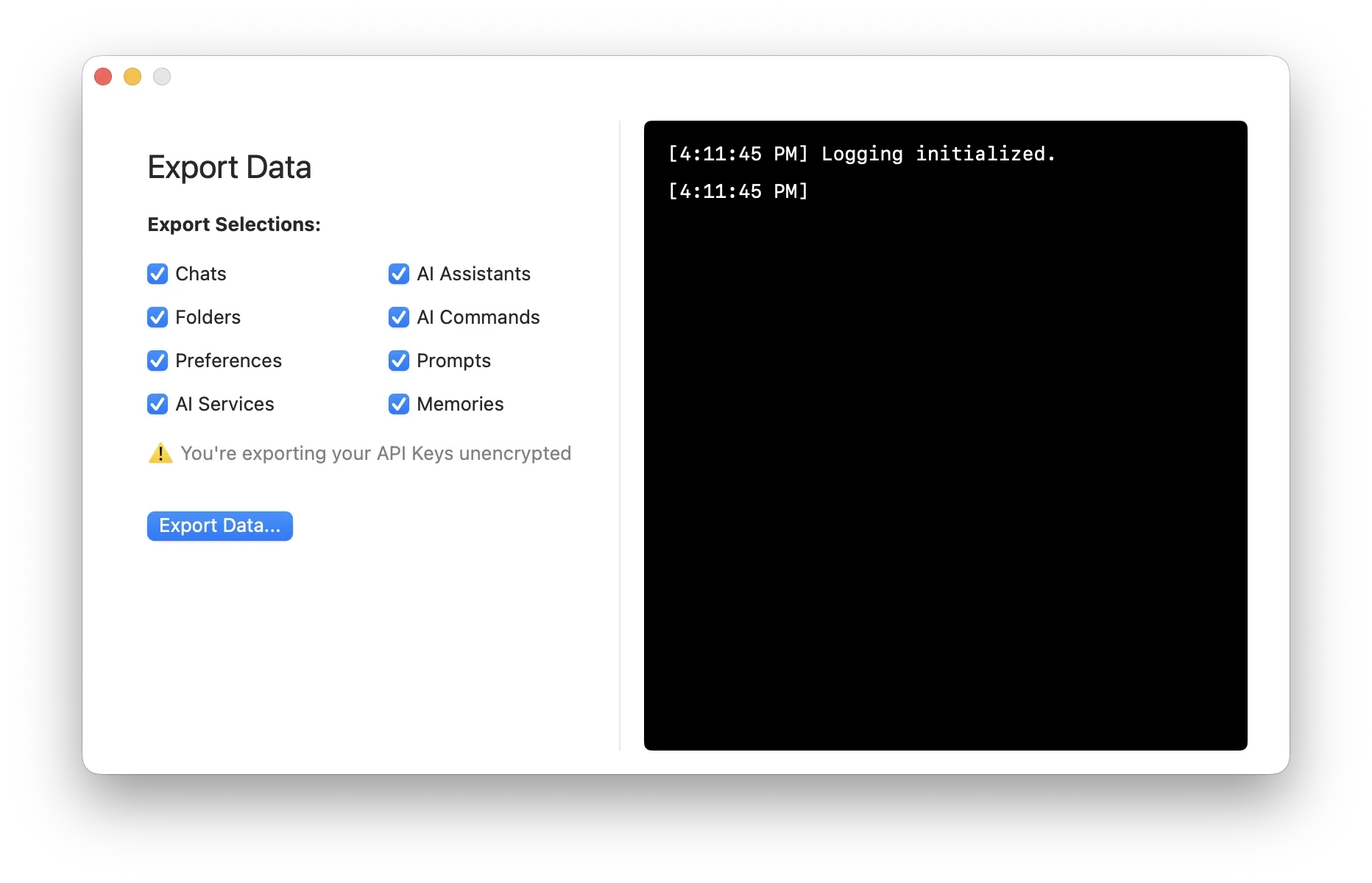
Go to menu File > Export…
Keep the items you want to migrate selected.
Click Export Data... and save the
.jsonfile somewhere easy to find.
Important: If you choose to export API keys, they are included in the export file unencrypted. Keep the file private and delete it after you finish migrating.
2. Import the file into BoltAI v2
Open BoltAI v2.
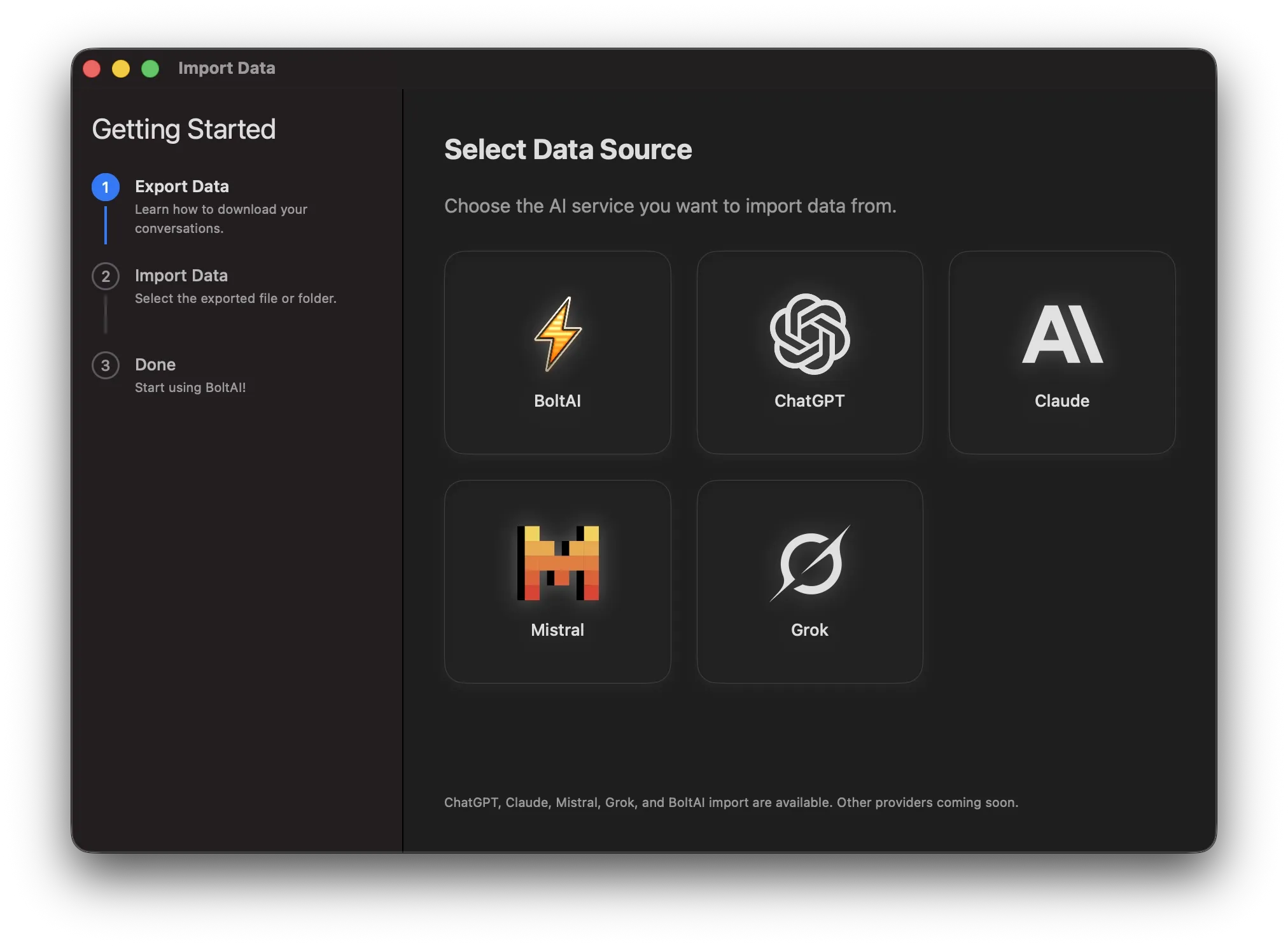
Choose Import Data... from the app menu, or use the import option during onboarding.
Select BoltAI as the import source.
Drag your BoltAI v1
.jsonexport into the import window, or click Browse Files... and select it.Wait for the import to finish.
Your existing BoltAI v2 data will not be deleted.
What gets imported?
BoltAI v2 will import supported data from the v1 export, including:
Chats and messages
Folders/projects
Project instructions
Prompts
AI assistants/agents
AI commands/workflows
Memories
AI services, if included in the export
API keys, only if you chose to export them from v1
After importing
Review your imported chats and projects in BoltAI v2. If you did not import API keys, reconnect your AI providers in Settings before starting new chats.
We recommend keeping BoltAI v1 installed until you confirm that your important data is available in BoltAI v2.
Was this helpful?
Still need help? Ask the team