Default chat settings
Choose the agent, model, tools, instructions and history that every new chat starts with.
Written By Daniel Nguyen
Settings › Chat Context sets what every new chat starts with: an agent, or your own model, tools, instructions and parameters. These are your Base Agent settings, which a chat uses when Default Agent is picked in the message box.
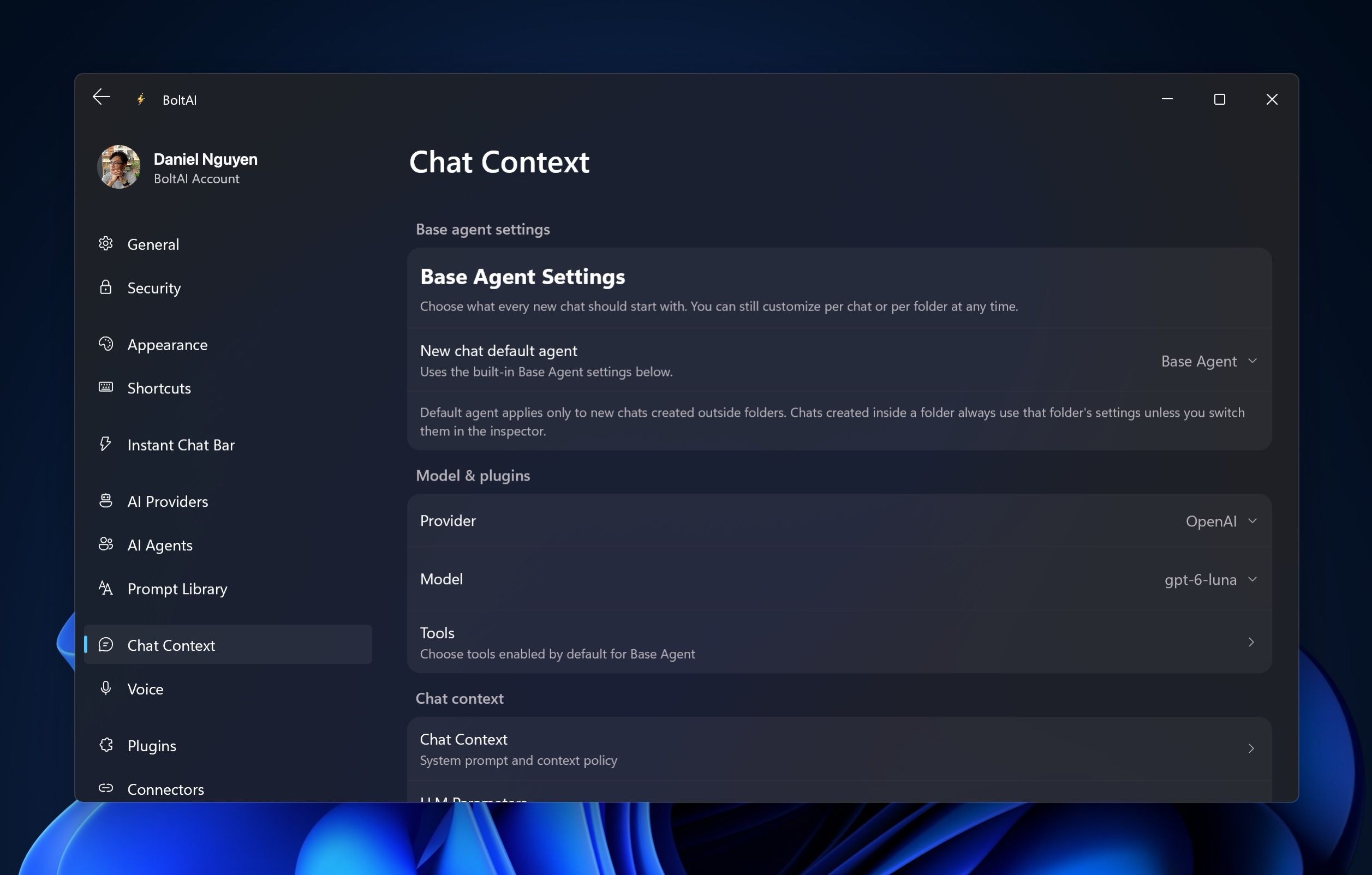
Start every new chat with an agent
- Open Settings › Chat Context.
- Choose an agent in New chat default agent.
- Click Save.
New chats then use that agent's model, tools and instructions. To change them, click Edit "agent name" in Settings.... To go back to your own settings, choose Base Agent.
Choose the model new chats start with
- In Settings › Chat Context, choose the Provider and the Model.
- Click Save.
Choose the tools new chats start with
- In Settings › Chat Context, click Tools.
- Turn Use Tools on or off, then turn on the tools new chats should start with.
Your changes save as you make them. See Tools and web search.
Set instructions and how much history is sent
- In Settings › Chat Context, click Chat Context.
- In System Prompt, write instructions sent with every chat, for example Answer in British English. The default is You are BoltAI, a helpful AI assistant. Answer as concisely as possible.
- Choose a Context Policy, how much of the chat each message sends:
- Last N Pairs: the last few pairs of messages, set in Pairs. The default is the last 8 pairs.
- First N Pairs: the first few pairs.
- All Messages: the whole chat.
- None: only your new message.
- Click Save.
Sending more history helps the AI keep track of a long chat, but uses more tokens.
Fine-tune the model
In Settings › Chat Context, click LLM Parameters to set values such as temperature, then click Save. Most chats work well without changing these.
Where these settings don't apply
- Chats in a project start with the project's settings. See Projects.
- Chats with an agent use that agent's settings. See Agents and prompts.
- One chat only: change it in the Inspector (Ctrl+I). See The Inspector.
Was this helpful?
Still need help? Ask the team