Change how BoltAI looks
Switch between light and dark, pick an accent color, and change the text size, line spacing and chat width.
Written By Daniel Nguyen
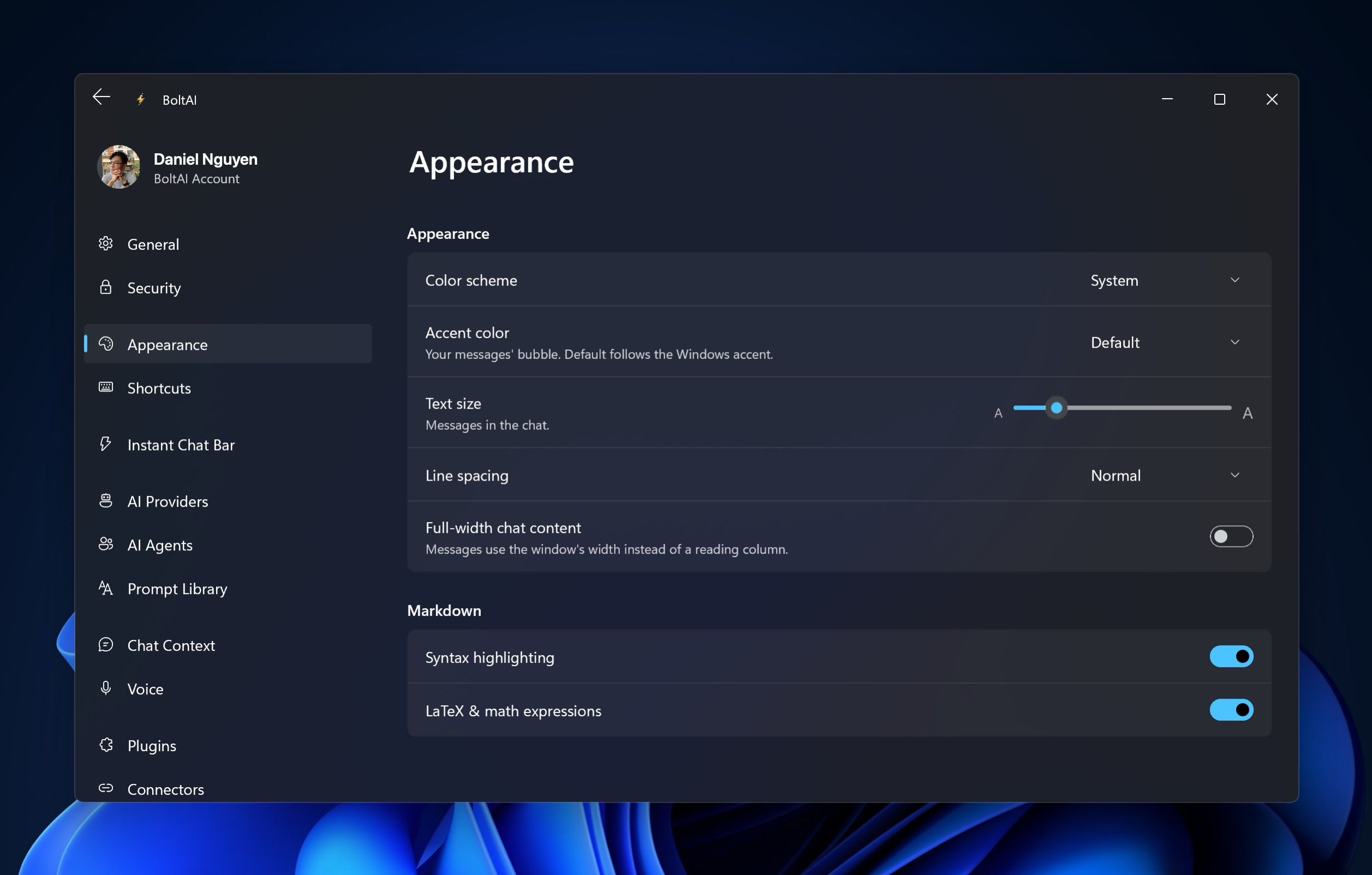
These options are in Settings › Appearance. Press Ctrl+, to open Settings.
Use light or dark mode
Set Color scheme to Light or Dark. System follows your Windows setting.
Change the color of your messages
Accent color sets the color of your message bubbles. Default follows your Windows accent color. You can also pick Blue, Purple, Pink, Red, Orange, Yellow, Green or Black.
Make chats easier to read
- Drag the Text size slider, or press Ctrl+= and Ctrl+- in any chat. Ctrl+0 goes back to the default size.
- Set Line spacing to Tight, Normal or Relaxed.
- Turn on Full-width chat content to use the whole width of the window instead of a narrower reading column.
Code and math
Under Markdown:
- Syntax highlighting colors code in replies.
- LaTeX & math expressions shows math as formatted equations. Turn it off to see the raw text.
Code blocks always have a dark background, in light mode too.
Was this helpful?
Still need help? Ask the team