Projects: organize chats and work with your own files
Group chats in a project, set its instructions, model and plugins, and let the AI search and read files and folders on your Mac.
Written By Daniel Nguyen
A project keeps related chats together and gives them shared settings: instructions, a default model or agent, plugins, and the files the AI can work with. Every chat you start in a project begins with those settings.
This article covers BoltAI 2 for Mac. Linked files and folders are in beta and work on the Mac only.
Create a project
Choose File → New Project..., or press ⇧⌘N.
Enter a name.
Optional: drop files or folders on Linked files & folders, or select Add…. You can also link them later.
Select Create Project.
The project appears under Projects in the sidebar, above Chats.
Add chats to a project
Start a new chat in the project: select the project in the sidebar, then select New Chat. You can also right-click the project and choose New Chat.
Move an existing chat in: drag the chat onto the project, or right-click the chat and choose Move to, then the project.
Move a chat out: right-click the chat and choose Move to → Root Folder, or drag it onto the Chats header.
Moving a chat keeps its model and plugins. From the next message on, the chat uses the new project's instructions, attachments and linked sources.
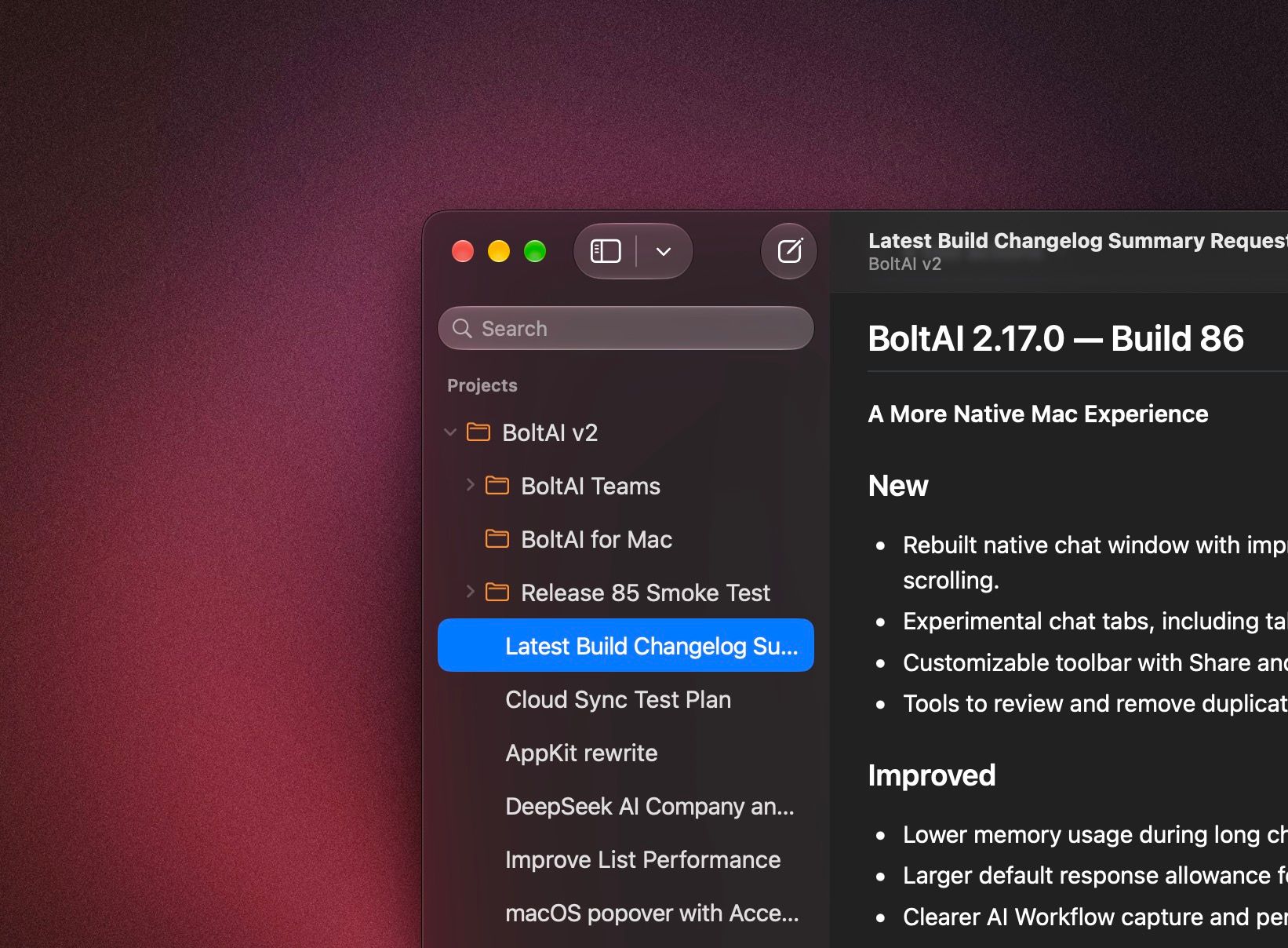
Organize projects
Right-click a project in the sidebar for these actions:
Project settings
Right-click the project and choose Project Settings…, or select Project Settings… on the project page. Changes save as you make them.
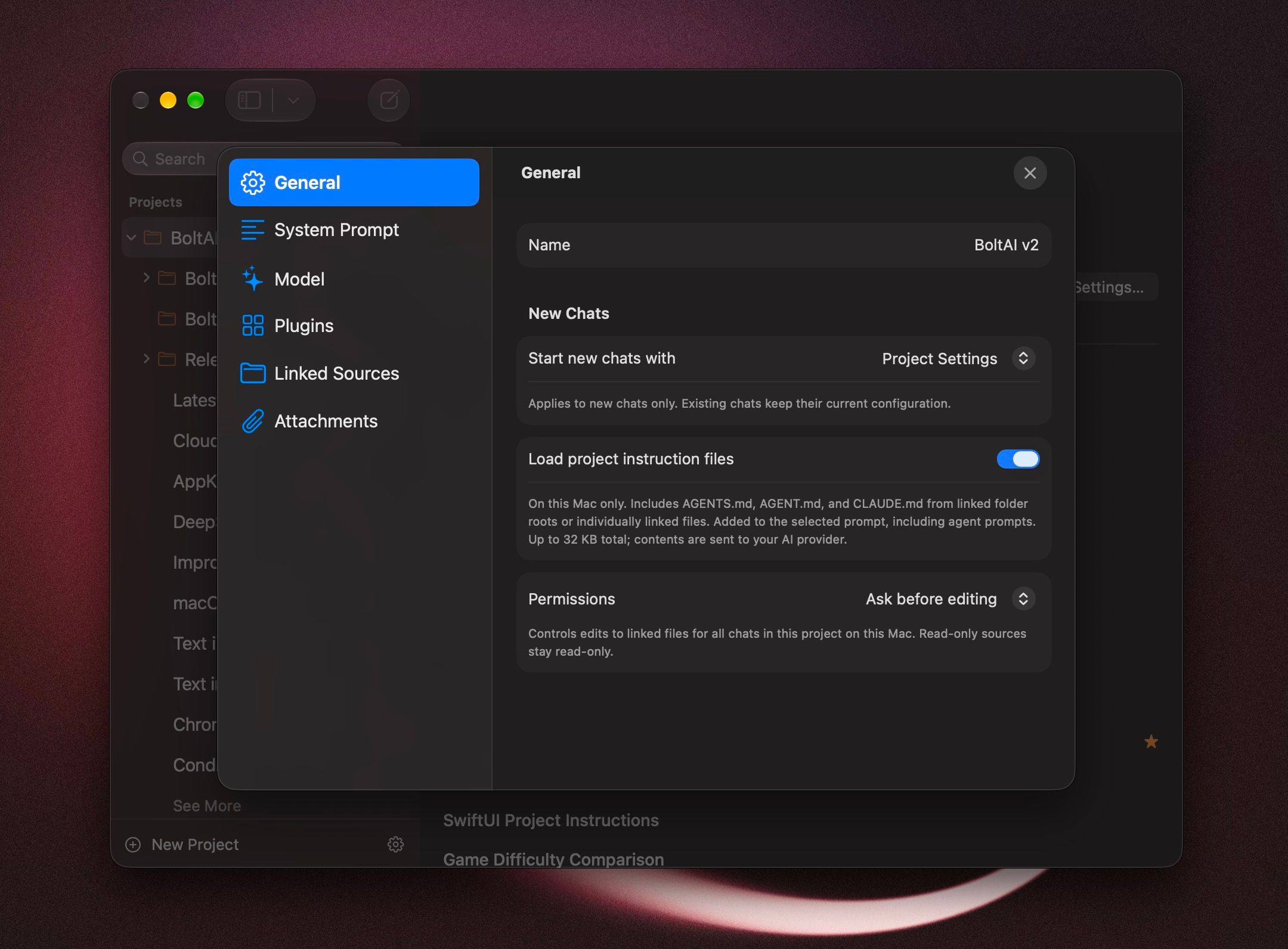
General
Name: the project's name.
Start new chats with: choose Project Settings to use this project's own instructions, model and plugins, or choose an agent. With an agent, new chats use that agent's instructions, model and plugins. The project's sources, attachments and permissions still apply. This affects new chats only.
Load project instruction files: see Instruction files.
Permissions: Ask before editing or Always allow for this project. See Let the AI edit files.
System Prompt
Select Edit… to write instructions for every chat in the project, then Save Changes (⌘S).
In the editor's inspector, Prompt Composition decides what happens when a chat also has its own prompt or uses an agent:
Override: the chat's or agent's prompt replaces the project instructions.
Merge: both are used together.
Step Count sets how many tool steps a chat in this project can take before it stops and hands control back to you.
Model
Choose the Service and Model new chats start with, and the default model parameters. If the project starts chats with an agent, the agent's model is used.
Plugins
Choose which provider plugins, BoltAI plugins and MCP tools new chats in this project start with. Selections that the current model can't use are kept and marked Saved, not used, so they return when you switch to a compatible model.
Linked Sources and Attachments
These are the two ways to give a project your files. The next section explains which to use.
Two ways to give a project your files
Link files and folders
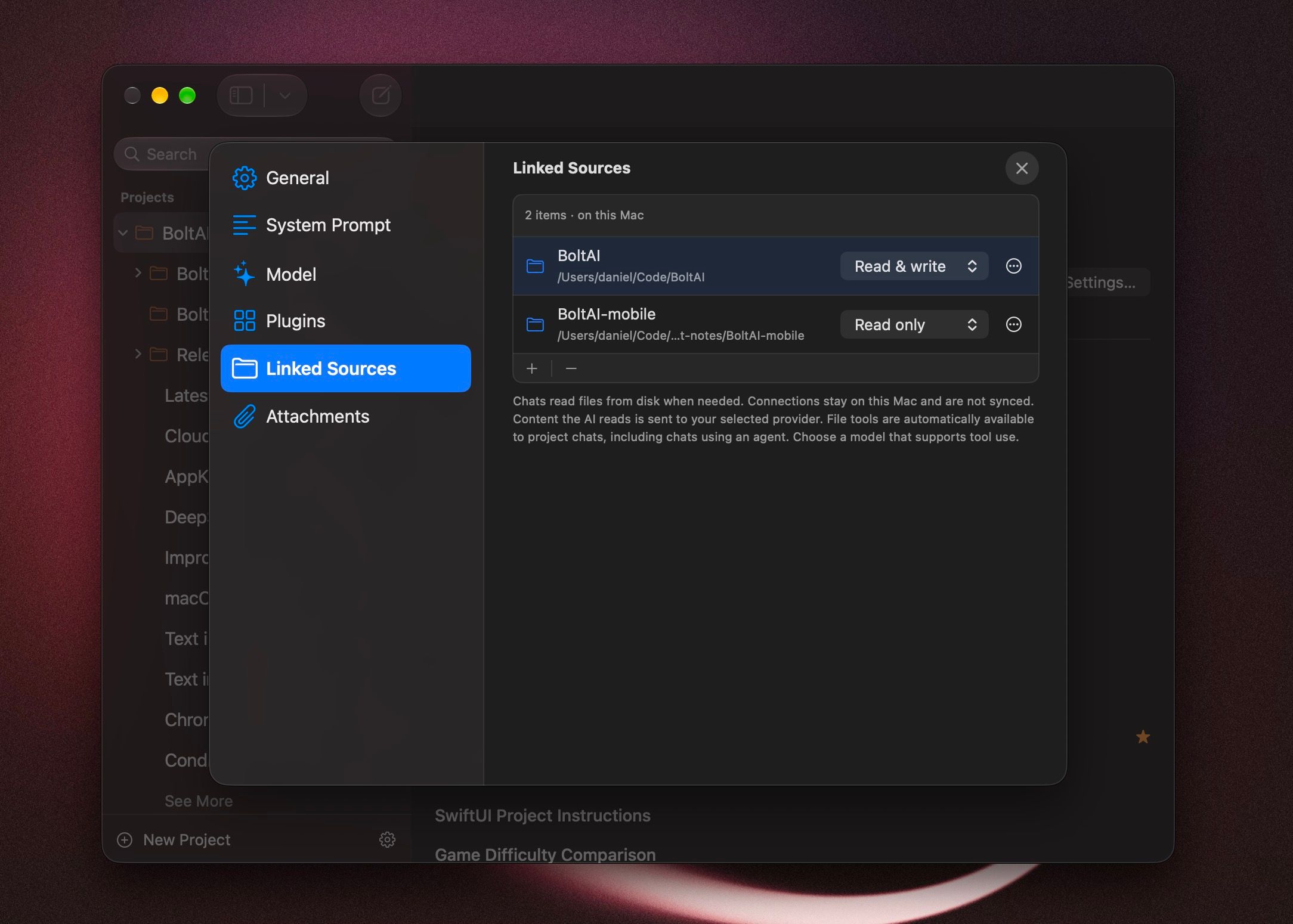
Open Project Settings… → Linked Sources.
Select +, choose the files or folders, then select Link. You can also drag them onto the list.
Start or continue a chat in the project and ask your question.
Nothing is uploaded when you link. The AI reads from disk only when a chat needs a file, and only what it reads is sent to your selected AI provider.
What the AI can do with linked sources
In any chat in the project, the AI can:
List the linked files and folders.
Find files by name or pattern.
Search inside files for words or patterns.
Read a file, in sections if it is long.
Create and edit files, if you allow it.
Ask the way you would ask a colleague who has the folder open: "What did I write about onboarding emails?" or "Find the note with the Q3 pricing and summarize it."
Good to know:
Use a model that supports tool use. The AI reaches your files through tools, so the model has to be able to call them. Apple's on-device models are not supported for linked sources.
Text files only, for now. Linked sources read plain text: notes, Markdown, code, CSV and similar. For PDF, Word and Excel files, add them under Attachments.
Project chats only. Every chat in the project can use the sources, including chats that use an agent. Temporary chats and chats outside the project have no access.
Each project has its own sources. A subfolder does not inherit its parent's sources.
Some files are skipped by default: hidden files, files ignored by Git, and folders such as
.gitandnode_modules.
Let the AI edit files
Each source starts as Read only. To allow changes, set it to Read & write in Linked Sources.
When the AI wants to create or change a file, the chat asks Allow editing files in this project?
Deny cancels the change.
Allow once applies this change.
Always allow file edits in this project, in the menu next to Allow once, stops the question for this project on this Mac. To turn the question back on, set Project Settings… → General → Permissions to Ask before editing.
A Read only source is never changed, whatever you choose here.
Restore a file the AI changed
Open Project Settings… → Linked Sources.
Open the … menu on the source and choose Edit History….
Select Restore next to the version you want.
BoltAI keeps the original contents and the last 20 edits for each source on this Mac. Restore is available while the file still matches BoltAI's latest edit.
Reconnect or remove a source
If you move or rename a linked file or folder, the source shows Unavailable. Select Reconnect… and choose it again. A reconnected source starts as Read only.
To stop access, select the source and select −, then Remove Connection. The file stays on your Mac.
Instruction files
If a linked folder has a file named AGENTS.md, AGENT.md or CLAUDE.md at its top level, BoltAI adds it to the instructions for every chat in the project. This is the same convention coding assistants use, so a folder you already use with one of them works without changes.
This is on by default. To turn it off, open Project Settings… → General and turn off Load project instruction files. Up to 32 KB of instruction files is included, and their contents are sent to your AI provider.
Add attachments
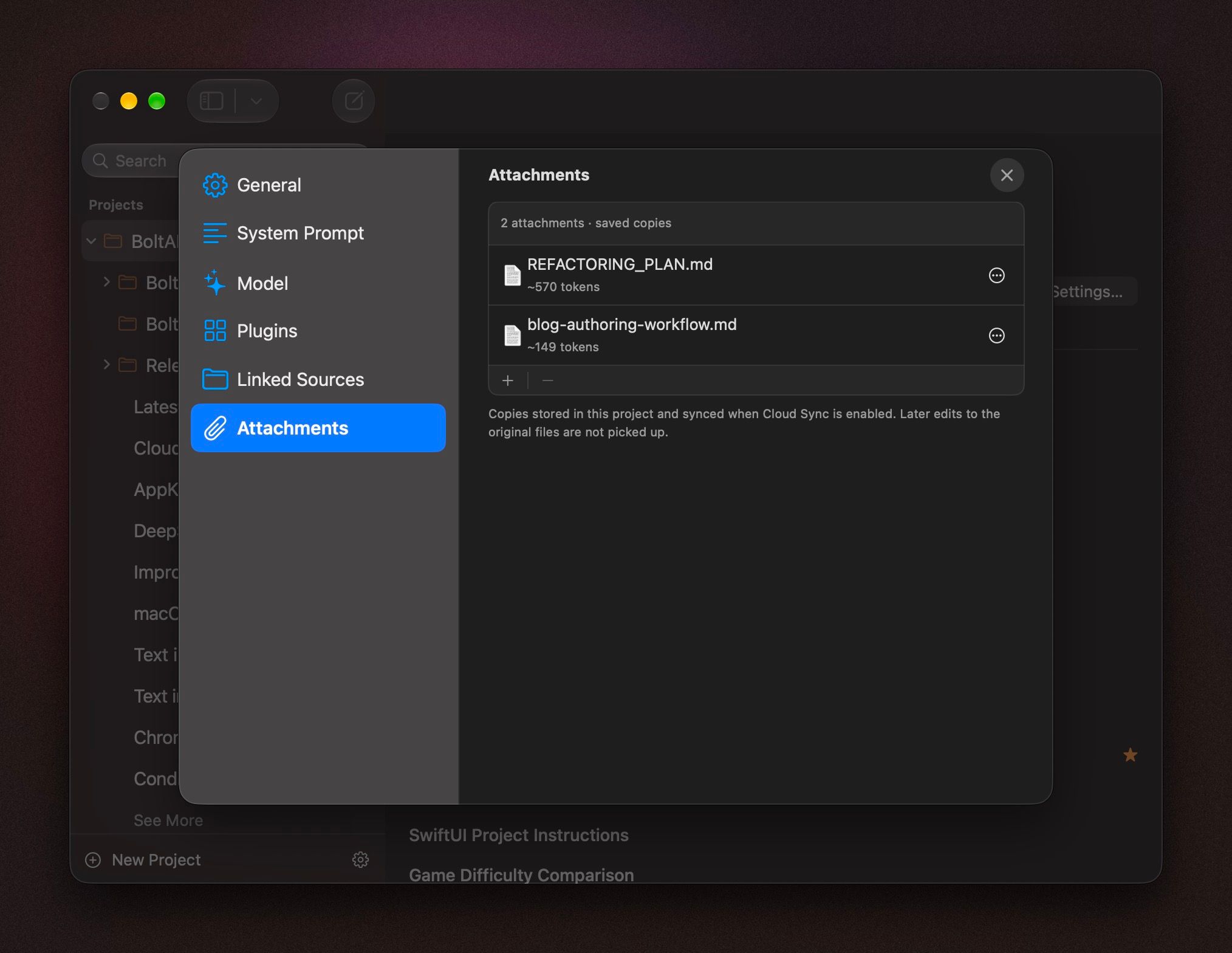
Open Project Settings… → Attachments.
Select + and choose the files, or drag them onto the list.
BoltAI saves a copy in the project and sends every attachment with every message in the project's chats. PDF files go to the model as files when the provider supports that, and as extracted text otherwise.
Because everything is sent every time, attachments suit a few reference documents. Right-click an attachment and choose Estimate Token Count to see how much of the model's context it uses. If you edit the original file later, remove the attachment and add it again.
How project settings apply to a chat
A new chat in a project starts with the project's model and plugins, or with the agent chosen in Start new chats with.
When you send a message, the instructions and parameters come from the first of these that applies:
The agent, if the chat uses one.
The chat's own custom settings, if you changed them.
The project.
Your global defaults.
Attachments, linked sources, instruction files and the edit permission apply to every chat in the project, whichever of these is in effect.
Changing a project's model, plugins or default agent affects new chats. Existing chats keep what they started with.
Delete a project
Right-click the project and choose Delete Folder, then pick one option:
Delete folder, keep chats: removes the project and moves its chats to the top level.
Delete folder and all chats: permanently deletes the project and every chat in it, on all your devices.
Deleting a project cannot be undone.
Linked files and folders stay on your Mac in both cases. Only the connection is removed.
What syncs to your other devices
With Cloud Sync on:
Synced: the project, its subfolders, its chats, instructions, model, default agent, plugin choices and attachments.
This Mac only: linked sources, their Read only or Read & write setting, the edit permission, the instruction files setting and edit history.
A project opened on another device shows its chats and attachments, without the linked files and folders.
Troubleshooting
The AI says it has no access to my files. Check that the chat is inside the project, that the source is listed under Linked Sources without an Unavailable label, and that the selected model supports tool use.
The AI did not find a file I know is there. Ask it to search for a specific word or file name from that document. If the file is a PDF or Office document, add it under Attachments.
The AI says a source is read only. Set the source to Read & write in Project Settings… → Linked Sources.
Why linked sources search instead of indexing
Many "chat with your documents" tools use RAG with a vector index: files are cut into chunks, converted into numbers, and the closest chunks are fetched for each question. BoltAI skips the index. The AI searches your folder and reads the files it needs, the same way coding assistants such as Claude Code, Codex and OpenCode work.
Always current. An index is a snapshot that must be rebuilt whenever files change. Linked sources read the file as it is now.
Nothing to maintain. No indexing to wait for, and no index to drift out of step with your files.
Whole documents, not fragments. The AI reads the section or file around what it found.
Exact matches. Names, codes and figures are found by text search.
The trade-off: answers can take a little longer, and search works on the words in your files, so mention a term you remember if the AI misses something.
Was this helpful?
Still need help? Ask the team