Use BoltAI in Alfred
Ask your AI models, run AI Workflows, start chats and paste prompts from Alfred.
Written By Daniel Nguyen
The BoltAI workflow for Alfred lets you ask a question, run an AI Workflow on selected text, start a chat or paste a saved prompt, straight from Alfred.
You need BoltAI 3.0 or later, and Alfred 5 with the Powerpack.
Install the workflow
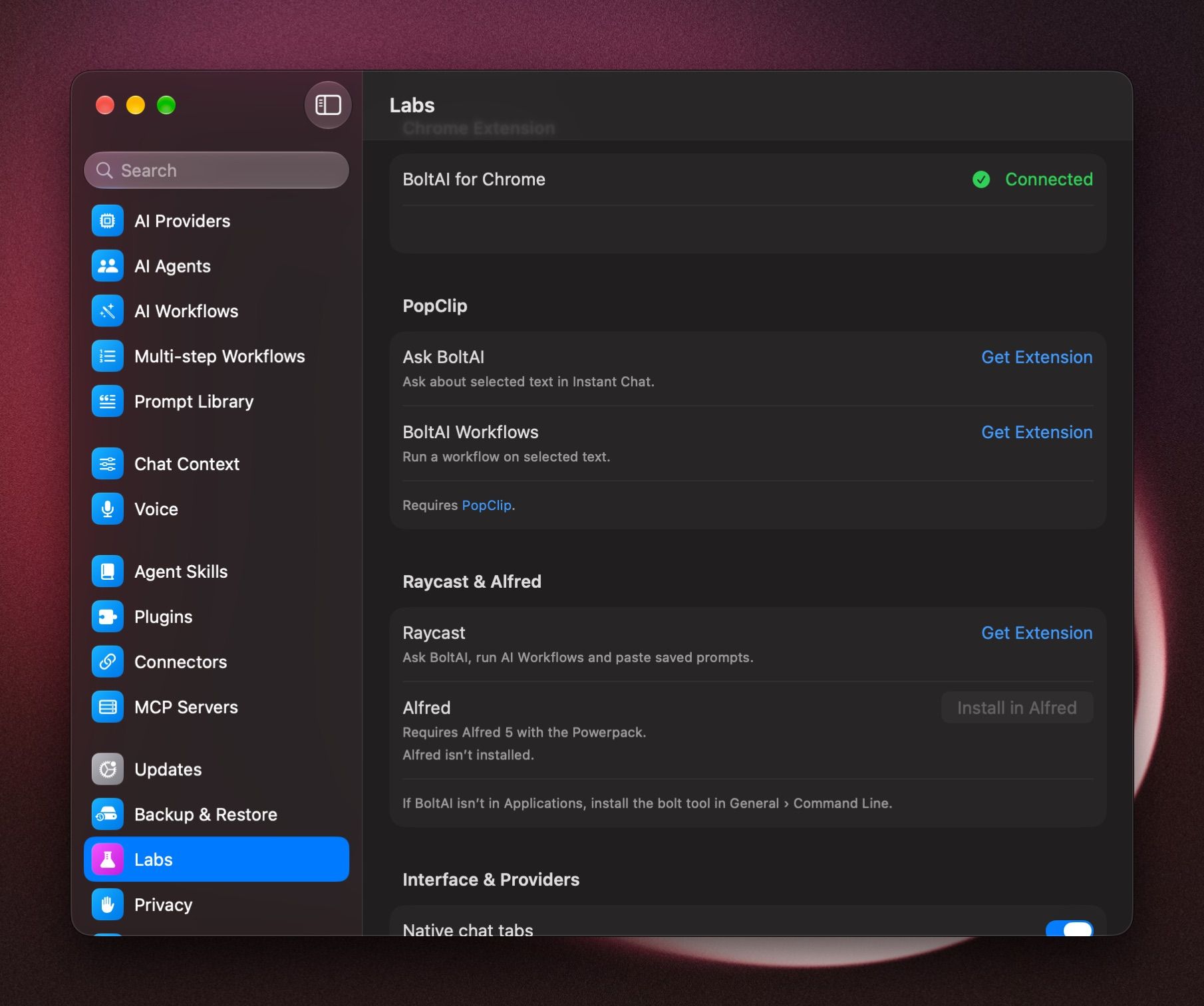
- In BoltAI, open Settings › Labs.
- Under Raycast & Alfred, click Install in Alfred.
- Confirm the import in Alfred.
You can also download it from GitHub and open it. To update, install it again. Alfred keeps your keywords and settings.
What you can do
Run a workflow on selected text
- Select text in any app.
- Open Alfred's Universal Actions and choose Run BoltAI Workflow.
- Pick a workflow.
With the workflow keyword, press Return to paste the result, ⌘ Return to copy it, or ⌥ Return to open the workflow in BoltAI.
See AI Workflows to make your own.
Change the keywords
In Alfred, open the BoltAI workflow and choose Configure Workflow. You can change each keyword, and the path to BoltAI's command-line tool.
Alfred can't find BoltAI
Move BoltAI to your Applications folder, or install the command-line tool in Settings › General › Command Line. See The bolt command-line tool.
Was this helpful?
Still need help? Ask the team