Use BoltAI in Raycast
Ask your AI models, run AI Workflows, start chats and paste prompts from Raycast.
Written By Daniel Nguyen
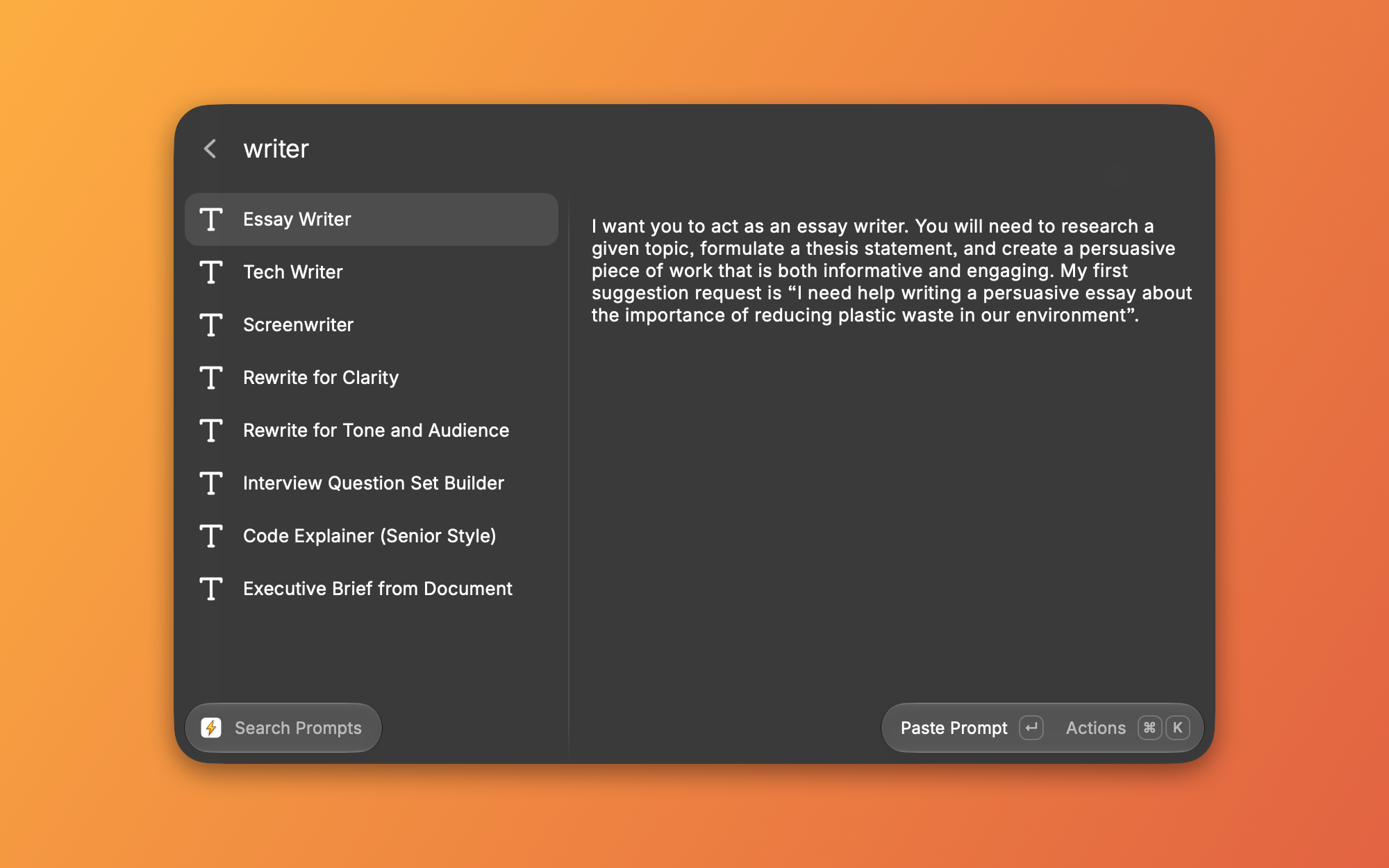
The BoltAI extension for Raycast lets you ask a question, run an AI Workflow on selected text, start a chat or paste a saved prompt, without opening BoltAI. It uses your own providers, models, workflows and prompts.
Install the extension
- In BoltAI, open Settings › Labs.
- Under Raycast & Alfred, click Get Extension next to Raycast. It opens the BoltAI extension in the Raycast Store.
- Install it in Raycast.
You need BoltAI 3.0 or later.
What you can do
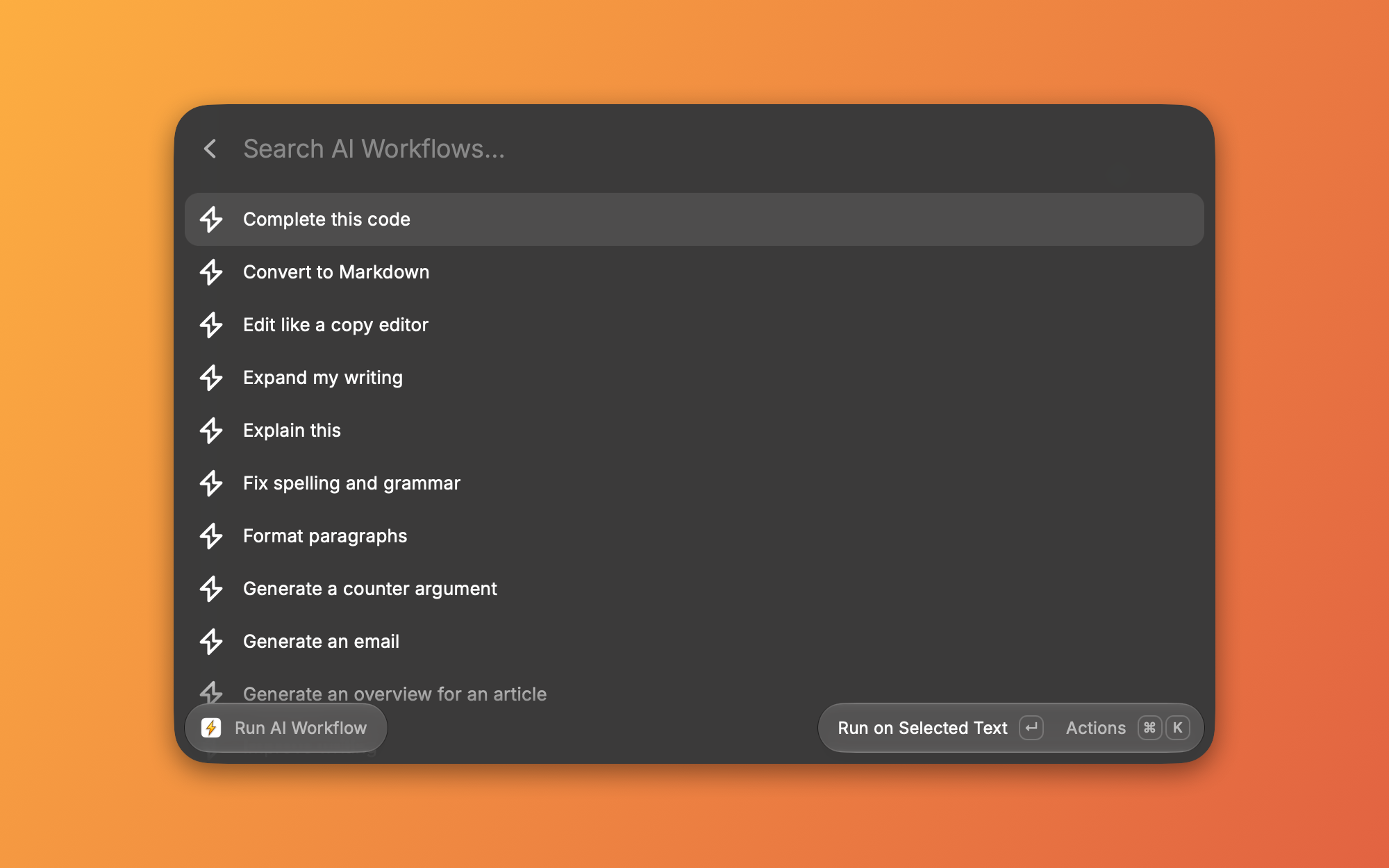
Run a workflow on selected text
- Select text in any app.
- Open Raycast and choose Run AI Workflow.
- Pick a workflow and press Return to run it on the selection.
To use the clipboard instead, press ⌘ ⇧ V. To type the text yourself, press ⌘ T. To open the workflow in BoltAI, press ⌘ E.
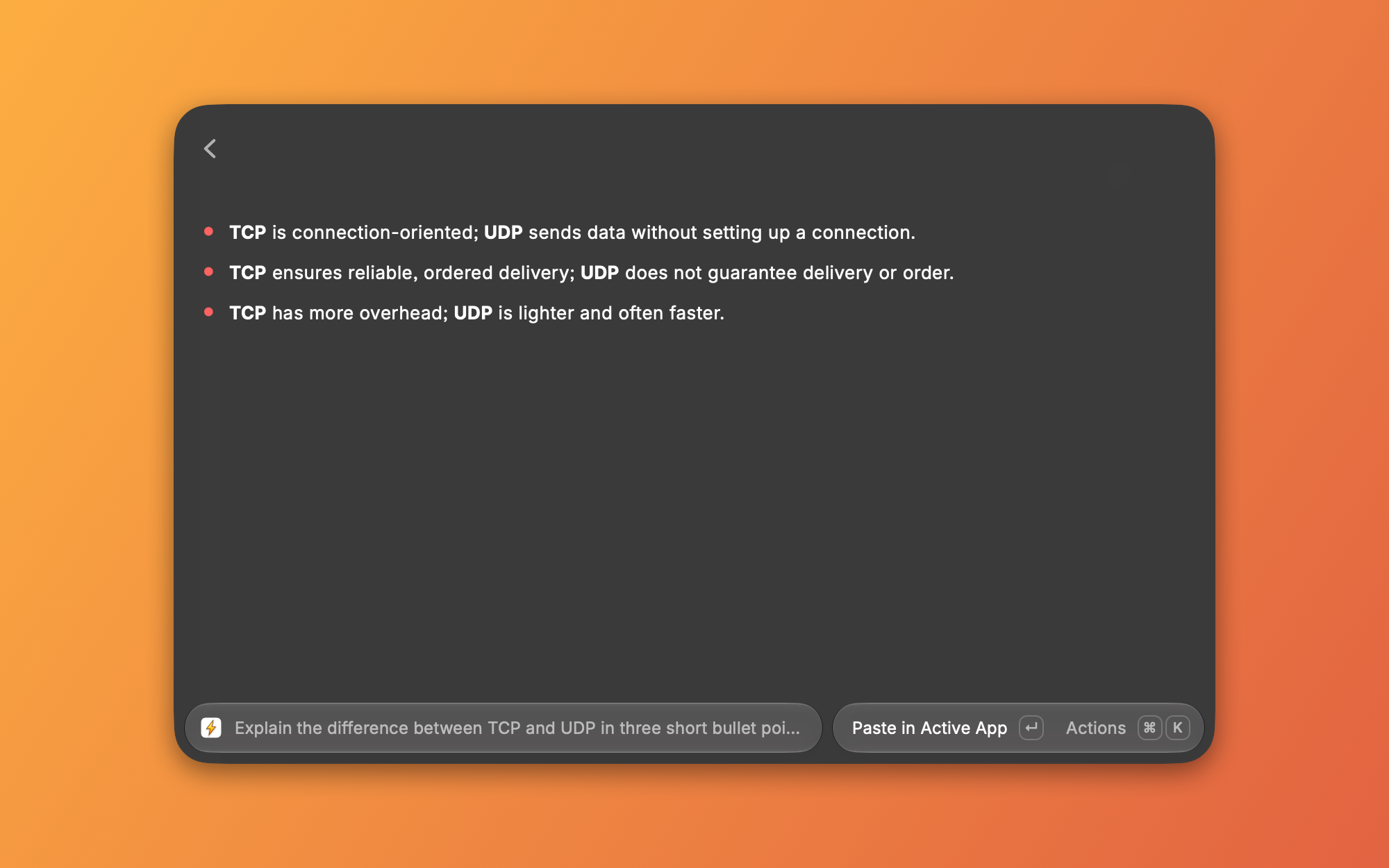
See AI Workflows to make your own.
Raycast can't find BoltAI
Move BoltAI to your Applications folder, or install the command-line tool in Settings › General › Command Line.
If BoltAI is somewhere else, open the extension's preferences in Raycast and set Bolt Path. See The bolt command-line tool.
Was this helpful?
Still need help? Ask the team