Tools and web search
Let the AI search the web, read pages, make images, run code and remember things, and set up the search services it uses.
Written By Daniel Nguyen
Tools let the AI search the web, read a web page, make images, run code or remember things about you. You choose which tools each chat can use.
Choose tools for a chat
- Click the Tools button in the message box.
- Turn on the tools the AI may use. Type in Search tools to find one.
The switch at the top turns all tools on or off for this chat.
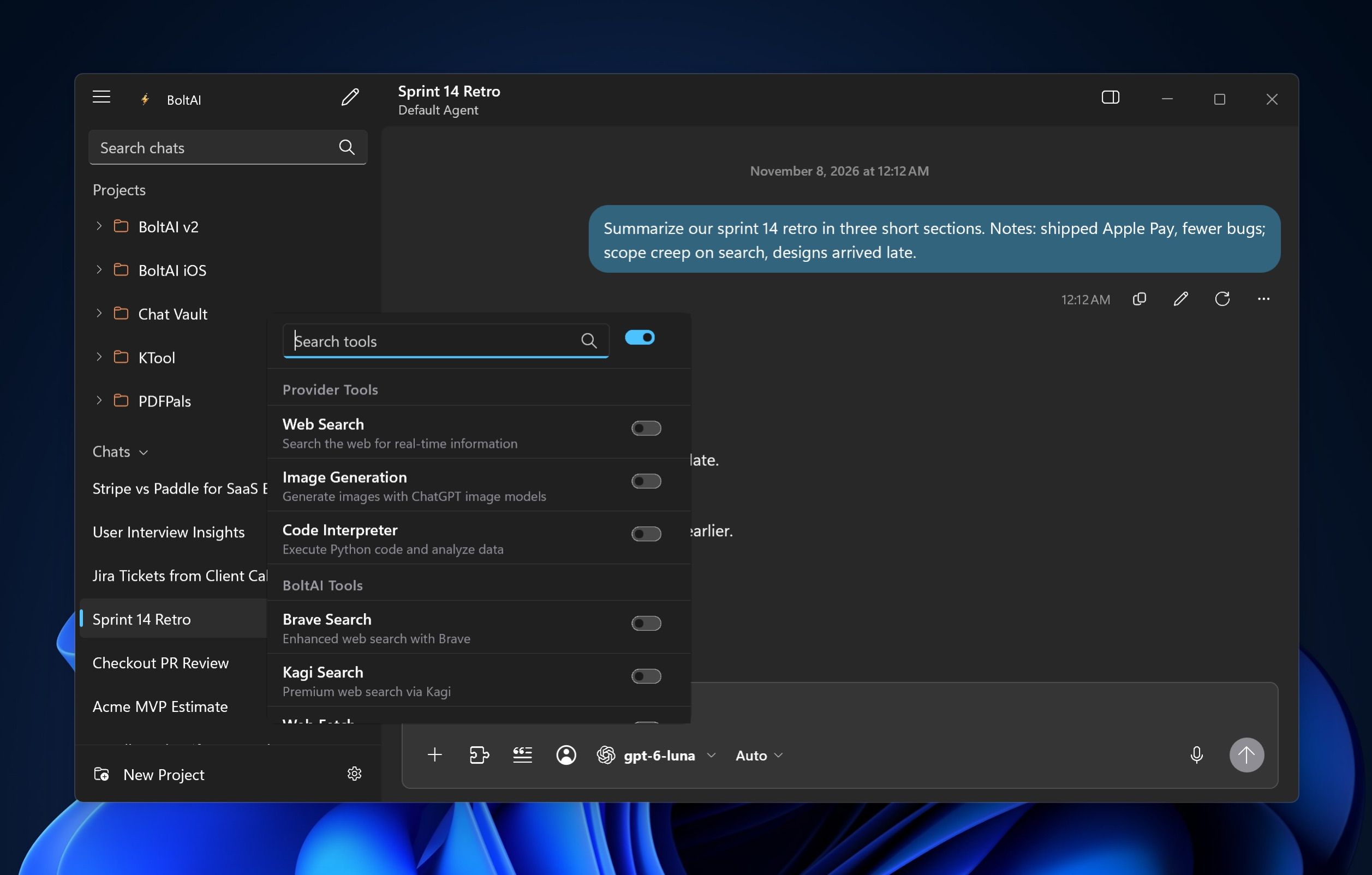
The tools come in three groups:
- Provider Tools are built into the provider of the chat's model. They change when you switch to a model from another provider.
- BoltAI Tools work with any provider: Web Fetch, Memory, and the search services you set up.
- Connectors are tools from your connectors and MCP servers. See MCP servers and connectors.
Search the web
- In the Tools menu, turn on one search tool:
- Web Search (or Search with Google AI) under Provider Tools, if the chat's provider has it.
- Brave Search, Kagi Search, Perplexity Search or You.com Search under BoltAI Tools, once you've added its API key (below).
- Ask your question, for example What changed in the latest Windows 11 update?
Click Sources › under the reply to see the pages it used.
Read a web page
Turn on Web Fetch, paste a link in your message, and ask about it, for example Summarize this article.
Make an image
- Pick a model from OpenAI, Google AI, xAI or MiniMax.
- Turn on Image Generation in the Tools menu.
- Describe the image you want.
To change options such as image size or quality, open Settings › Plugins and click the provider under Native Provider Tools.
Add a search service
- Open Settings › Plugins.
- Under BoltAI Tools, click the service.
- Enter its API Key and click Save. BoltAI checks the key before it saves it.
- Turn the service on in a chat's Tools menu.
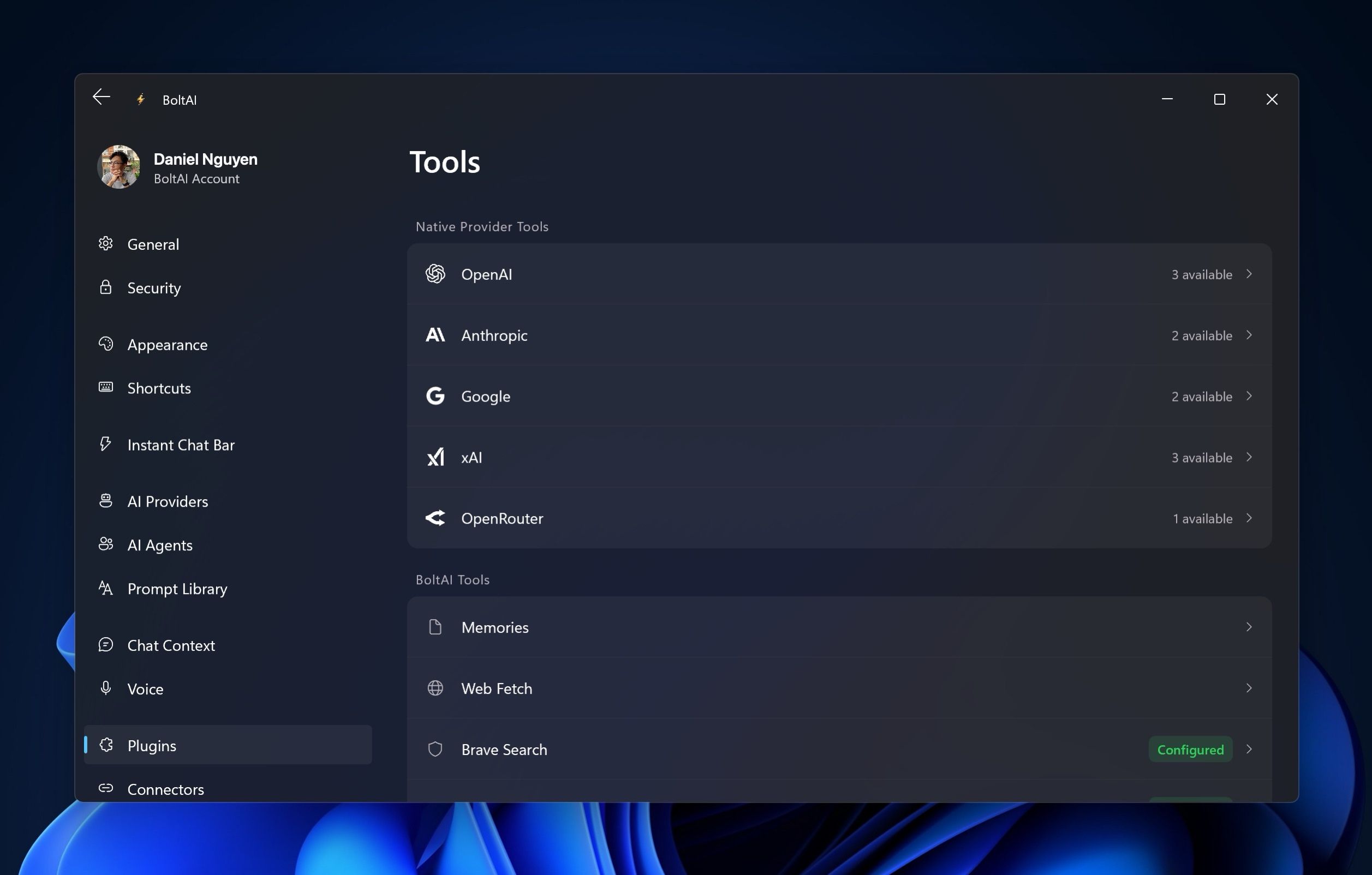
The service shows Configured once it's ready.
To remove a service's key, click the service and click Remove next to Remove Configuration.
Memory
Turn on Memory in the Tools menu, and BoltAI can remember facts about you for later chats, such as your job or how you like answers. Tell it what to remember, for example Remember that I'm a teacher and prefer short answers. It also saves useful facts on its own while you chat.
Temporary chats don't use or save memories.
View, edit or delete memories
- Open Settings › Plugins and click Memories.
- In Memory Manager, search for a memory, then click it to edit it, or right-click it and choose Delete.
Start every new chat with the same tools
Choose the tools in Settings › Chat Context, under Tools. See Default chat settings.
Projects and agents can have their own tools. See Projects and Agents and prompts.
Was this helpful?
Still need help? Ask the team