Add an AI provider
Connect OpenAI, Anthropic, Google AI, OpenRouter or another provider with your API key, and change or remove it later.
Written By Daniel Nguyen
An AI provider is the service BoltAI sends your messages to, such as OpenAI, Anthropic or Google AI. To chat, add at least one provider with your own API key, or use models on your PC with Ollama or LM Studio.
Add a provider
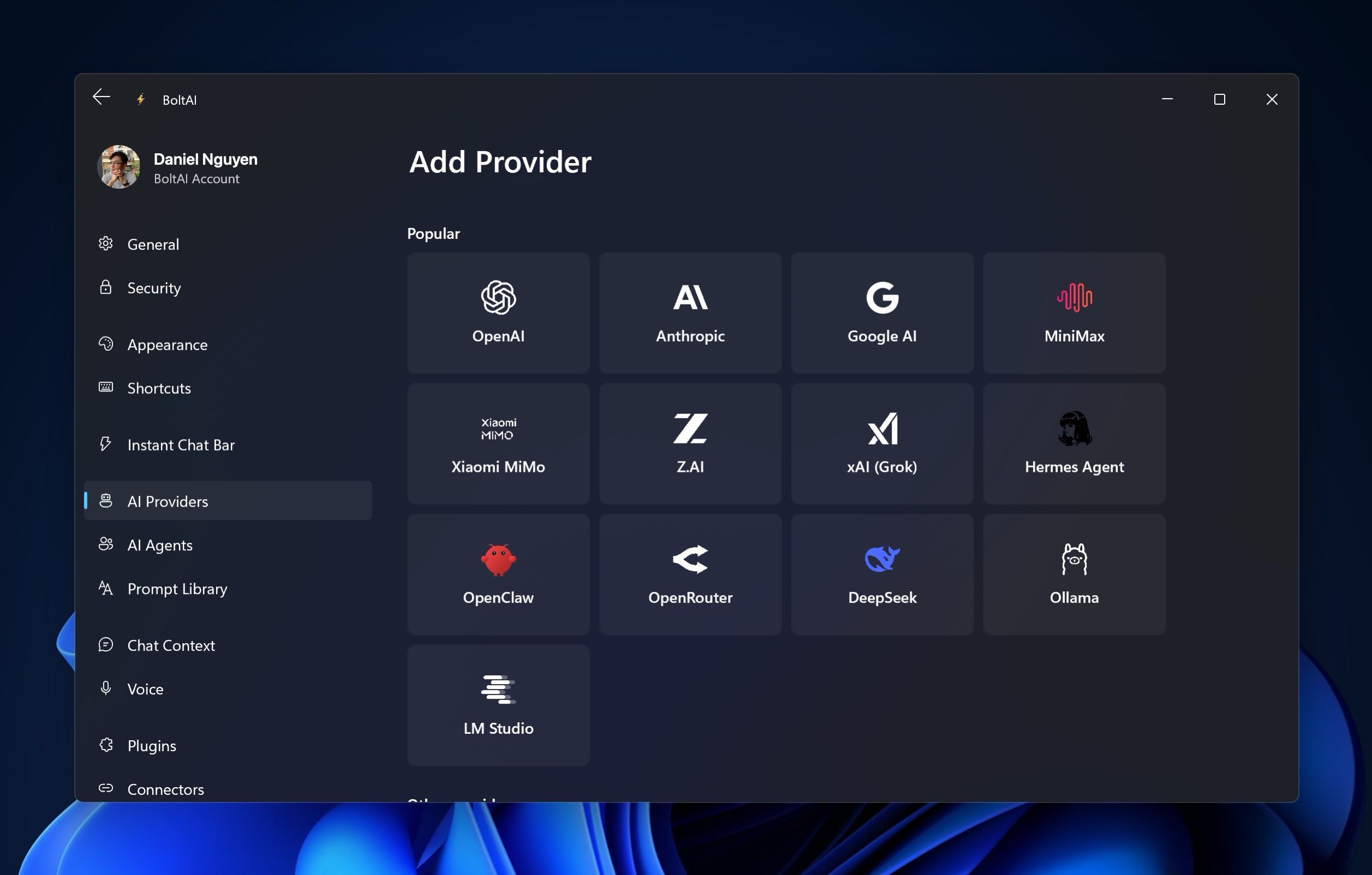
- Open Settings › AI Providers (Ctrl+,) and click Add provider.
- Click a provider under Popular or Other providers.
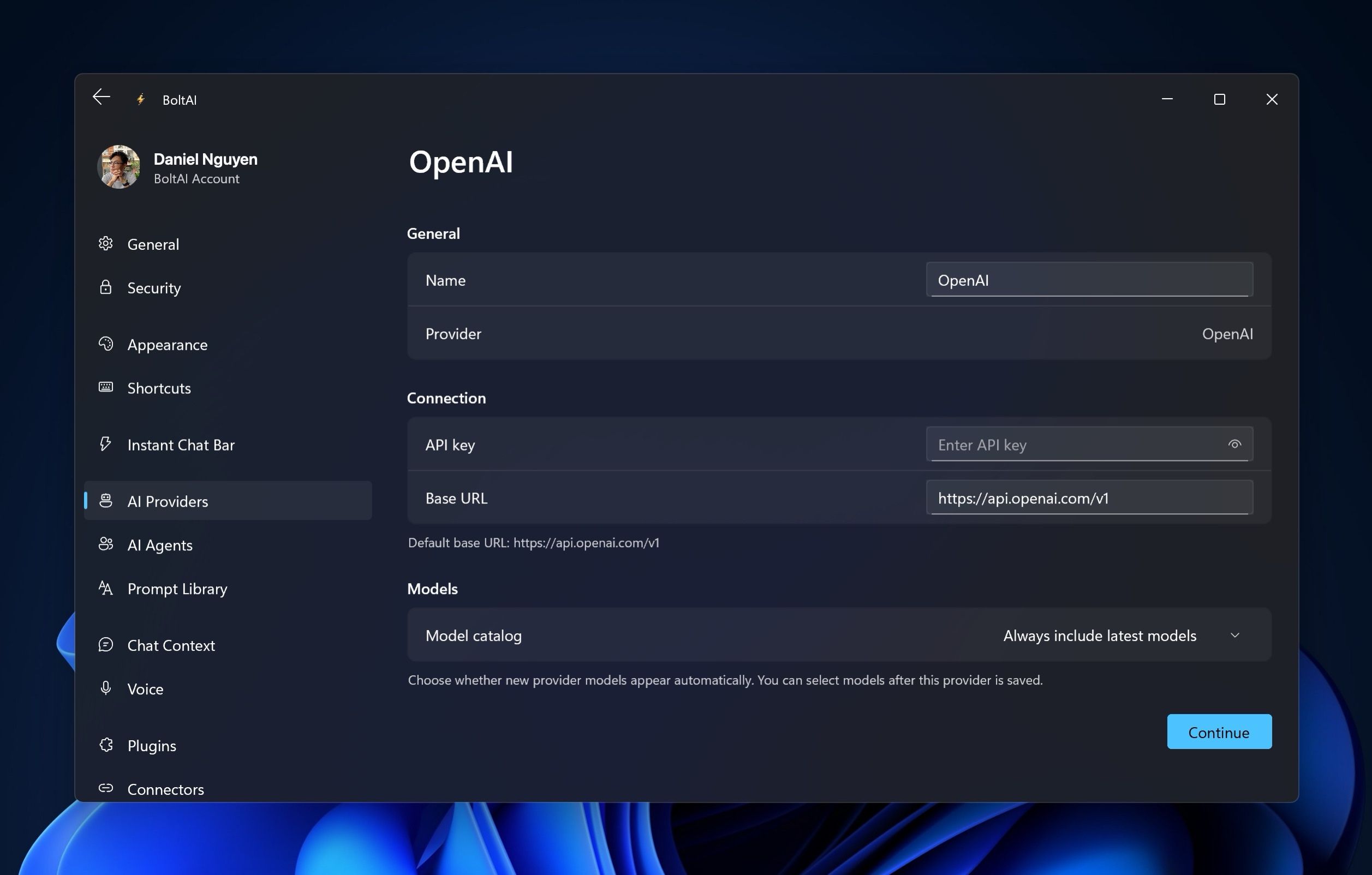
- Paste your key into API key. Leave Base URL as it is, unless your provider gave you a different one.
- Under Models, choose a Model catalog:
- Always include latest models shows every model the provider offers, new ones included.
- Use selected models only shows only the models you tick.
- Click Continue.
If you chose Use selected models only, the model list opens next. Tick the models you want, or click Select all, then click Done.
The provider's models now show in the model picker of every chat. See Choose and switch models.
If you haven't added a provider yet, the model button in the message box reads Add Provider. Click it to start.
What each provider asks for
Make it your default
New chats start on your default provider. To change it, right-click the provider in Settings › AI Providers and choose Set as Default.
To pick the model new chats start on, click the provider and choose its Default model. You can also set both in Settings › Chat Context. See Default chat settings.
Change an API key
- Open Settings › AI Providers and click the provider.
- Next to API key, click Change….
- Paste the new key and click Save.
- Click Save at the bottom of the page.
If Encryption reads API Key is not encrypted., you can protect your keys with a passcode. See Protect your API keys with a passcode.
A provider stopped working
When a reply fails, BoltAI says why. For example:
- "… didn't accept this API key." Copy the key again from the provider's website and click Change… next to API key.
- "… is limiting requests from this key." Wait a minute, then click Retry.
- "Couldn't reach …" Check your internet connection. If the provider gave you another address, check Base URL.
If replies from a slow model stop with a timeout, raise Request timeout in Settings › General.
If your keys show as locked, BoltAI asks for your passcode in Unlock API Keys. See Protect your API keys with a passcode.
Remove a provider
Right-click the provider in Settings › AI Providers, choose Remove Service, and click Remove.
You can also click the provider, then click Remove next to Remove provider. This removes the provider and its saved API key.
Was this helpful?
Still need help? Ask the team