ShotSolve: ask about a screenshot
Take a screenshot of any window or area and ask AI about it.
Written By Daniel Nguyen
ShotSolve lets you ask AI about anything on your screen: an error message, a chart, a form, a math problem. Press ⇧ ⌘ 1, select what you want, and ask.
Set up ShotSolve
- Open Settings › ShotSolve.
- Click Open Screen Recording Settings… and turn on BoltAI.
- Back in BoltAI, check that it shows Screen Recording: Granted. If it doesn't, quit and reopen BoltAI.
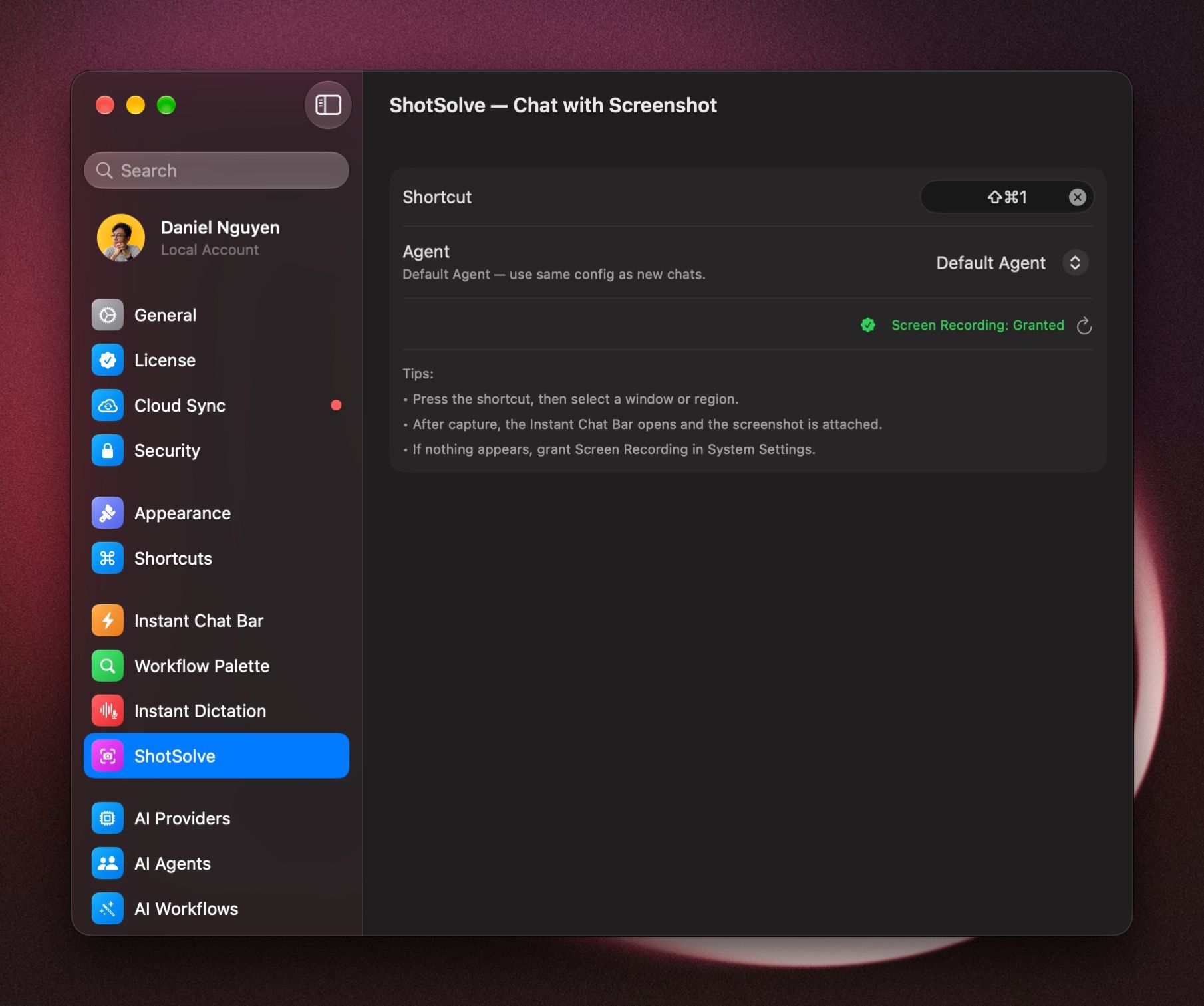
Take a screenshot and ask
- Press ⇧ ⌘ 1 in any app.
- Select a window or an area.
- The Instant Chat Bar opens with the screenshot attached. Type your question, for example What does this error mean?, and press Return.
Use a model that can see images.
To change the shortcut, set Shortcut in Settings › ShotSolve, or Chat with Screenshot in Settings › Shortcuts.
Use an agent
Under Agent, choose the agent ShotSolve chats start with, for example one with instructions for your homework or your code. Default Agent uses your usual settings. See AI Agents.
If nothing happens
- Check Screen Recording: Granted in Settings › ShotSolve.
- Can't find BoltAI in the Screen Recording list in System Settings? Drag BoltAI from your Applications folder into the list.
- Another app may use the same shortcut. Set a different one.
Was this helpful?
Still need help? Ask the team