Multi-step Workflows
Chain AI Workflows so each step works on the previous result.
Written By Daniel Nguyen
A Multi-step Workflow runs several AI Workflows in a row, each on the result of the one before. For example: Summarize, then Rewrite in professional tone, then copy the result.
Multi-step Workflows is in Labs and on by default. If you don't see it in Settings, turn it on in Settings › Labs.
Create a Multi-step Workflow
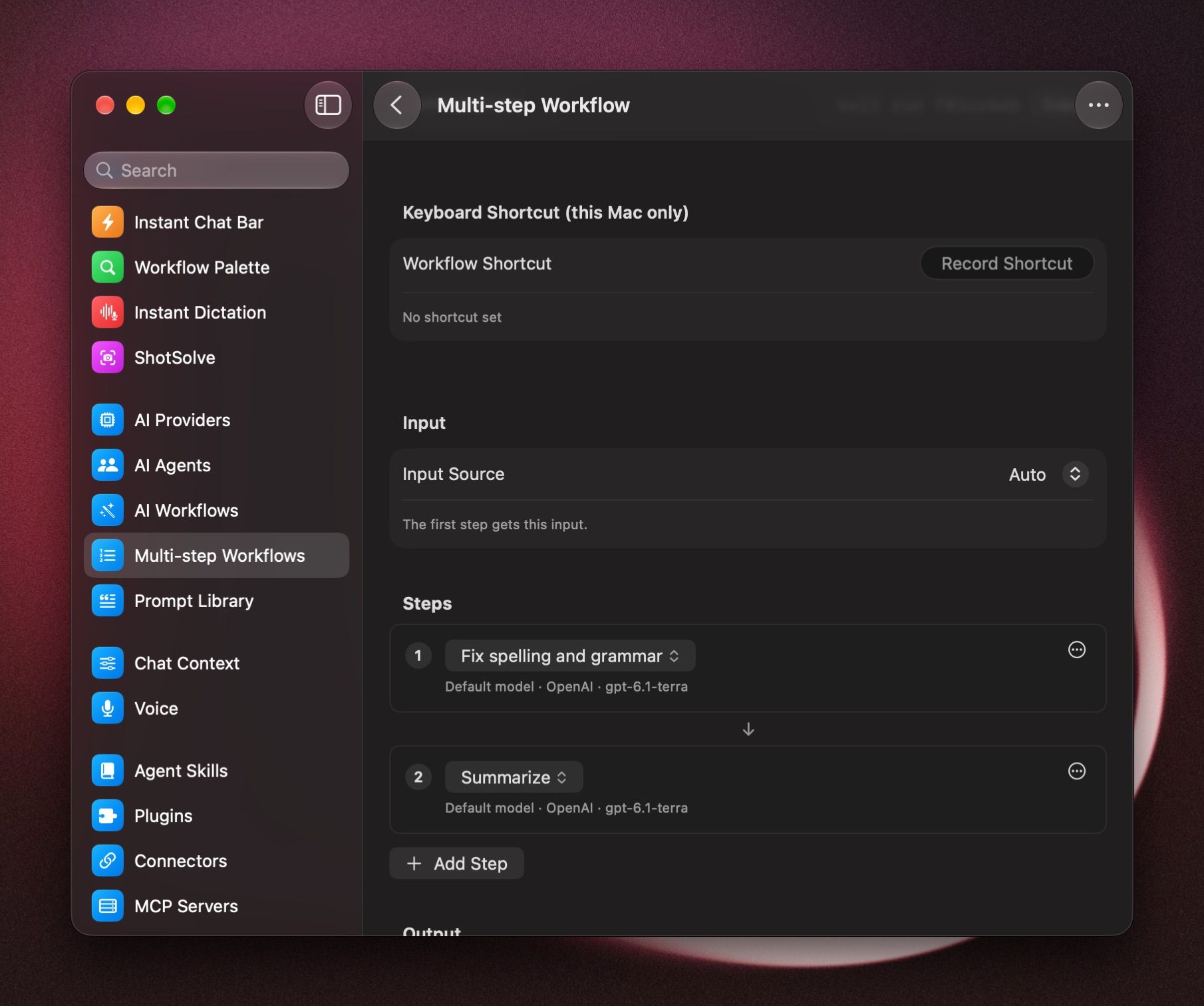
- Open Settings › Multi-step Workflows and click Add Multi-step Workflow.
- Give it a Name and an Icon.
- Under Input, choose what the first step works on: Auto, Selection, Clipboard or Files.
- Under Steps, click Add Step and choose a workflow. Add the rest in the order they should run.
- Under Output, choose what happens with the final result, such as Paste at Cursor or Copy to Clipboard.
Run a Multi-step Workflow
Run it the way you run any workflow:
- Select text and pick it in the Workflow Palette.
- Give it its own keys: under Keyboard Shortcut (this Mac only), click Record Shortcut.
- From Terminal, with its Command Line, for example
bolt run f01cc6eb. See The bolt command-line tool.
Give a step your original text
Each step normally works on the previous step's result. For a step that needs your original text instead, for example to compare it with the rewrite, turn on Use original input instead of the previous step for that step.
How the result is used
Only the final result is used, with the Output action of the Multi-step Workflow. The steps' own output actions are skipped.
With Open in Window or Open in Temporary Window, the last step runs in a chat window, so you can keep talking about the result.
A step says Workflow missing
The workflow for that step was deleted. Choose another workflow for the step, or click Remove to take the step out.
Deleting a Multi-step Workflow never deletes the workflows it uses.
Was this helpful?
Still need help? Ask the team