Choose and switch models
Pick the model for a chat, set its reasoning effort, and keep the model list short.
Written By Daniel Nguyen
Each chat has its own model, and you can change it at any time. New chats start with your default model.
Switch the model in a chat
- Click the model name in the message box.
- Start typing in Search all models, or scroll the list. Models are grouped by provider.
- Click a model, or use Up, Down and Enter.
The chat uses the new model from your next message on.
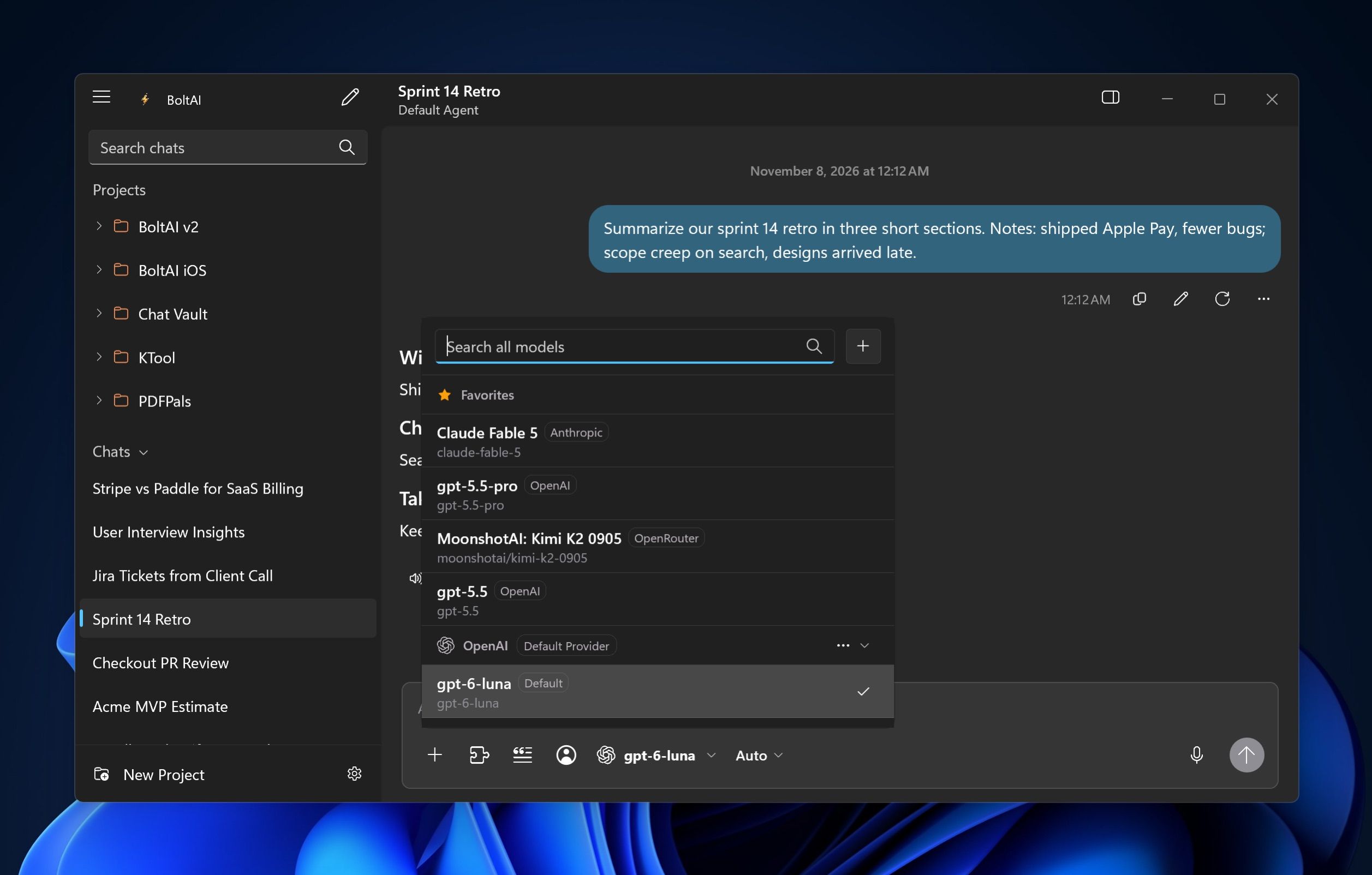
In the list, Default Provider marks your default provider, and Default marks that provider's default model.
To make a model a favorite, point to it in the list and click the star. Favorites are listed first, under Favorites.
If the button reads Add Provider, you haven't added a provider yet. Click it, or see Add an AI provider. To add another provider later, click + next to the search box.
Set reasoning effort
For models that reason, a button next to the model name shows Auto. Click it and choose how much the model thinks:
- High, Extra High or Max for hard problems
- Low, Minimal or Off for quick answers
- Auto to let the model decide
Each model shows only the levels it supports. Each chat keeps its choice.
Gemini models don't show this button. To change how much a Gemini model thinks, use Thinking Level in the Inspector. See The Inspector.
Change the model new chats start with
Open Settings › Chat Context, set Provider and Model, and click Save. See Default chat settings.
Projects and agents can start chats with their own model. See Projects and Agents and prompts.
Manage a provider from the picker
Click … next to a provider's name in the picker:
- Edit Service... opens the provider's settings.
- Set as Default makes it your default provider.
- Force Reload Model List loads the provider's current models.
Show only the models you use
Some providers list dozens of models. To keep the picker short:
- Open Settings › AI Providers and click the provider.
- Under Models, set Model catalog to Use selected models only.
- Click Models, tick the models you want, and click Done.
To list every model again, set Model catalog to Always include latest models.
A model is missing
- It's new. Click … next to the provider in the picker and choose Force Reload Model List. You can also click Refresh Model List on the provider's page in Settings › AI Providers.
- You chose your models. If Model catalog is set to Use selected models only, tick the model under Models.
- It's a local model. Download it in Ollama or LM Studio first. See Local models.
"This is an image-generation model"
You picked a model that only makes images. Pick a chat model instead, then turn on Image Generation in Tools and ask for an image. See Tools and web search.
Was this helpful?
Still need help? Ask the team