Read Aloud and voice input
Have replies read out loud in the voice you pick, and dictate messages instead of typing.
Written By Daniel Nguyen
BoltAI can read replies out loud and turn what you say into text in the message box. Both need OpenAI as a provider with an API key. See Add an AI provider.
Hear a reply read aloud
Click Read Aloud under a reply. A small player appears, with buttons to pause, go back or forward 15 seconds, change the playback speed, and close it.
You can also play and pause with your keyboard's media keys, or from the media controls in the Windows volume flyout.
Pick a voice for Read Aloud
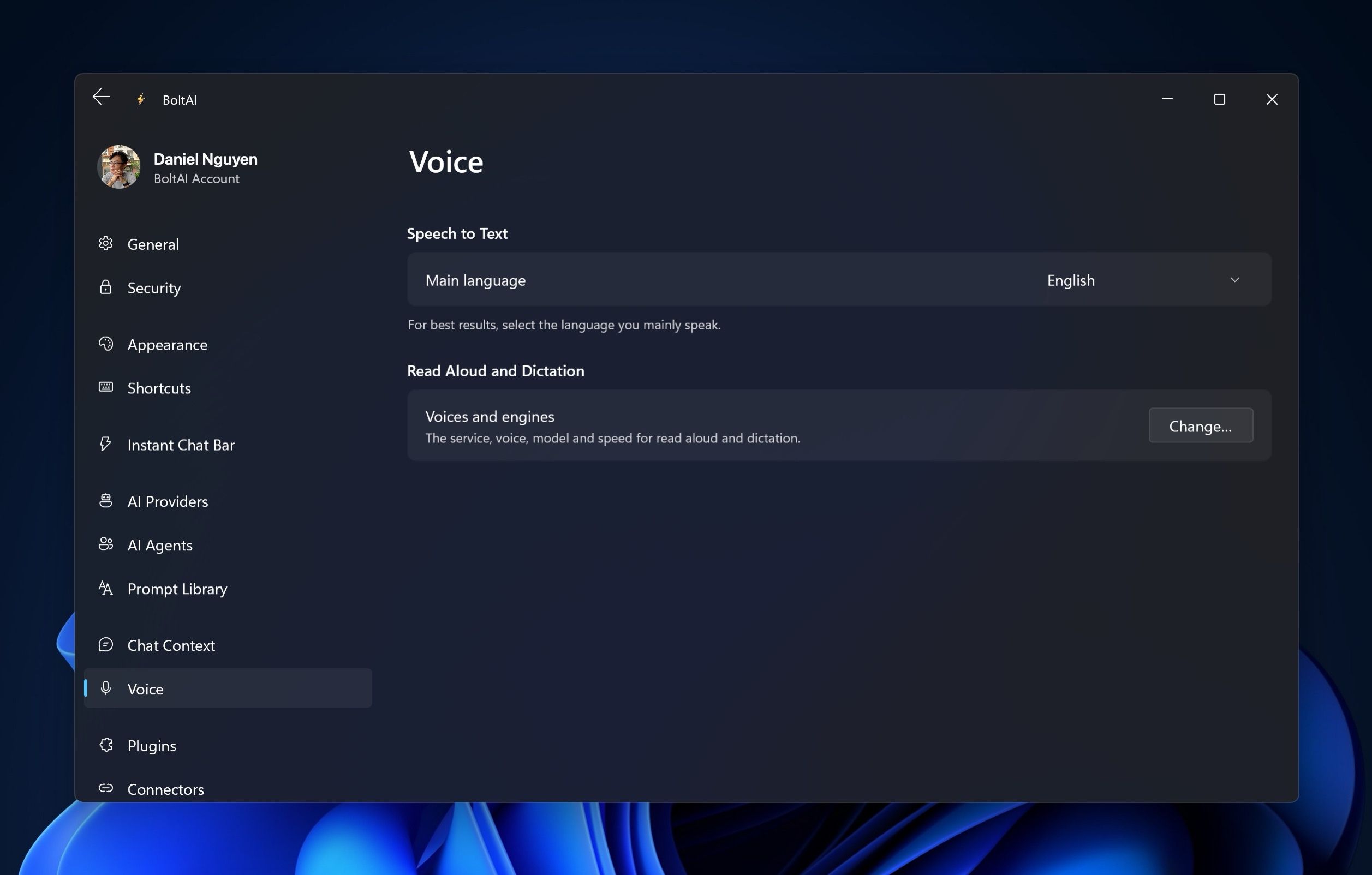
- Open Settings › Voice.
- Next to Voices and engines, click Change….
- Under Read Aloud Settings, choose:
- Read Aloud Service: the OpenAI provider to use, if you added more than one
- Default Voice: one of 13 voices. Click Play to hear a sample.
- Voice Model: gpt-4o-mini-tts, tts-1 or tts-1-hd
- Default Playback Speed: from 0.25x to 2x
Dictate a message
- Click the microphone in the message box and speak. A bar with a timer shows that BoltAI is listening.
- Click the check mark when you're done. Your words appear in the message box.
- Edit the text if you like, and press Enter to send.
To cancel without keeping anything, click the close button on the left of the bar.
Choose the speech engine
- Open Settings › Voice and click Change… next to Voices and engines.
- Under Voice Service, set Speech-to-Text Service to an OpenAI or Groq provider you added.
To add Groq, see Add an AI provider.
Set the language you speak
Open Settings › Voice and choose your Main language. It starts on Auto Detect. For the best results, choose the language you mainly speak.
Fix voice problems
- "API Key Required" when you click the microphone: click Configure and add an OpenAI or Groq API key.
- "Add an OpenAI API key in Speech Settings to use Read Aloud": add OpenAI as a provider, then pick it as the Read Aloud Service.
- "Unlock your OpenAI API key in Settings before using Read Aloud": your API keys are protected by a passcode. Unlock them first. See Protect your API keys.
- BoltAI doesn't hear you: open Windows Settings › Privacy & security › Microphone and make sure Microphone access and Let desktop apps access your microphone are on.
Was this helpful?
Still need help? Ask the team