Tools in a chat
Let the AI search the web, read pages, remember things and use your MCP servers, and pick the search service it uses.
Written By Daniel Nguyen
Tools let the AI search the web, read a web page, make images, run code, remember things about you, or work with your apps. You choose which tools each chat can use.
Choose tools for a chat
Click the Tools button in the message box or press ⇧ ⌘ T. Turn on the tools the AI may use. The switch at the top turns all tools on or off for this chat. Typing /tools does the same.
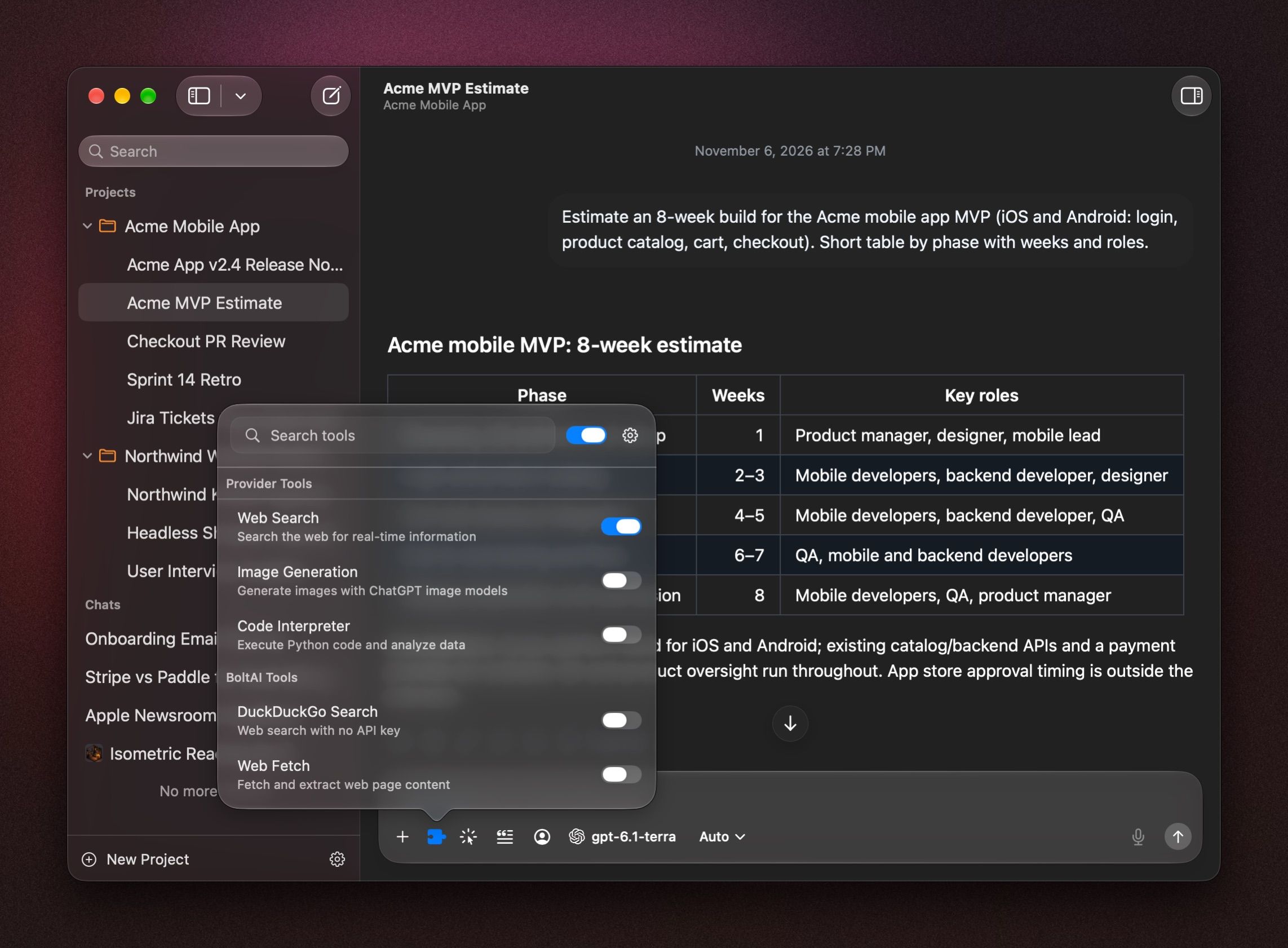
The tools come in three groups:
- Provider Tools are built into your model's provider, for example Web Search, Image Generation and Code Interpreter with OpenAI. They change with the model.
- BoltAI Tools work with any model: DuckDuckGo Search, Web Fetch, Memory, and Browser Use and Computer Use once you set them up.
- MCP Servers are tools from apps and services you connected. See MCP servers and connectors.
Tools need a model that supports them. Apple Intelligence doesn't.
Search the web
Turn on one search tool:
- Web Search under Provider Tools, if your model's provider has it.
- DuckDuckGo Search under BoltAI Tools. It needs no API key and works with every model that supports tools, including Local Models (not Gemini CLI). Web Fetch turns on with it.
Then ask, for example What changed in the latest macOS update?
Picking an OpenAI deep-research model turns on its web search for you.
DuckDuckGo searches stop working
DuckDuckGo may slow down or pause searches after many in a short time. For heavy use, add a search service with an API key (below), or your own SearXNG server.
Use the same tools in every new chat
Choose the tools in Settings › Chat Context: click Manage Plugins. To start new chats with tools on or off, set the switch in a chat's Tools menu, then open its gear menu and choose Use as Default for New Chats.
To start new chats with no tools at all, turn off Enable tool use in Settings › General. Projects and agents can have their own tools.
Add a search service with an API key
Open Settings › Plugins, click the service, and add your API key. Each row shows Configured once it's ready.
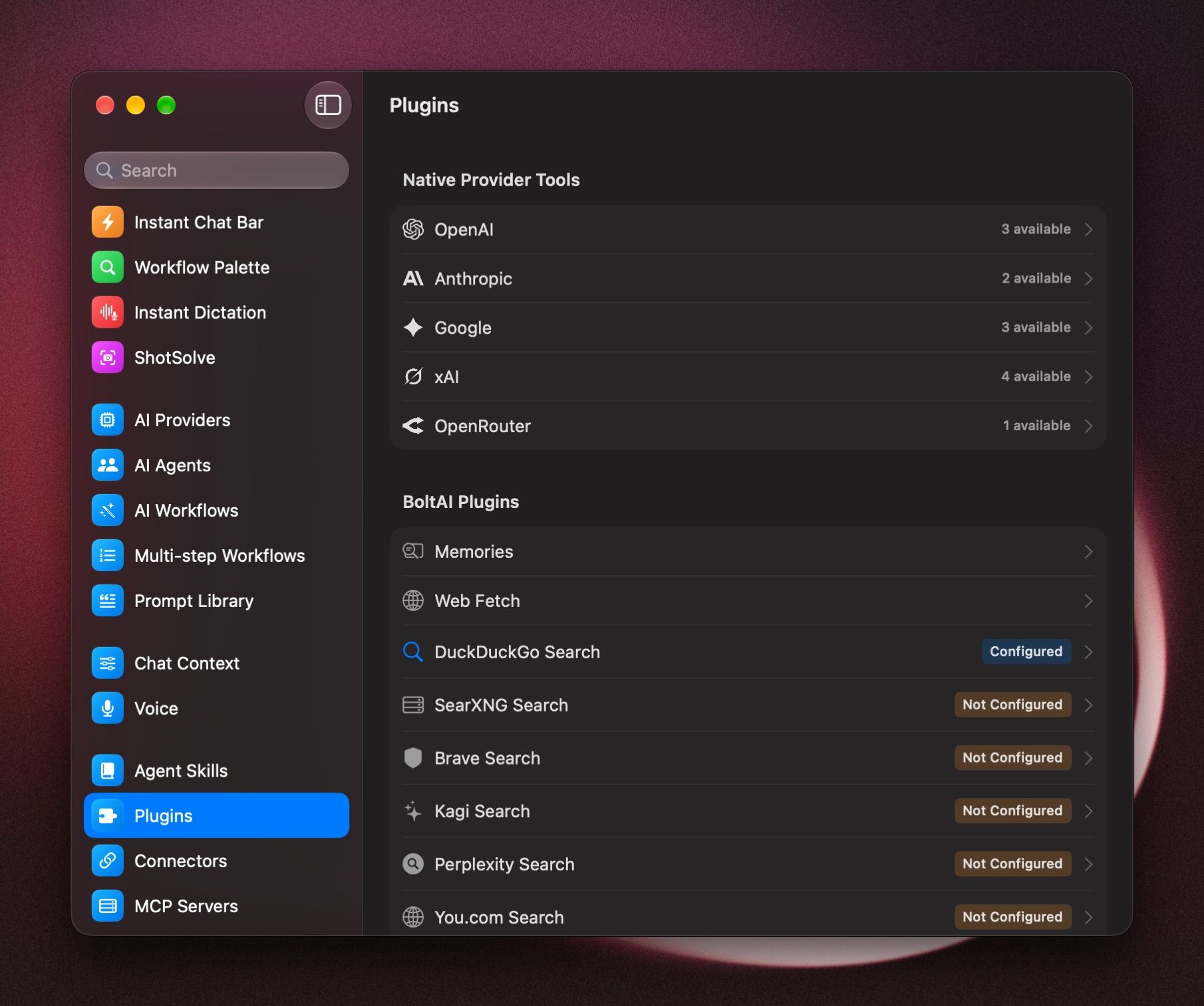
Then turn the service on in a chat's Tools menu.
Memory
Turn on Memory in the Tools menu, and BoltAI keeps facts about you for later chats. See Prompt Library and Memories.
More tools
- Browser Use and Computer Use: let BoltAI work in Chrome and your Mac apps.
- Agent Skills: teach BoltAI new tasks.
- MCP servers and connectors: connect Notion, Linear, your email and more.
- Web search and local file tools
Was this helpful?
Still need help? Ask the team