Instant Dictation
Dictate into any app with a shortcut, with on-device speech recognition and optional AI cleanup.
Written By Daniel Nguyen
Instant Dictation types what you say into any app: an email, a message, a note. Press your shortcut, speak, and press it again.
Set up Instant Dictation
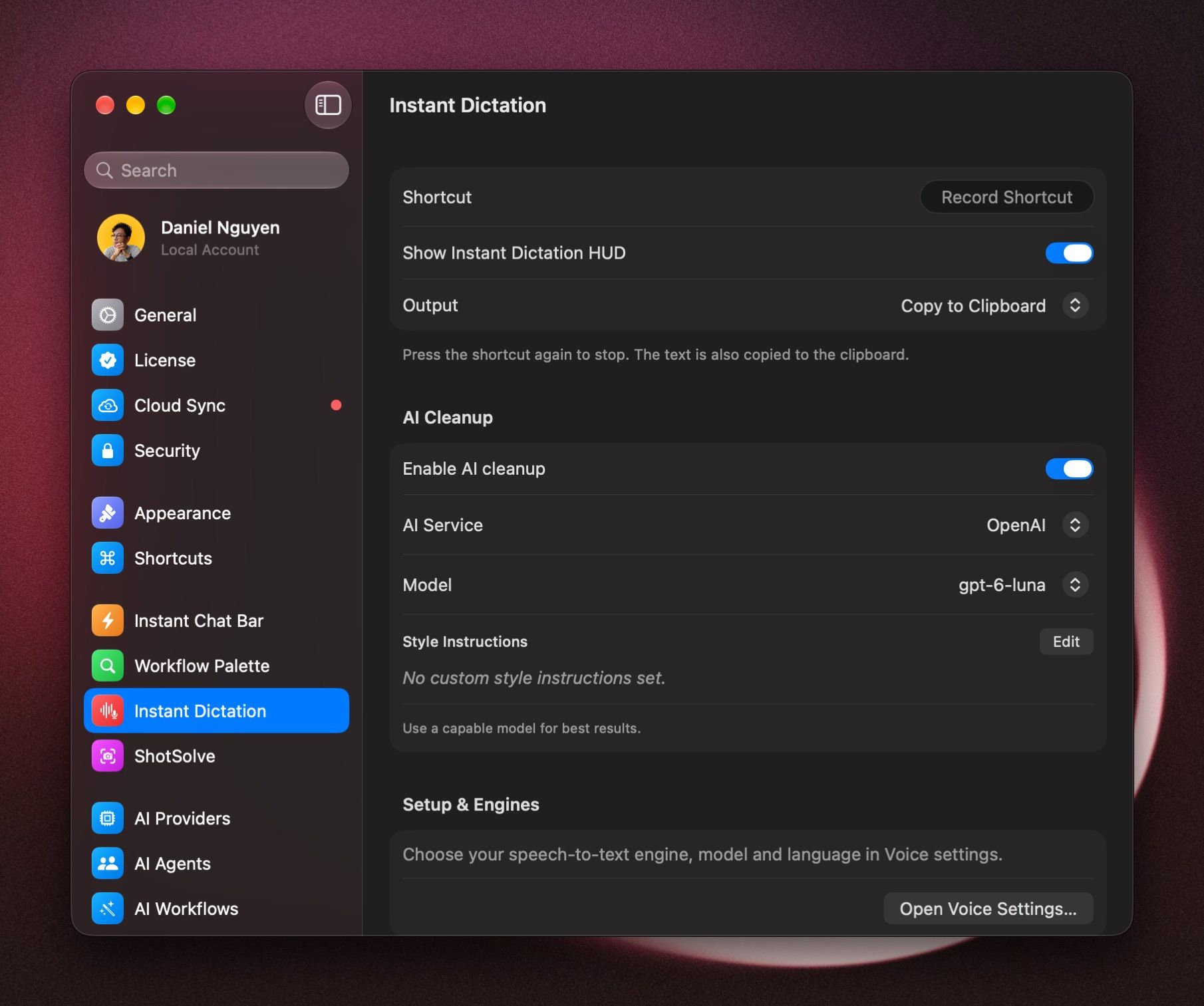
- Open Settings › Instant Dictation.
- Next to Shortcut, set the keys you want to use.
- Set Output to Paste to Active App.
- Click Enable Accessibility… and allow BoltAI, so it can paste for you.
Dictate into any app
- Click where you want the text, in any app.
- Press your shortcut and speak.
- Press the shortcut again to stop. Your words are pasted in.
The text is also copied to the clipboard. If pasting didn't work, for example because you switched apps, paste it yourself. Your last dictations are also under Recent Dictations in BoltAI's menu bar menu, when Show menu bar is on in Settings › General.
To only copy the text, set Output to Copy to Clipboard.
Choose the speech engine
Open Settings › Voice and choose an engine under Speech to Text:
- Apple (Built-in): Apple's built-in speech recognition.
- Local (On-device): models that run on this Mac. Click Download to install a model first.
- OpenAI or Groq: uses your OpenAI or Groq provider.
AI cleanup
AI cleanup has a model tidy up what you said before it's pasted, in the style you set.
- In Settings › Instant Dictation, open AI Cleanup and turn on Enable AI cleanup.
- Choose the AI Service and Model. Use a capable model for best results.
- Optional: under Style Instructions, click Edit and describe how you want it written, for example Keep it casual, and use British spelling.
Dictate in BoltAI
In a chat, click the microphone in the message box instead. See The message box.
Was this helpful?
Still need help? Ask the team