AI Workflows
Run AI actions on text in any app, from the Workflow Palette, a shortcut or the command line, and build your own.
Written By Daniel Nguyen
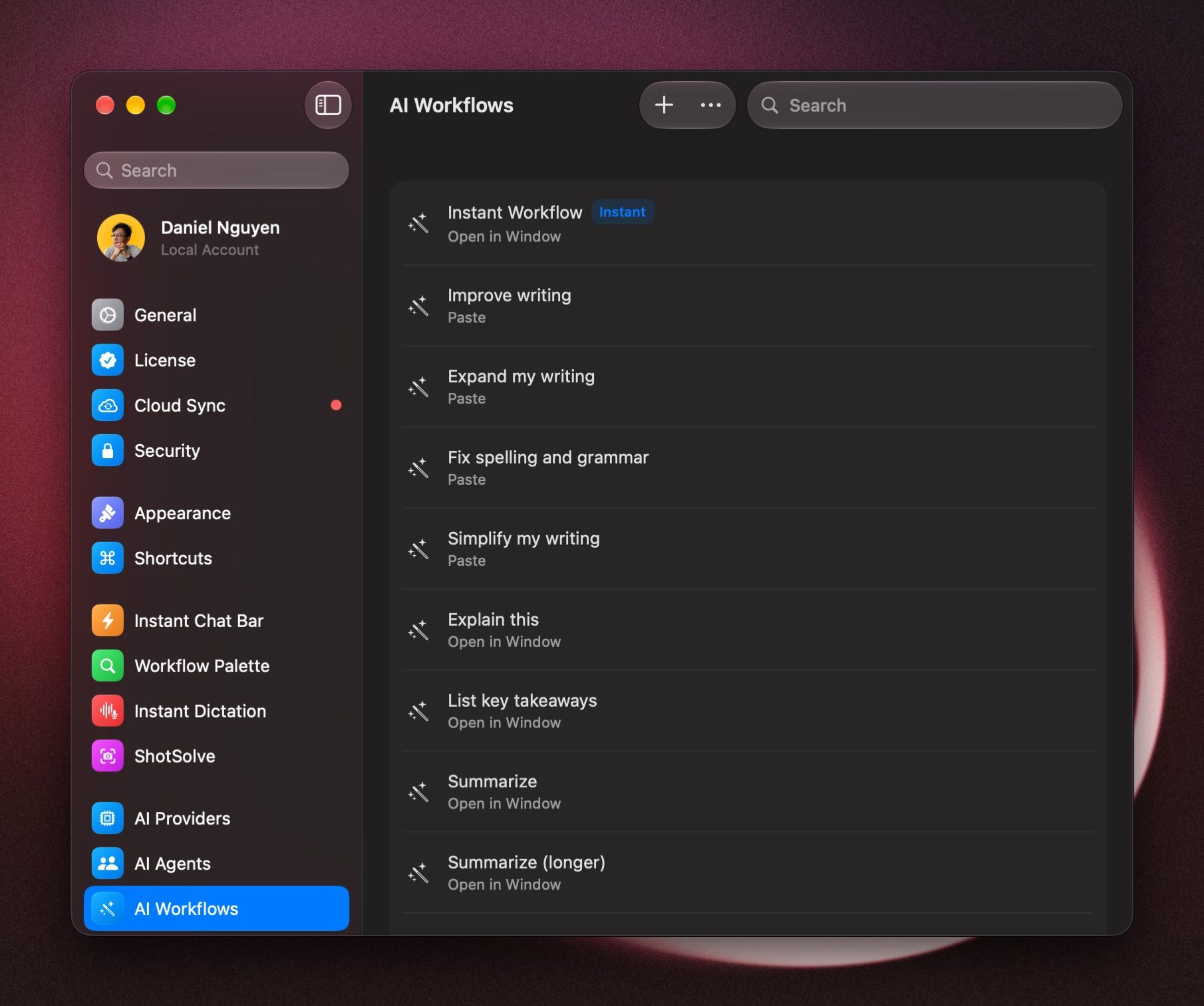
An AI Workflow is a saved action for text in any app: Fix spelling and grammar, Summarize, Rewrite in professional tone. Select text, run the workflow, and the result is pasted back, or shown in a window.
BoltAI comes with workflows like these, ready to use:
Set up the Workflow Palette
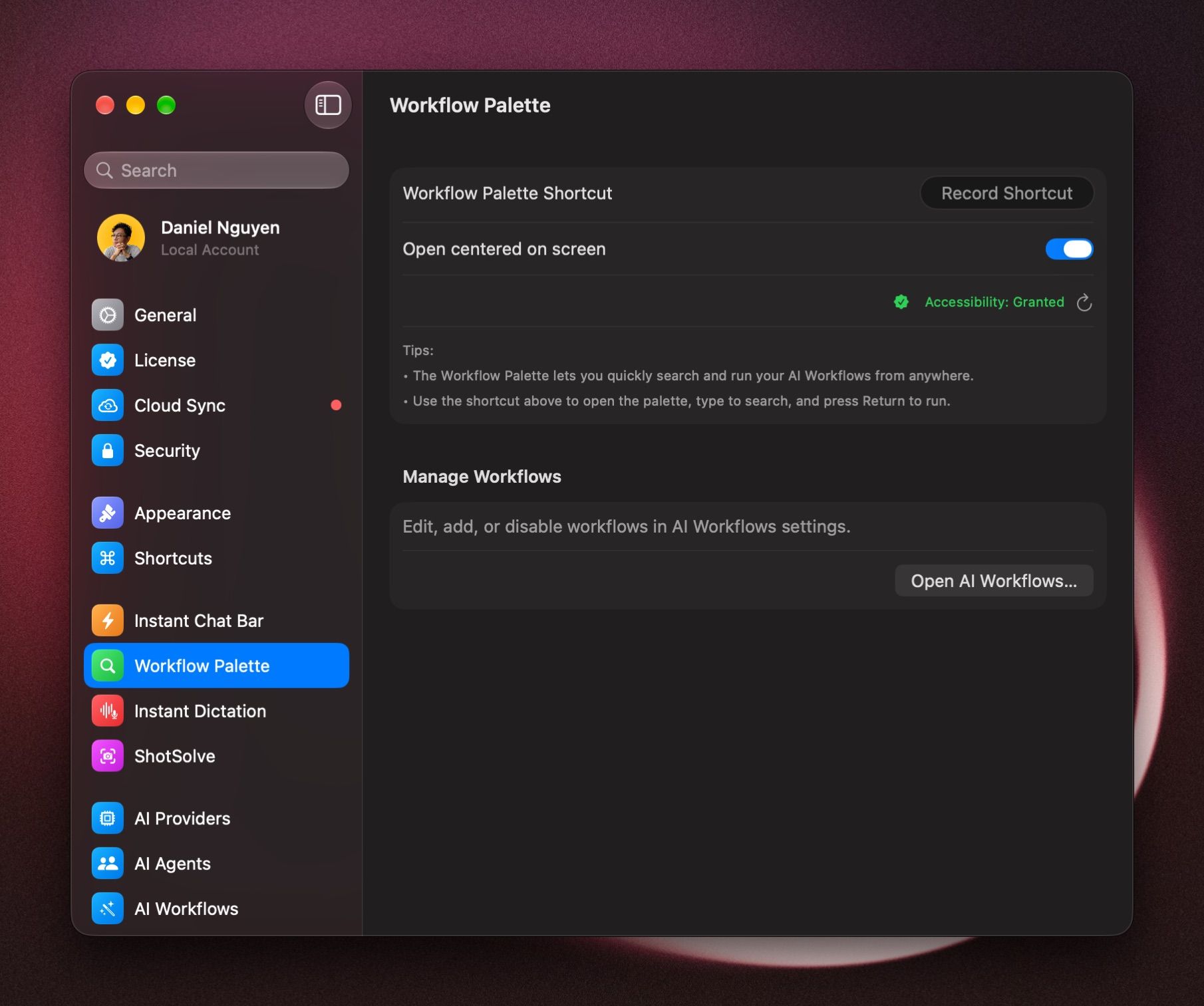
The Workflow Palette lets you search for a workflow and run it from any app. Set it up once:
- Open Settings › Workflow Palette.
- Click Record Shortcut next to Workflow Palette Shortcut and press the keys you want.
- Allow Accessibility when macOS asks. The page shows Accessibility: Granted when it's done.
Run a workflow
- Select the text, for example a paragraph in Mail.
- Press your Workflow Palette shortcut.
- Type a few letters of the workflow, such as fix, and press Return.
The result replaces your text, is pasted where you're typing, or opens in a window, depending on the workflow.
Instant Workflow
To give your own instruction instead of picking a workflow, use the Instant Workflow.
- Select text and open the Workflow Palette.
- Type what you want, for example Turn this into a bulleted list.
- Choose Run with Instant Workflow and press Return.
Run a workflow with one shortcut
For a workflow you use all the time, skip the palette:
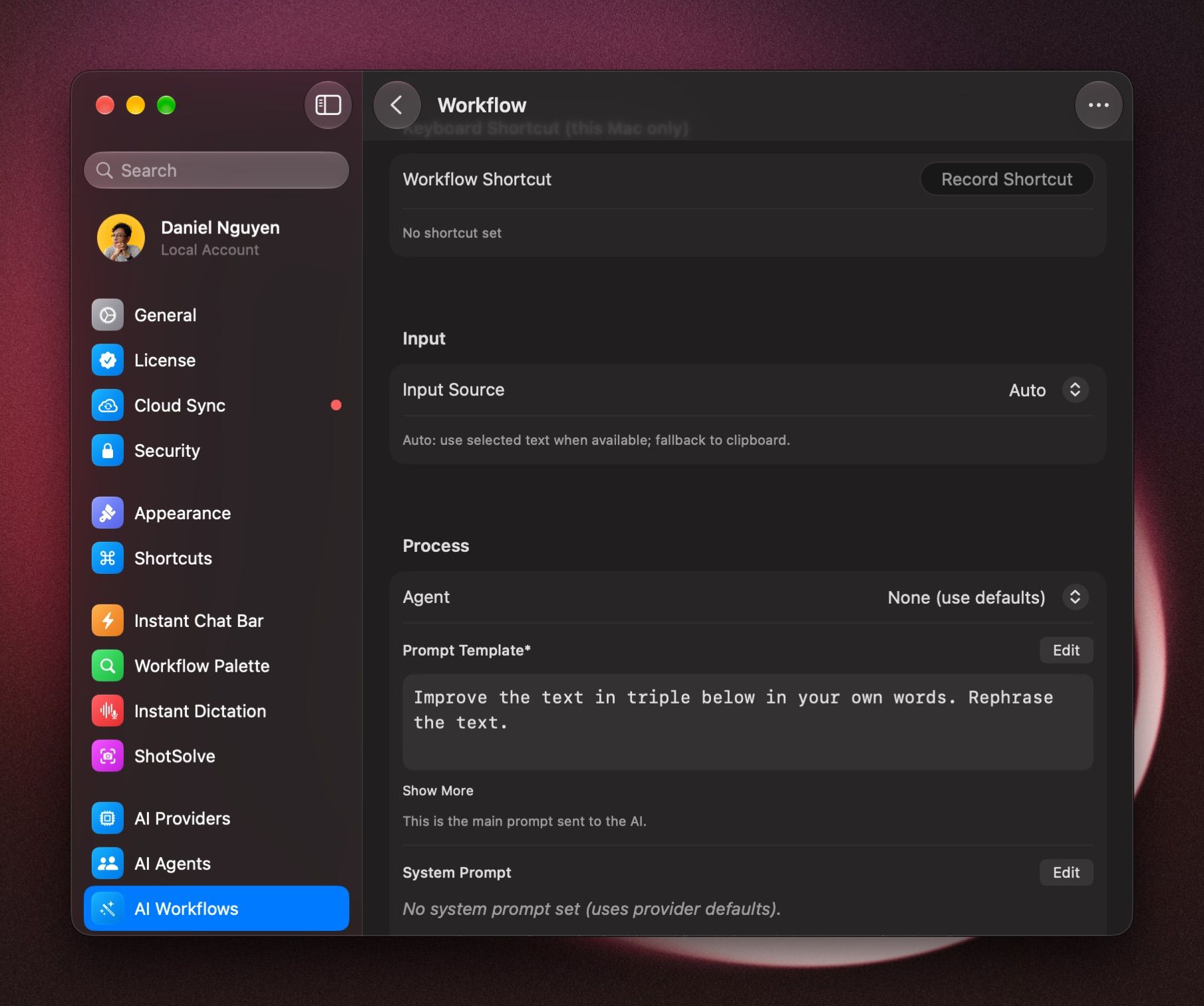
- In Settings › AI Workflows, click the workflow.
- Under Keyboard Shortcut (this Mac only), click Record Shortcut and press the keys.
You can also run workflows from PopClip, Raycast, Alfred or Terminal.
Preview the result
Open the workflow and set Preview › Mode:
- Preview shows the result first. Then click the action, such as Apply: Paste at Cursor, or choose Regenerate, Copy Result or Back.
- Diff shows exactly what changed in your text.
- No Preview (run immediately) pastes it straight away.
Make your own workflow
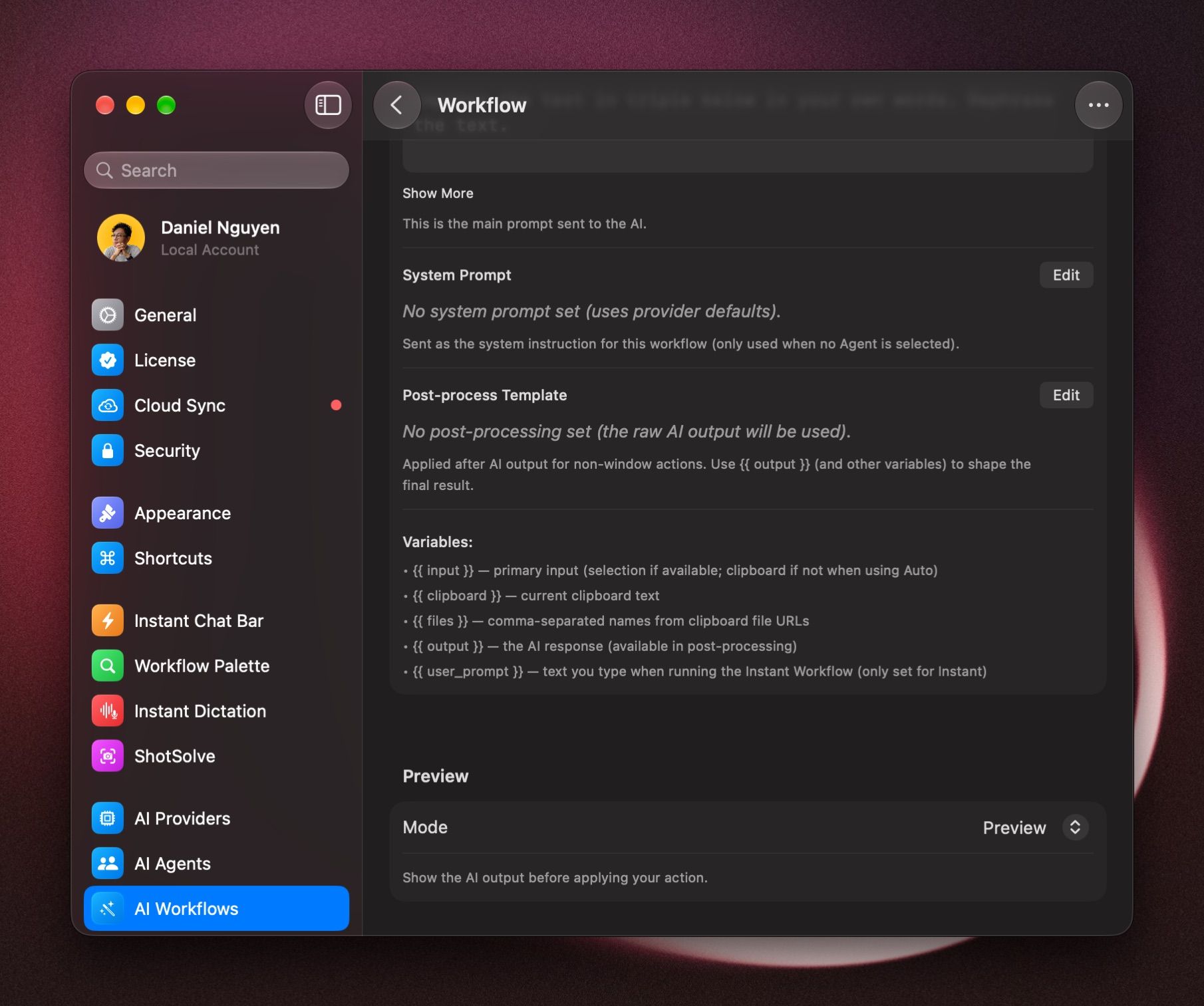
In Settings › AI Workflows, click +. To change an existing workflow, click it.
The parts that matter:
- Name: what you'll type in the palette to find it.
- Input Source: what the workflow works on. Auto uses the selected text, or the clipboard when nothing is selected. You can also choose Selection, Clipboard or Files.
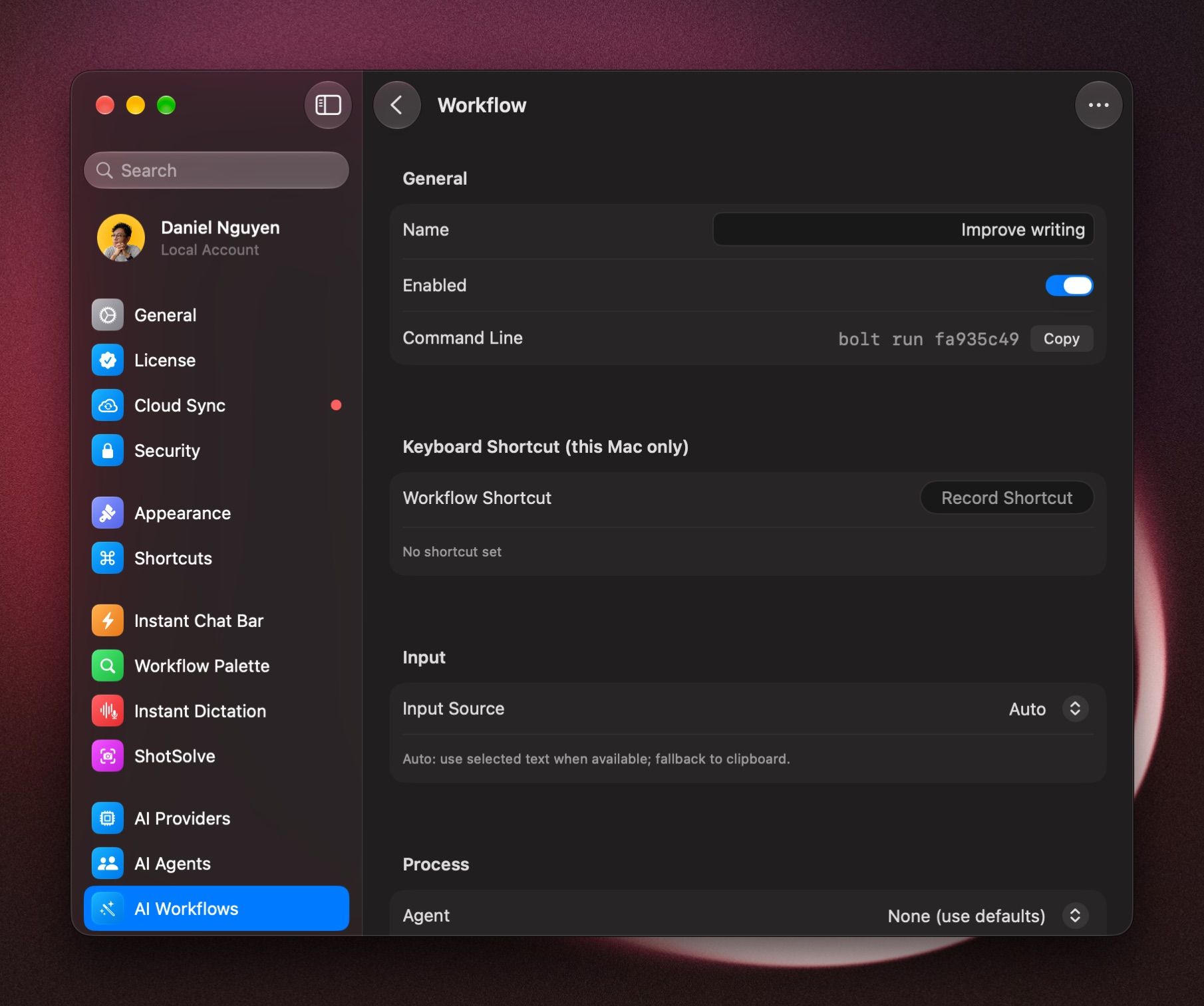
- Prompt Template: what you want the AI to do. Click Edit to write it.
- Agent: run the workflow with an agent's model and instructions, or leave it on None (use defaults).
- Output › Action: what happens with the result. Copy to Clipboard, Paste at Cursor, Insert Before Selection, Insert After Selection, Open in a Chat Window or Open in a Temporary Window.
In the templates, these words are filled in when the workflow runs:
For example, a Prompt Template of Translate this into French: {{ input }} translates whatever you selected.
Add a second version with Option
A workflow can have a second version that you run by holding ⌥ in the palette, for example one that pastes and one that opens a window. Set it up under Alternate Profile (hold Option) in the workflow.
Remove duplicate workflows
To remove copies of the same workflow, in Settings › AI Workflows, open the ⋯ menu, choose Dedupe… and confirm.
Run several workflows in a row
To summarize and then rewrite in one go, see Multi-step Workflows.
Was this helpful?
Still need help? Ask the team