Choose and switch models
Pick, search, favorite and manage the models you chat with.
Written By Daniel Nguyen
Each chat has its own model, and you can change it at any time. New chats start with your default model.
Switch the model in a chat
Click the model name in the message box, press ⇧ ⌘ M, or type /model. Pick a model from the list. The chat uses it from your next message on.
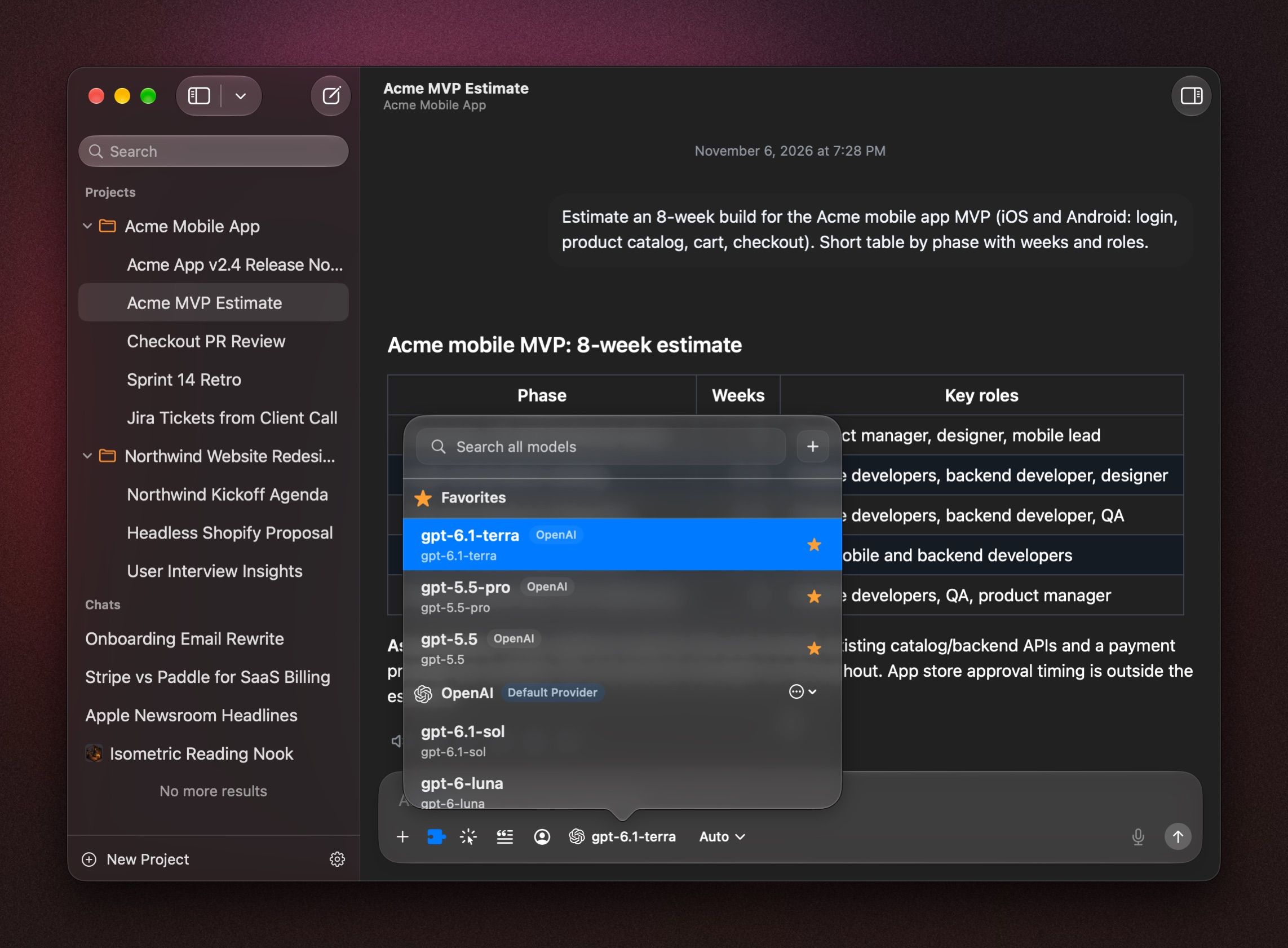
Models are grouped by provider. To find one fast, start typing in Search all models.
Switch providers in the middle of a chat
You can switch from, say, an OpenAI model to a Claude model in the middle of a chat. BoltAI shows a short note. Click Don't Show Again to stop the note.
Favorite a model
Right-click a model in the picker and choose Add to Favorites. Favorites appear at the top of the picker in every chat. To remove one, right-click it and choose Remove from Favorites.
Change the model new chats start with
Right-click a model in the picker and choose Set Provider & Model as Default.
Projects and agents can start chats with their own model. See Projects and AI Agents.
Set reasoning effort
Next to the model name is the reasoning effort menu, which shows Auto. For a hard problem, choose High or Extra High (some models also offer Max). For a quick answer, choose Low or Off. Each chat keeps its choice.
Show only the models you use
Some providers list dozens of models. To keep the picker short:
- Open Settings › AI Providers and click the provider.
- Set Model List to Use selected models only.
- Click Manage Models…, tick the models you want, and click Done.
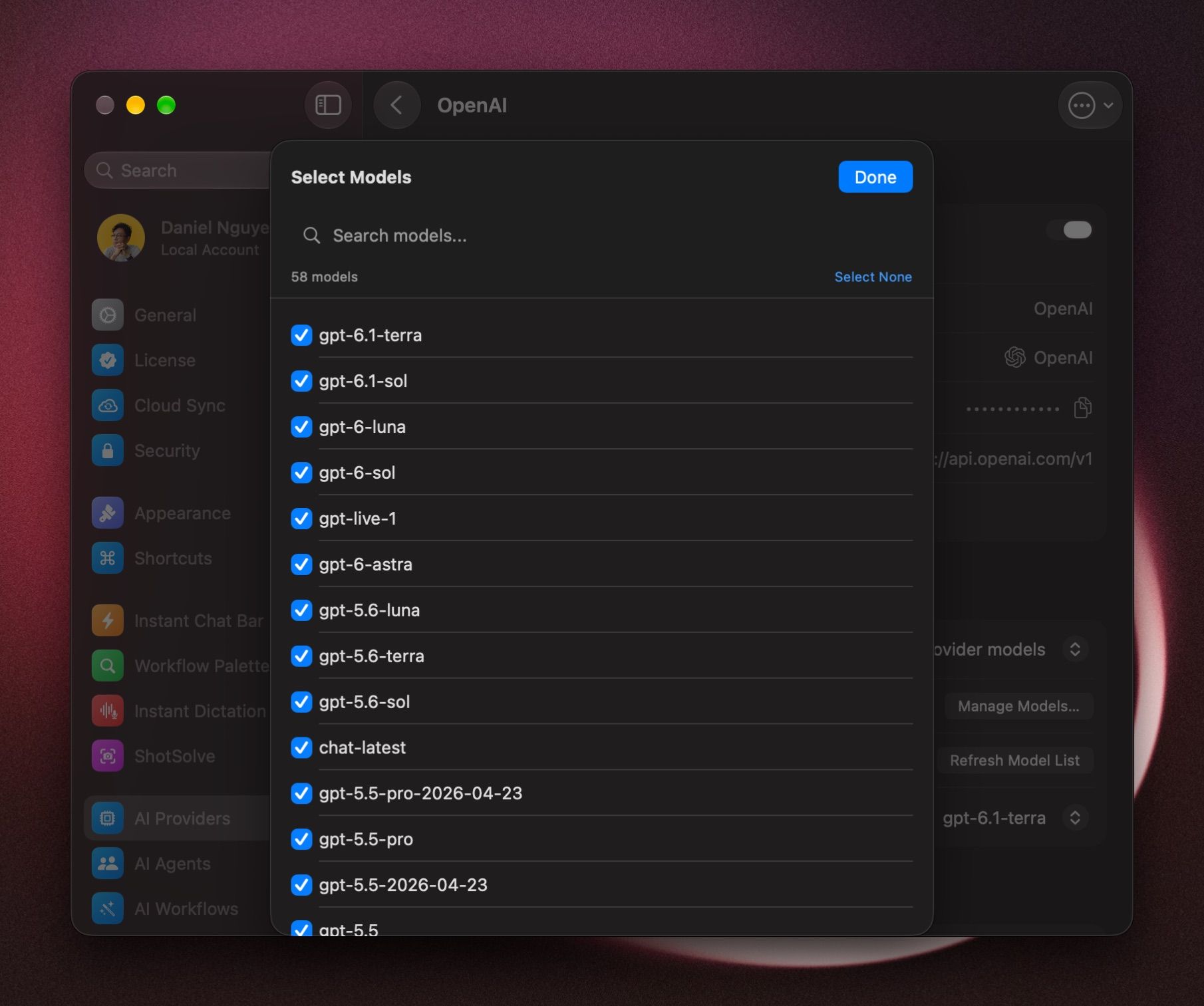
To list every model again, set Model List to Automatically include all provider models.
If a provider lists a very large number of models, the picker shows an orange warning. Click it to choose the models you want.
To hide a whole provider you don't use, turn off Enable on this Mac on its page. See Manage providers.
A model is missing
- It's new. Open Settings › AI Providers › the provider and click Refresh Model List.
- You chose your models. If Model List is set to Use selected models only, tick it in Manage Models….
- It's a local model. Download it first. See Local Models.
- You have no providers yet. See Add an AI provider and API key.
Was this helpful?
Still need help? Ask the team