Manage your chats
Find, organize, share and clean up your chats, and start temporary and multi-agent chats.
Written By Daniel Nguyen
Find a chat
Type in Search at the top of the sidebar. Search looks through the text of your messages, not just chat titles.
To see where a search result sits in your chat list, right-click it and choose Reveal in Sidebar.
To change the order of your chats, choose View › Sort Chats By: date updated, date created or title.
Favorite a chat
Right-click a chat in the sidebar and choose Add to Favorites. Press ⌃ ⌘ 2 to see only your favorites, and ⌃ ⌘ 1 to go back to all your chats.
You can also switch lists with the arrow next to the sidebar button.
Archive or move chats
- Archive chats you're done with but want to keep: right-click and choose Archive Chat. Find them under Archived (⌃ ⌘ 3), and choose Unarchive Chat to bring one back.
- Move related chats into a project: drag them onto the project, or right-click and choose Move to. See Projects.
- Do several at once: select several chats, then archive, move, favorite or delete them together.
Delete a chat, or get it back
To delete a chat, press ⇧ ⌘ ⌫, or right-click it and choose Move to Trash.
Deleted chats stay in Recently Deleted (⌃ ⌘ 4) for 30 days. To get one back, right-click it there and choose Restore from Trash. To remove it for good, choose Delete Permanently….
Rename a chat
BoltAI names new chats for you. To change how, open Settings › General and set Mode under Title Generation: Off, Auto, Prompt (uses your first message, no AI) or Custom Model.
Double-click the chat in the sidebar, or select it and press Return, then type the new name. You can also rename it in the Inspector: press ⌘ I, click Info, then Edit next to the title.
Duplicate a chat or copy its settings
Right-click a chat and choose:
- New Chat (Copy Configuration) to start an empty chat with the same model, agent and settings.
- Duplicate Chat to copy the chat, messages and all, and take it in another direction.
To try another direction from a single message instead, use Branch from here. See Work with messages.
Reset a long chat's context
To start fresh in the same chat, press ⇧ ⌘ K (Reset Chat Context) or type /clear-context. BoltAI stops sending the earlier messages, but they stay on screen. To bring them back, type / and choose Restore context.
To empty the chat instead, press ⇧ ⌘ D (Delete All Messages).
Link to a chat from your notes
Every chat has a link that opens it in BoltAI. Right-click the chat and choose Copy Deep Link, then paste it into a note, a task or a document.
Share or export a chat
- Send it to someone: choose Conversation › Share….
- Save it as a document: choose Conversation › Export to Markdown… or Export to PDF….
Temporary chats
A temporary chat isn't saved. It won't appear in your chats, and it doesn't use or create memories.
- Press ⌥ ⌘ T, or choose File › New Temporary Chat. It opens in its own window.
- Chat as usual. The chat is deleted when you quit BoltAI.
- Want to keep it after all? Choose Conversation › Save Temporary Chat.
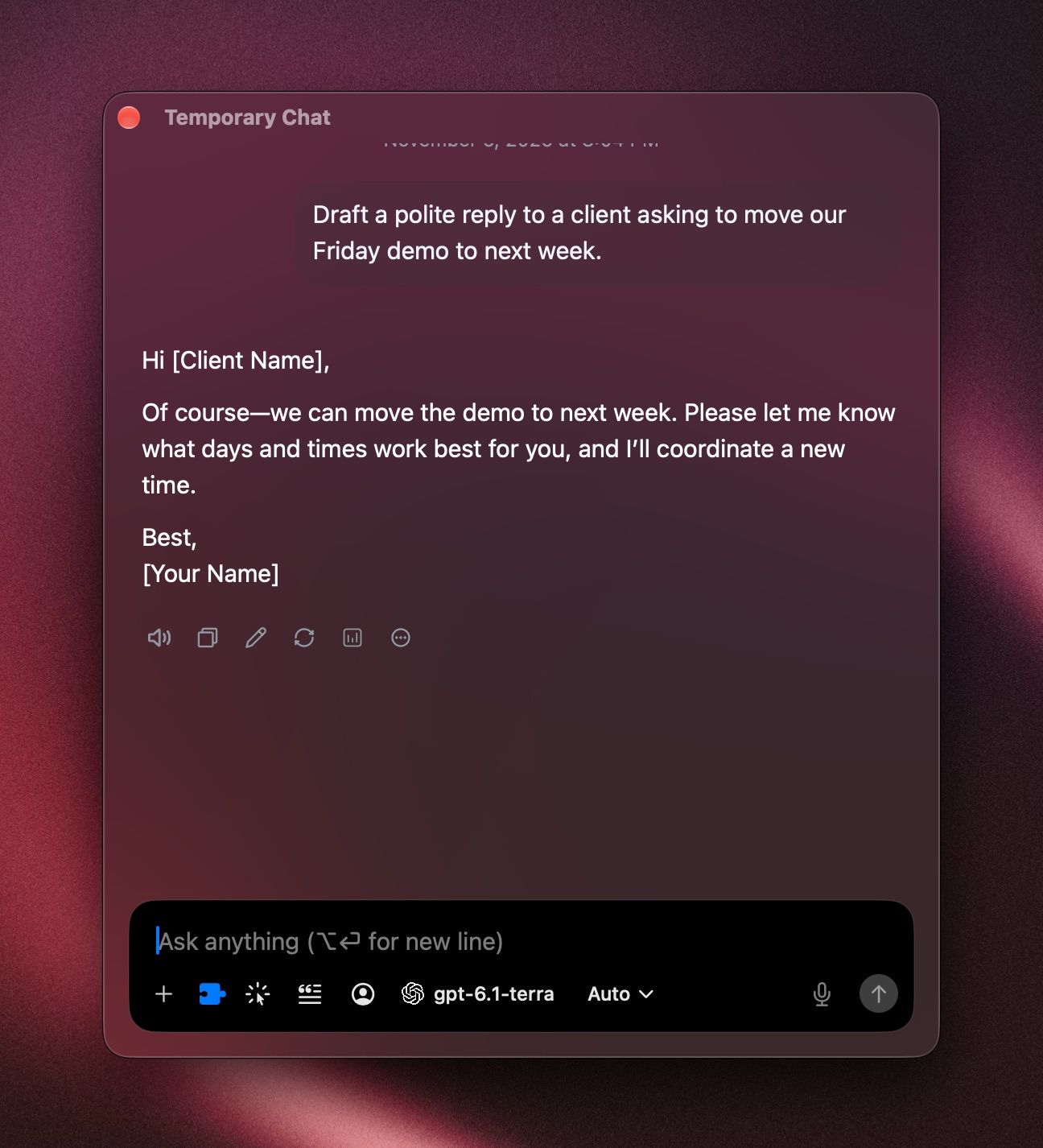
To make every Instant Chat Bar chat temporary, turn on Always start new chats in temporary mode in Settings › Instant Chat Bar.
Ask several agents at once
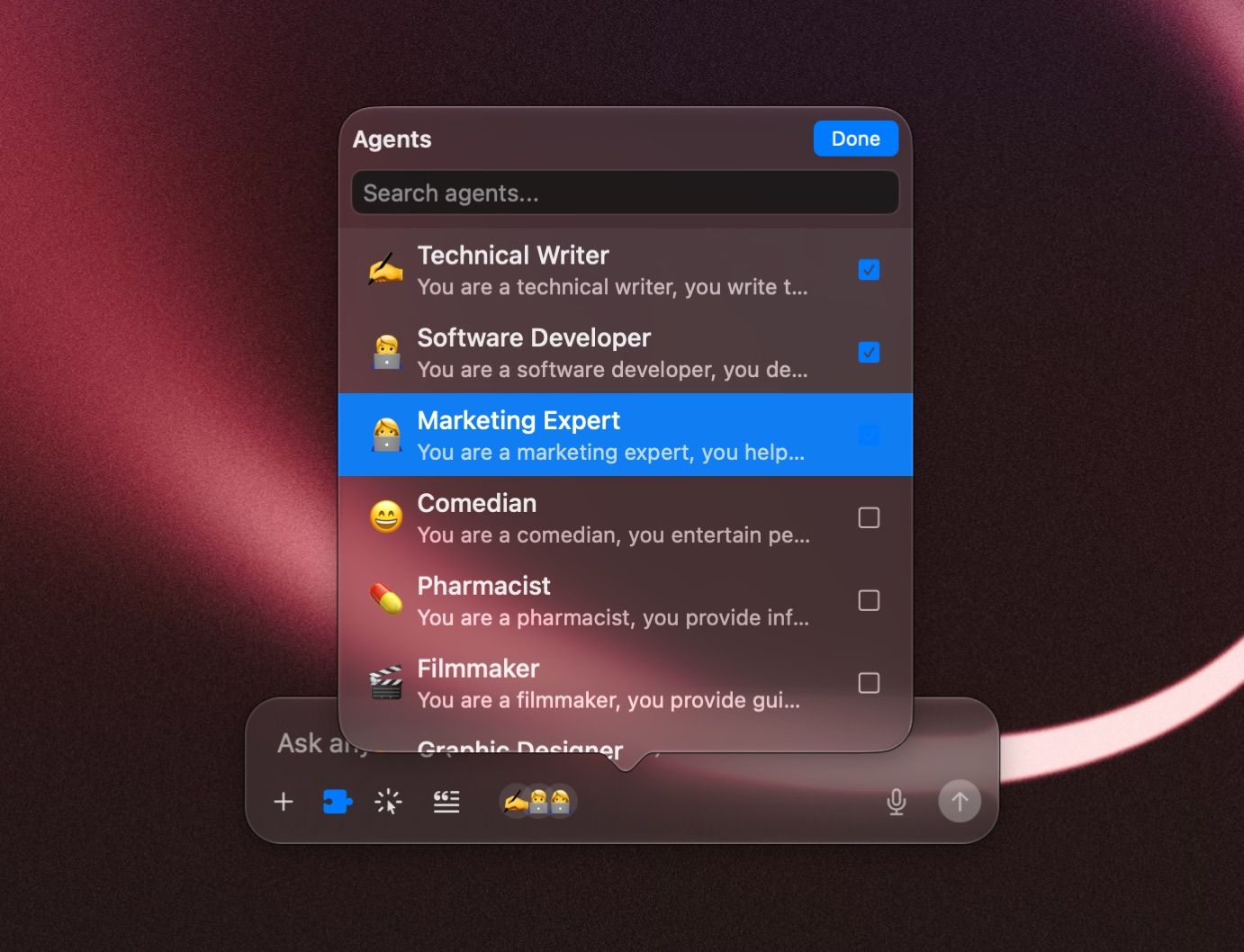
- Press ⌥ ⌘ N, or choose File › New Multi-Agent Chat….
- Click Select agents, tick the agents you want, and click Done.
- Type your message and press Return.
Each agent answers in its own chat, so you can compare the answers and carry on with the one you like.
Move chats to another Mac
- Everything, all the time: turn on Cloud Sync.
- One chat: choose Conversation › Export Chat… on one Mac and Conversation › Import Chat… on the other.
- Everything, once: choose File › Export Data…, then File › Import Data… on the other Mac.
Was this helpful?
Still need help? Ask the team