Agents and prompts
Save setups for a job as agents, keep the prompts you reuse in the Prompt Library, and add the starter pack.
Written By Daniel Nguyen
An agent is a saved setup for a job, such as a Technical Writer or a Software Developer: its own instructions, model and tools. A prompt is text you reuse, such as a request you send often.
AI Agents
Your agents are in Settings › AI Agents. To use one in a chat, click the Agent button in the message box and pick it. See The message box.
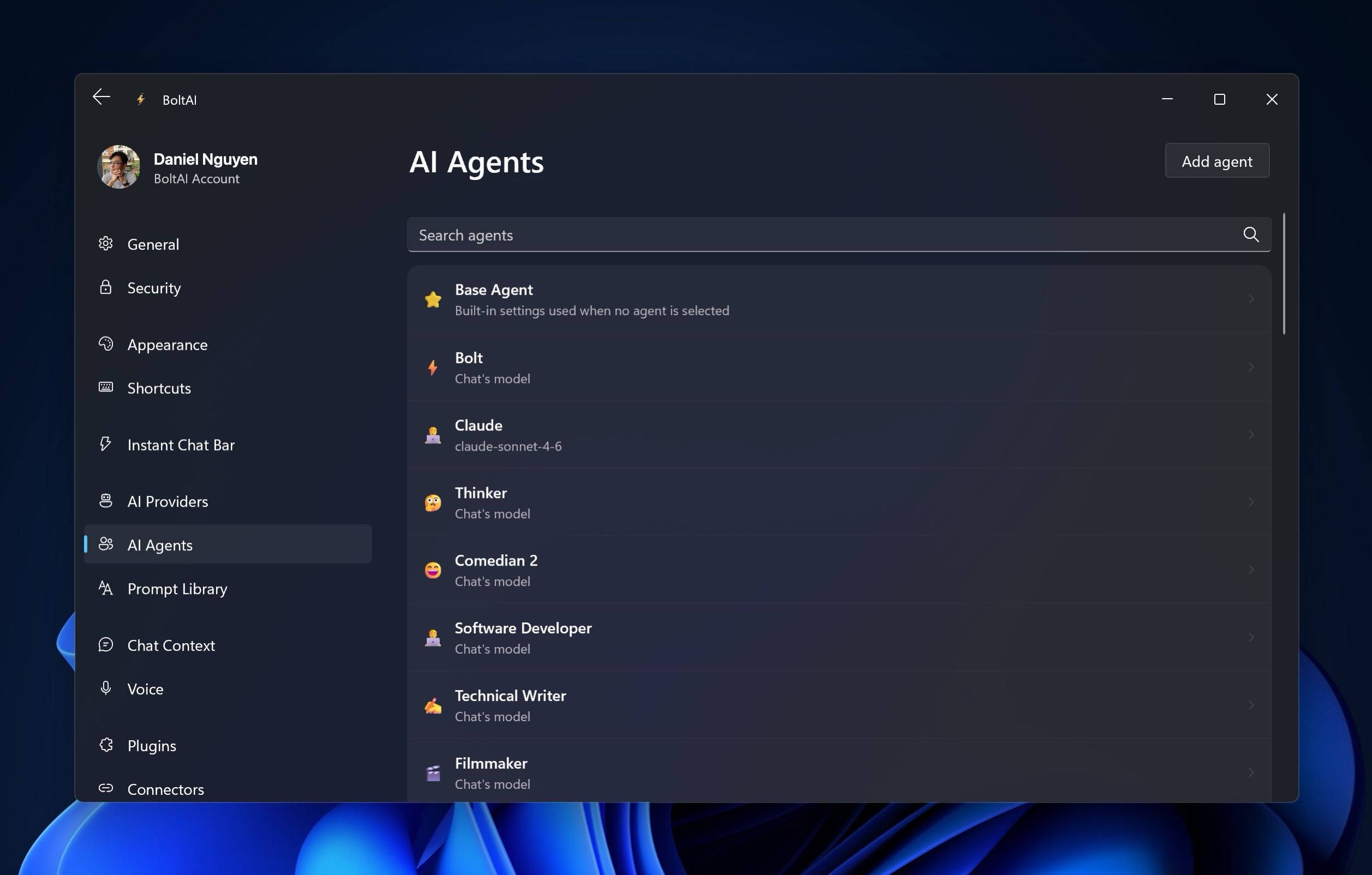
Base Agent at the top of the list holds the settings a chat uses when no agent is picked. In the message box, it's called Default Agent. Click Base Agent to change it. See Default chat settings.
Create an agent
- Open Settings › AI Agents and click Add agent.
- Enter a Name.
- In Icon, add one emoji. Press Windows key + . to pick one.
- Choose the Provider and Model the agent uses. Leave them at Default Provider and Provider Default to use your usual model.
- Click Save.
Then set up what the agent does:
- Chat Context: write the agent's instructions in System Instruction, for example who it is and how it should answer, and choose its Policy for how much of the chat it reads. Click Save.
- Tools: turn on the tools the agent may use, such as web search.
- LLM Parameters: fine-tune the model, such as its temperature. Most agents work well without changing these.
Edit or remove an agent
Click an agent to edit it. To remove it, right-click it, choose Remove, and click Remove again.
Prompt Library
Your prompts are in Settings › Prompt Library. To use one in a chat, click Insert prompt in the message box and pick it. See The message box.
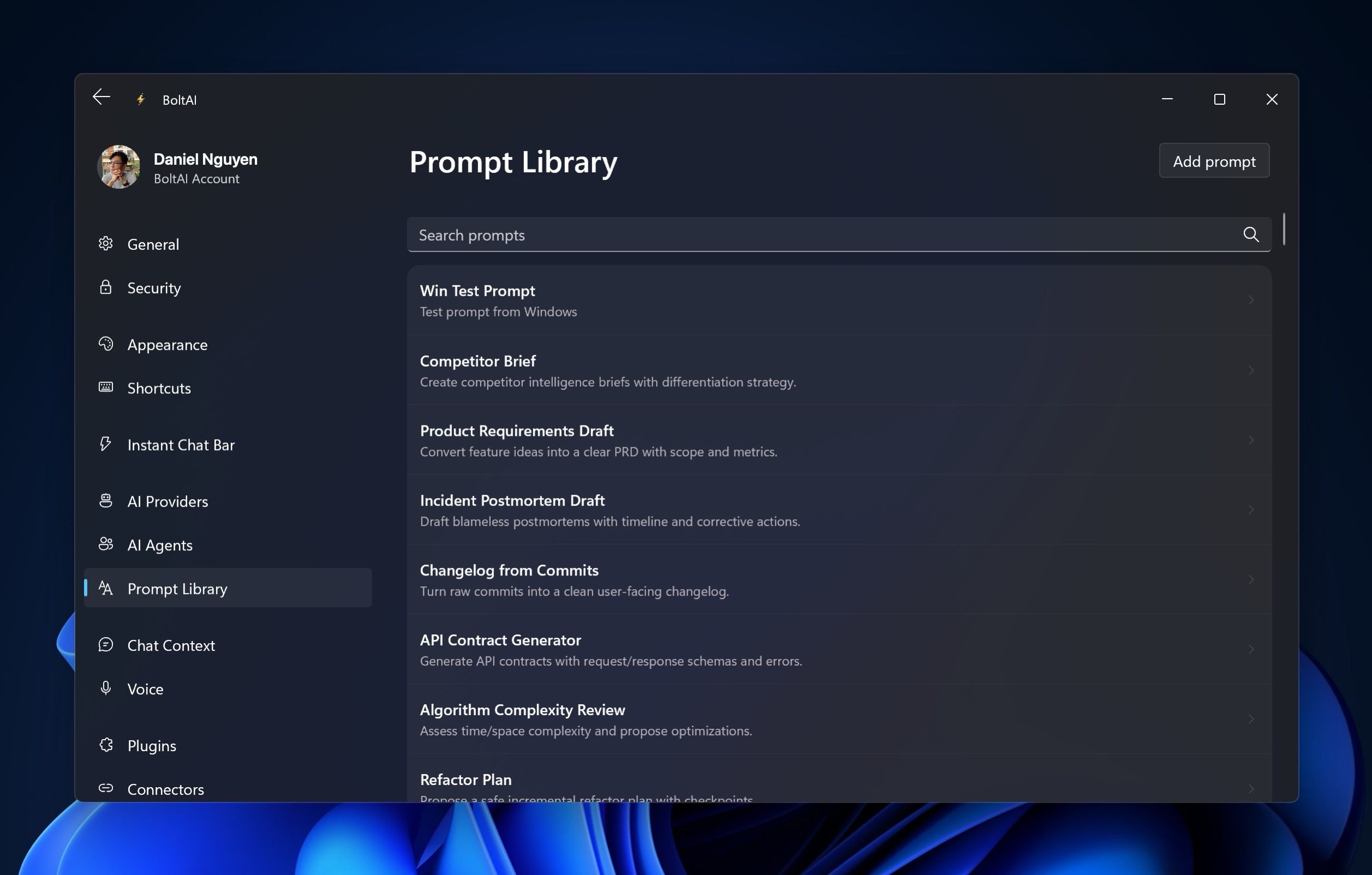
Save a new prompt
- Open Settings › Prompt Library and click Add prompt.
- Enter a Name, an optional Description, and the Prompt Content.
- Click Save.
You can also click + in the Insert prompt menu to open the Prompt Library.
To save a message as a prompt, open More (…) under it and choose Create a Prompt…. See Work with messages.
Edit or remove a prompt
Click a prompt to edit it. To remove it, right-click it, choose Remove, and click Remove again.
Add the starter pack
The starter pack adds ready-made prompts and agents to your account. If you skipped it when you first opened BoltAI, Add starter pack shows at the top of Settings › AI Agents and Settings › Prompt Library. Click Add.
Was this helpful?
Still need help? Ask the team