The message box
Type and send messages, attach files, and pick the tools, prompt, agent and model for a chat.
Written By Daniel Nguyen
The message box sits at the bottom of every chat. Type your message and press Enter to send it. Press Shift+Enter for a new line.
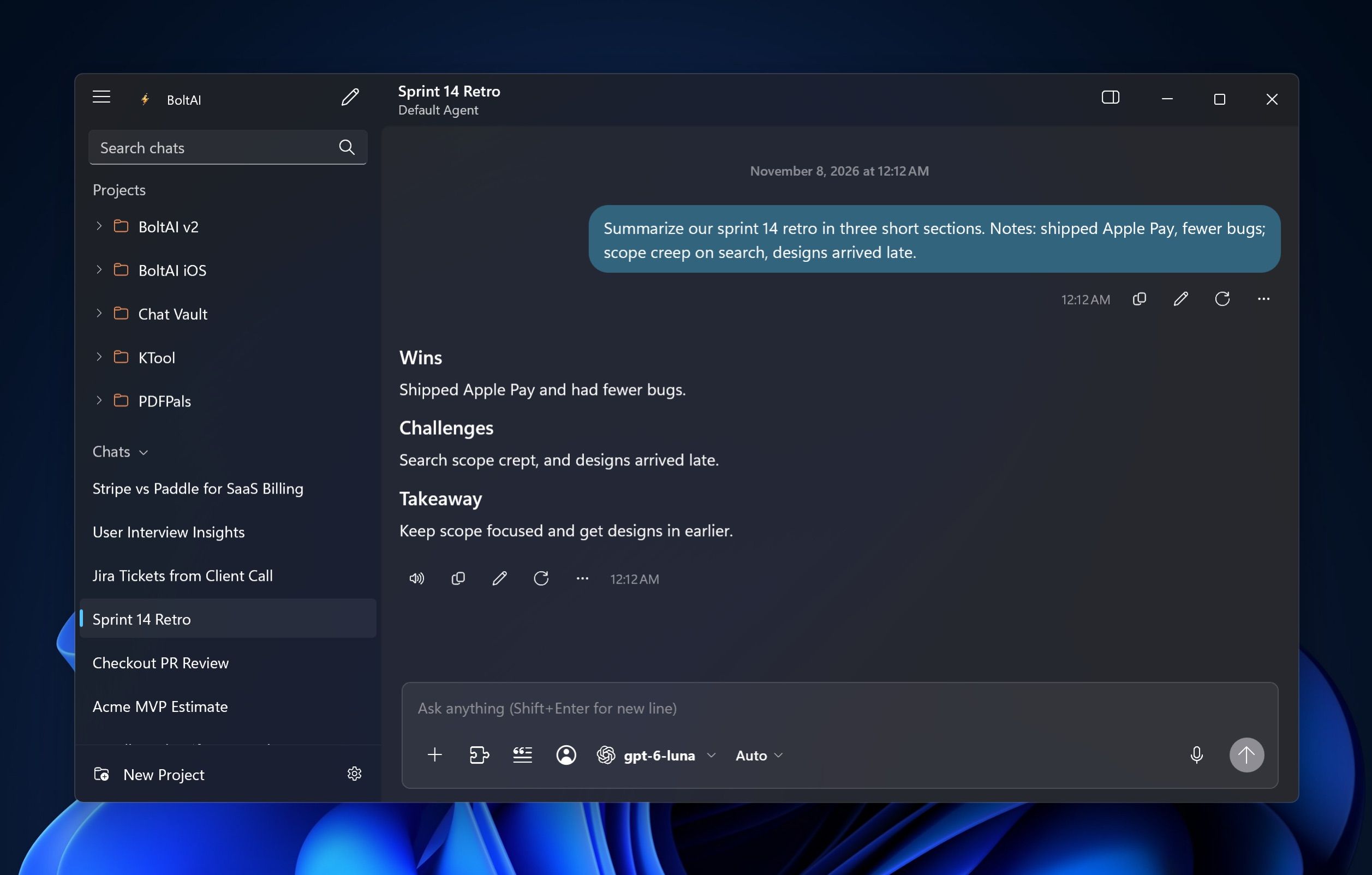
The buttons, from left to right:
In a narrow window, Insert prompt and Agent move into the + menu.
Make Enter add a new line
Open Settings › General and turn off Press Enter to send message. Enter then adds a new line, and you click Send to send.
Ask about a file or an image
- Add the file in one of these ways:
- Drag it from File Explorer onto the BoltAI window.
- Copy it in File Explorer, or take a screenshot, then click in the message box and press Ctrl+V.
- Click + and choose Attach File or Attach Photo.
- Ask your question, for example Summarize this in five bullet points.
You can attach:
- Images (PNG, JPEG, GIF, WebP, HEIC), with a model that can see images
- Text, Markdown, CSV, JSON and XML files
- PDFs, with a model from OpenAI, Anthropic, Google AI, Google Vertex AI, Azure OpenAI or OpenRouter
Each file can be up to 10 MB. If a file is still uploading when you press Enter, BoltAI sends your message once it's done.
To see every file in a chat, press Ctrl+I and click Attachments. See The Inspector.
A file won't attach
- "This model can't read …": the current model doesn't take that kind of file. Switch to a model that does, for example one from OpenAI, Anthropic or Google AI for a PDF. See Choose and switch models.
- "Files must be smaller than 10MB": split the file, or attach only the part you need.
- A Word or Excel file: save it as PDF or CSV first.
Turn on tools
Click Tools and turn on the tools you want, such as Web Search or Image Generation. The switch at the top turns all tools on or off for this chat. See Tools and web search.
Insert a saved prompt
- Click Insert prompt.
- Type a few letters in Search prompts, then click the prompt, or use Up, Down and Enter.
The prompt's text goes into the message box, ready to edit before you send. See Agents and prompts.
Use an agent for this chat
Click Agent and pick an agent. The chat takes on the agent's instructions, model and tools. Choose Default Agent to go back to your usual settings.
To create or edit agents, click + in the Agent menu. See Agents and prompts.
Change the model or reasoning effort
Click the model name. See Choose and switch models.
Dictate a message
Click the microphone and speak. See Read Aloud and voice input.
Stop a reply
Click Stop, the Send button while a reply is coming.
Was this helpful?
Still need help? Ask the team