Work with messages
Copy, edit, regenerate, branch, save and delete messages, and see a reply's reasoning and sources.
Written By Daniel Nguyen
Under every reply is a row of buttons: Read Aloud, Copy, Edit, Regenerate and More (…), with the reply's speed and time. Under your own messages are Copy, Edit, Regenerate and More. You can also right-click your message to open the More menu.
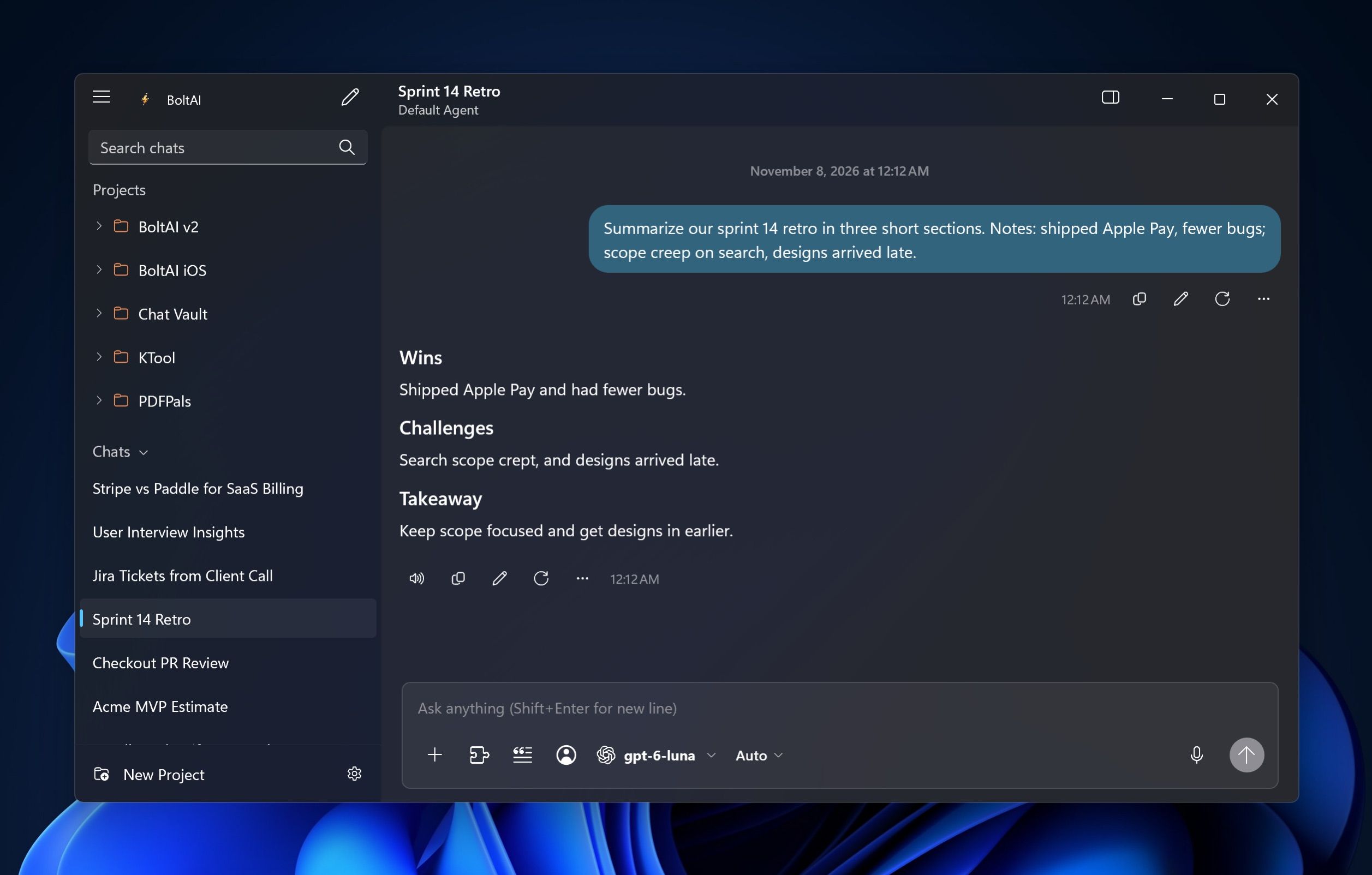
Copy a reply into another app
Click Copy under the reply. It copies the reply as Markdown.
To choose the format, click More and choose:
- Copy Rich Text for Word, Outlook and other apps that keep formatting
- Copy Plain Text for emails, forms and anywhere formatting gets in the way
- Copy Markdown for Markdown apps and code editors
To copy part of a reply, select the text and press Ctrl+C. To copy a code block, click Copy at its top.
Get a better answer
- Ask again. Click Regenerate for a new reply to the same message.
- Fix your question. Click Edit under your message, change it, and click Save and Regenerate.
- Try another model. Switch the model, then click Regenerate. See Choose and switch models.
- Let it think longer. Raise the reasoning effort next to the model. See Choose and switch models.
Edit a message
You can edit your messages and the AI's replies, for example to fix a detail in a reply before you continue.
- Click Edit under the message, or choose More › Edit Message.
- Change the text on the left. On the right are the message's Attachments, Sources, Reasoning and Tools. Click Remove All to drop any of them, or Undo to bring them back.
- Click:
- Save and Regenerate (Ctrl+Enter) to save your message and get a new reply
- Save (Ctrl+S) to keep the change without a new reply
Branch a chat from a message
Click More on a message and choose Branch from here. BoltAI starts a new chat with the messages up to that point and opens it. The original chat stays as it was.
Delete messages
Click More on a message and choose:
- Delete Message to remove that message. BoltAI asks first.
- Delete All Subsequent Messages to remove everything after it, and carry on from there.
To empty a whole chat, see Manage your chats.
Save a reply
Click More on a reply and choose:
- Save Message… to save it as a Markdown (.md) file
- Create a Prompt… to save it to your Prompt Library
- Open in Browser… to open it in your web browser, for example to print it
Save or copy an image
Click an image in a reply to open it full screen. Click Copy to copy it, or Save to save it as a file.
See the reasoning and sources
- While a model thinks, the reply shows Reasoning.... Click View Reasoning to read its thinking.
- When the AI searched the web or used a tool, click Sources or the tool step to see the details in a side panel.
When a reply stops early
- It hit the model's length limit. BoltAI continues the reply in the same message, up to 3 times. To turn this off, open Settings › General and turn off Auto-continue long responses.
- It failed. The reply shows the error. Click Retry to try again.
Read a reply aloud
Click Read Aloud under the reply. See Read Aloud and voice input.
To get a notification when a long reply finishes while you work in another app, see Run BoltAI in the background.
Was this helpful?
Still need help? Ask the team