Chat with AI

Keyboard shortcuts

Every BoltAI shortcut, and how to change them.

Written By Daniel Nguyen

Change a shortcut

Open Settings › Shortcuts. Click a shortcut and press the new keys, or click × to clear it. Reset to Defaults puts them all back.
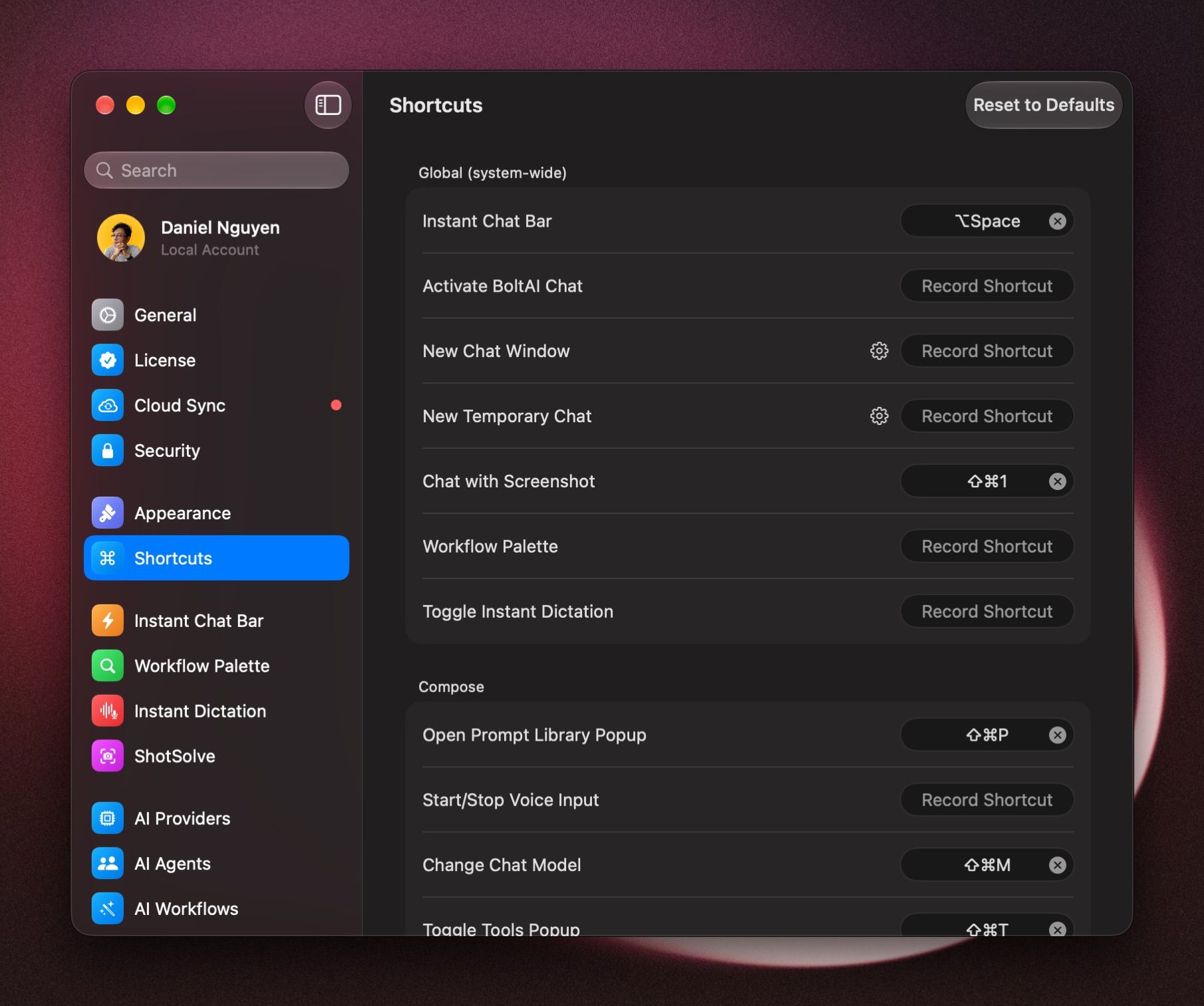
Settings › Shortcuts

If a shortcut doesn't work, another app may use the same keys. Pick different keys.

Each AI Workflow can have its own shortcut too. See AI Workflows.

Global shortcuts

These work wherever you are. Some have no keys until you set them.

ActionDefault
Instant Chat Bar⌥ Space
Chat with Screenshot (ShotSolve)⇧ ⌘ 1
Activate BoltAI Chatnone
New Chat Windownone
New Temporary Chatnone
Workflow Palettenone
Toggle Instant Dictationnone

Message box

ActionDefault
Change the model⇧ ⌘ M
Tools⇧ ⌘ T
Prompt Library⇧ ⌘ P
Agent⇧ ⌘ A
Reasoning effort⌥ ⌘ R
Stop the reply⌘ .
Start/Stop Voice Inputnone
New line⌥ Return

Chats

ActionDefault
New chat⌘ N
New tab⌘ T
New temporary chat⌥ ⌘ T
New multi-agent chat⌥ ⌘ N
New image⌃ ⌘ N
New project⇧ ⌘ N
Regenerate the reply⌘ R
Reload the chat⇧ ⌘ R
Go to the message box⌘ /
Edit your last message⌘ E
Copy the last reply⇧ ⌘ C
Copy the last reply and close⇧ ⌘ X
Reset chat context⇧ ⌘ K
Delete all messages⇧ ⌘ D
Move the chat to Trash⇧ ⌘ ⌫
Show or hide the Inspector⌘ I
ActionDefault
All chats⌃ ⌘ 1
Favorites⌃ ⌘ 2
Archived⌃ ⌘ 3
Recently Deleted⌃ ⌘ 4
Search chats⇧ ⌘ F
Open the first 9 chats in the list⌘ 1 to ⌘ 9
Previous or next chat⇧ ⌘ [ , ⇧ ⌘ ]
Back, forward⌘ [ , ⌘ ]
Go to tab 1 to 9⌥ ⌘ 1 to ⌥ ⌘ 9
Next or previous tab⌃ Tab, ⌃ ⇧ Tab
Show or hide the sidebar⌥ ⌘ S
Bigger, smaller, normal text⌘ = , ⌘ − , ⌘ 0
Import data⇧ ⌘ I
Export data⇧ ⌘ E