The message box
Everything you can do from the box where you type: files, tools, prompts, agents, models, voice and / commands.
Written By Daniel Nguyen
The message box sits at the bottom of every chat. Type your message and press Return to send. Press ⌥ Return for a new line. To send with ⌘ Return instead, turn off Press Enter to send message in Settings › General. Return then adds a new line.
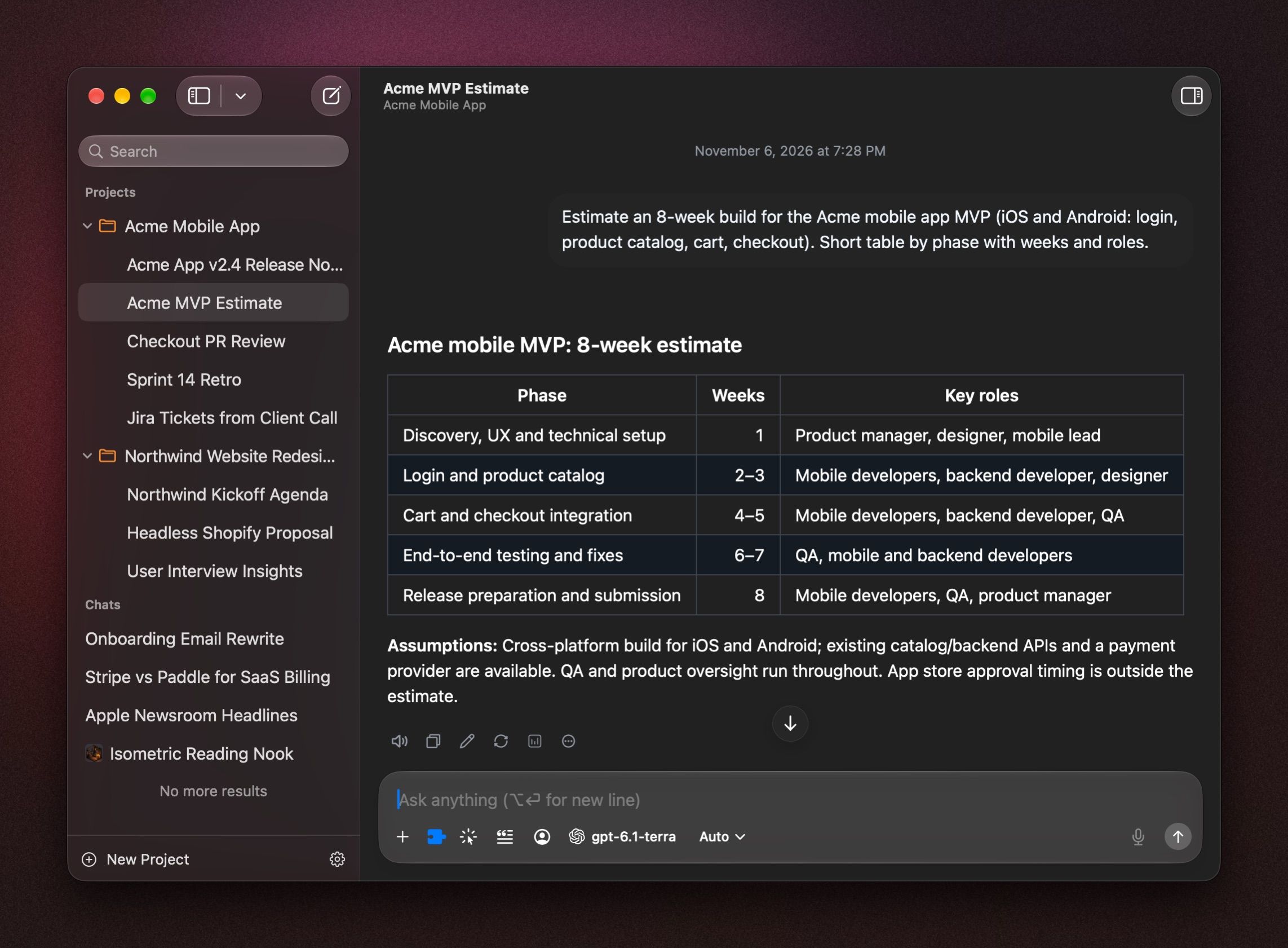
The buttons, from left to right:
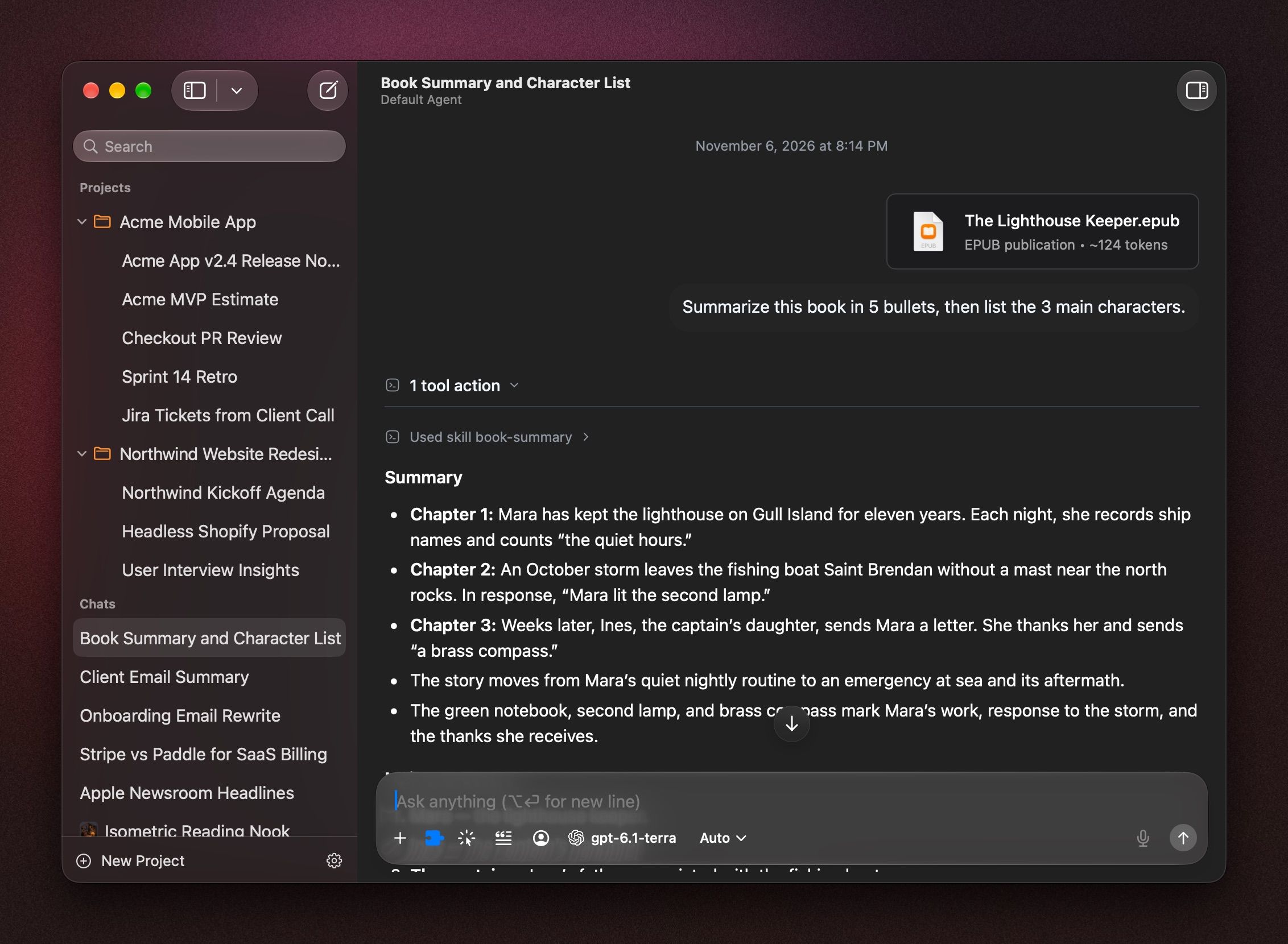
Ask about a file, a document or a book
- Drag the file onto the message box, paste it, or click + and choose Attach File or Attach Photo.
- Ask your question, for example Summarize this in five bullet points or What does chapter 3 say about pricing?
You can attach:
- PDF, Word (.docx), RTF and OpenDocument text
- Excel (.xlsx) and CSV
- EPUB books
- Text, Markdown, code and JSON
- Images, with a model that can see images
Each attachment shows its size in tokens. To see every file in a chat, press ⌘ I and click Attachments.
A book is too long for the model
A whole book can be well over 100,000 tokens. When it is, BoltAI shows a notice above the message box, for example This book is about 154k tokens. Some models can't read that much. You can still send it. For the best answers, pick a model with a large context window, such as Claude, Gemini or GPT-5.
A file won't attach
- A DRM-protected book: BoltAI can't read it. Use a DRM-free copy.
- A book from Apple Books that's a folder: attach the .epub file instead.
- An old Office file (.doc, .xls, .ppt): save it as .docx or .xlsx, or export it as PDF.
Insert a saved prompt
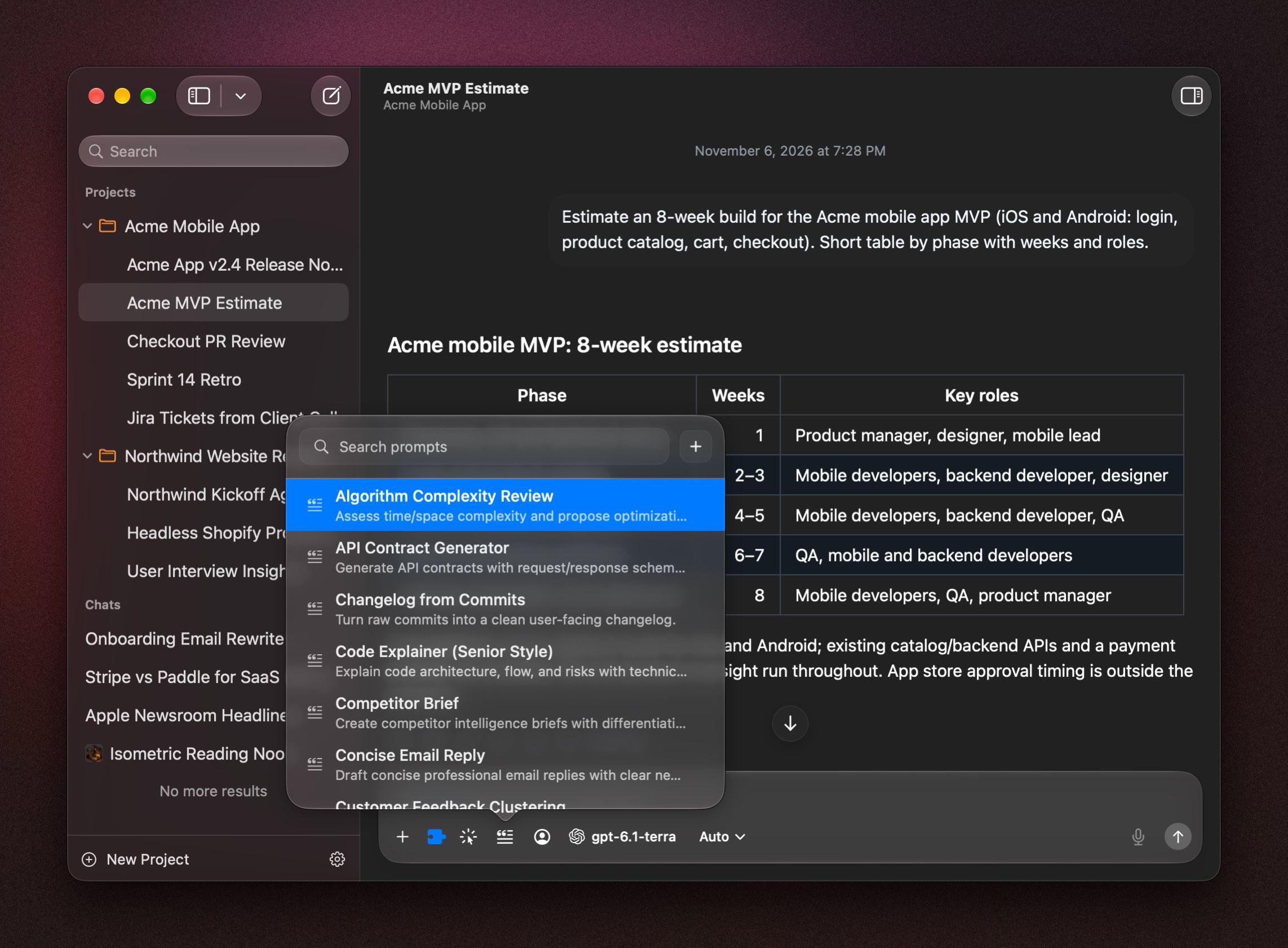
Click the Prompts button, press ⇧ ⌘ P, or type /prompts. Type a few letters to find the prompt and click it. Its text goes into the message box, ready to edit before you send.
See Prompt Library and Memories.
Use an agent for this chat
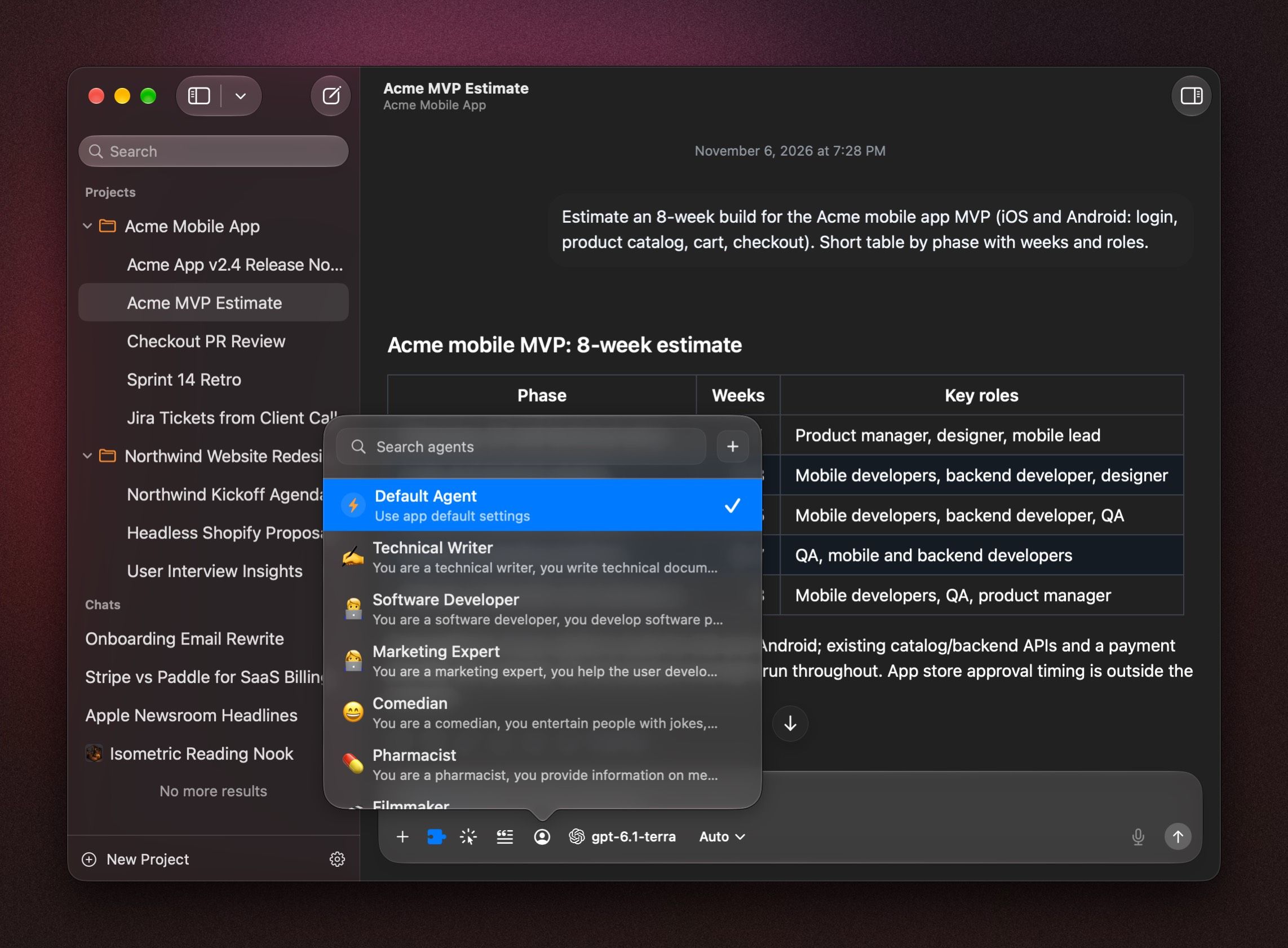
Click the Agent button, press ⇧ ⌘ A, or type /agent, then pick an agent. The chat takes on the agent's instructions, model and tools. Choose Default Agent to go back to your usual settings.
See AI Agents.
Change the model or reasoning effort
Click the model name, press ⇧ ⌘ M, or type /model. See Choose and switch models.
For harder questions, let the model think longer. Click the reasoning effort menu next to the model (it shows Auto) and choose Low, Medium, High or Extra High. Some models also offer Max. Choose Off for quick answers. Each chat keeps its choice.
In a project chat, the menu says This chat is using the project config. Click Customize for this chat to change it for this chat only.
Slash commands
Type / at the start of the message box to run a command. Keep typing to filter, then press Return.
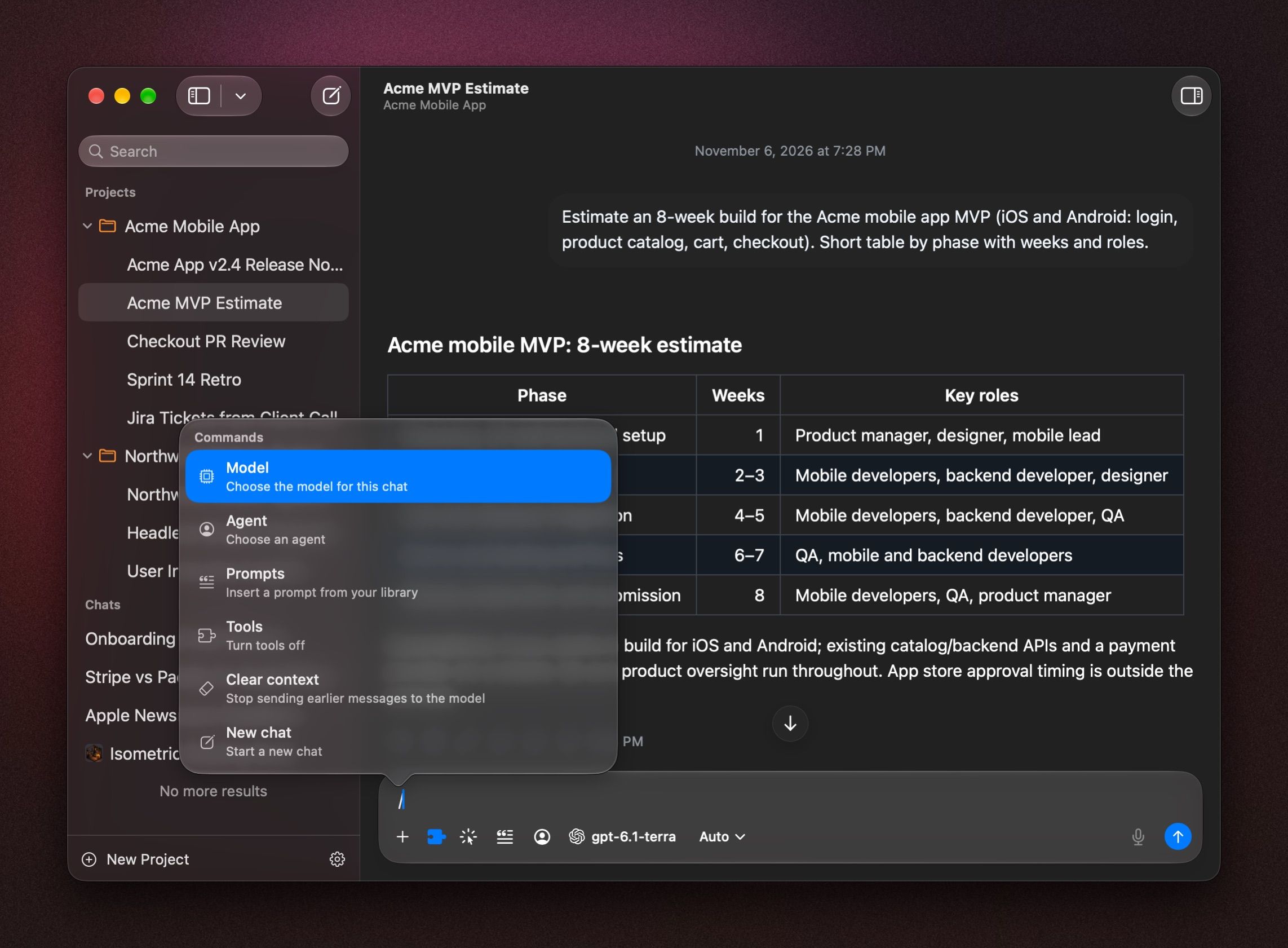
Agent Skills show up in the list once you turn them on. See Agent Skills.
Dictate a message
Click the microphone and speak. Your words appear in the message box, ready to send. To start and stop with a shortcut, set Start/Stop Voice Input in Settings › Shortcuts. To choose the speech engine, open Settings › Voice.
To dictate into other apps, use Instant Dictation. See Inline AI.
Hide buttons you don't use
Open Settings › Appearance and turn buttons off under Compose Bar. Reset Compose Bar brings them all back.
Was this helpful?
Still need help? Ask the team