Image Studio
Make images, edit them, and keep every version.
Written By Daniel Nguyen
Image Studio makes images from a description and lets you edit them step by step. Every edit is kept as a version.
Image Studio uses your own API key for OpenAI, Google, xAI, Replicate or fal. Add one in Settings › AI Providers first. See Manage providers.
Open Image Studio
Press ⌃ ⌘ N, or choose File › New Image.
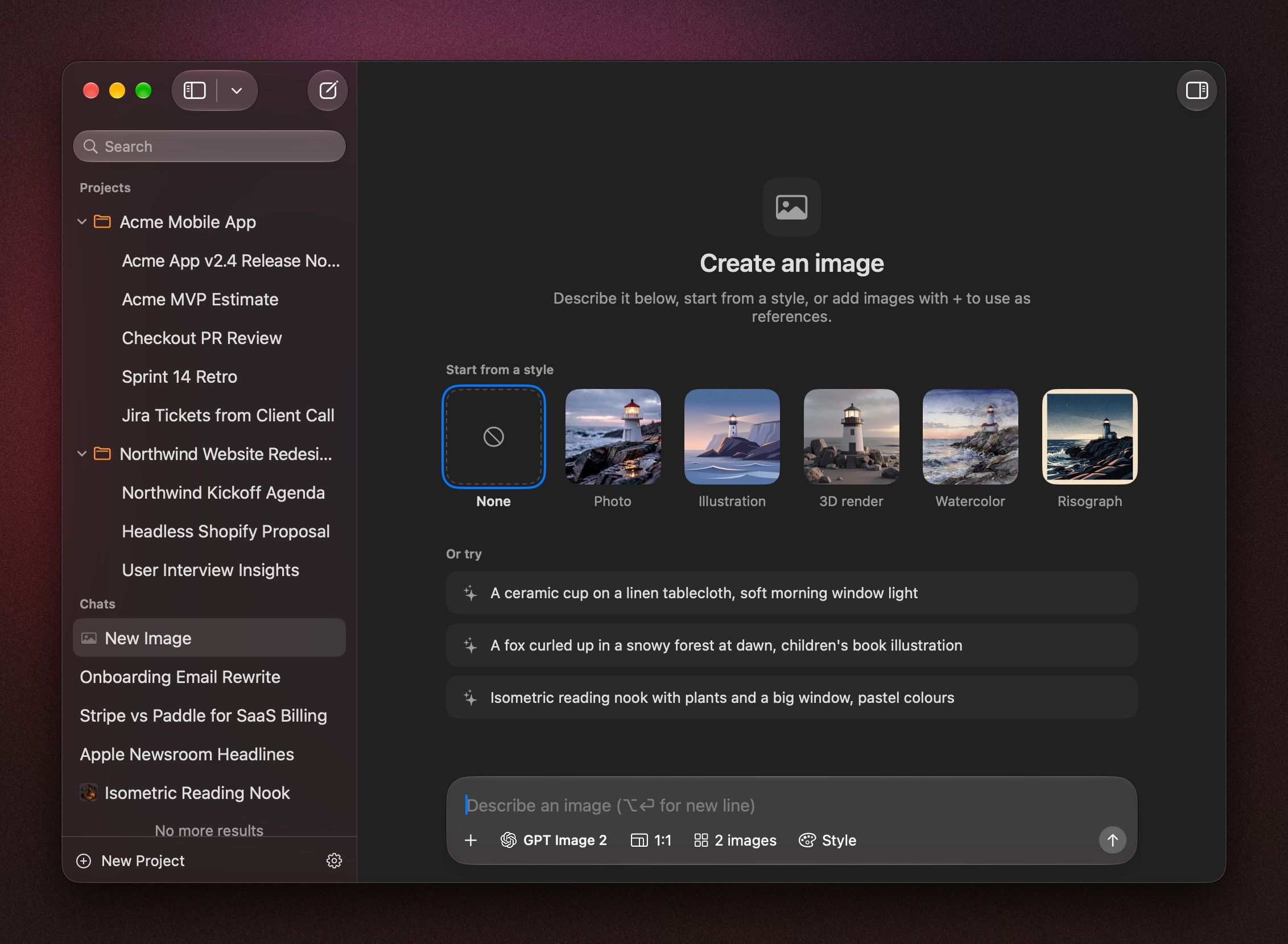
Make an image
- Pick a model. Type in Search image models to find one.
- Pick an aspect ratio, such as 1:1, 3:2, 2:3, 4:3, 3:4, 16:9 or 9:16. The choices depend on the model.
- Pick how many images to make, up to four.
- Describe the image. Or click a style under Start from a style, such as Photo, Illustration, 3D render, Watercolor or Risograph, or one of the examples under Or try.
- Press Return, or click Generate.
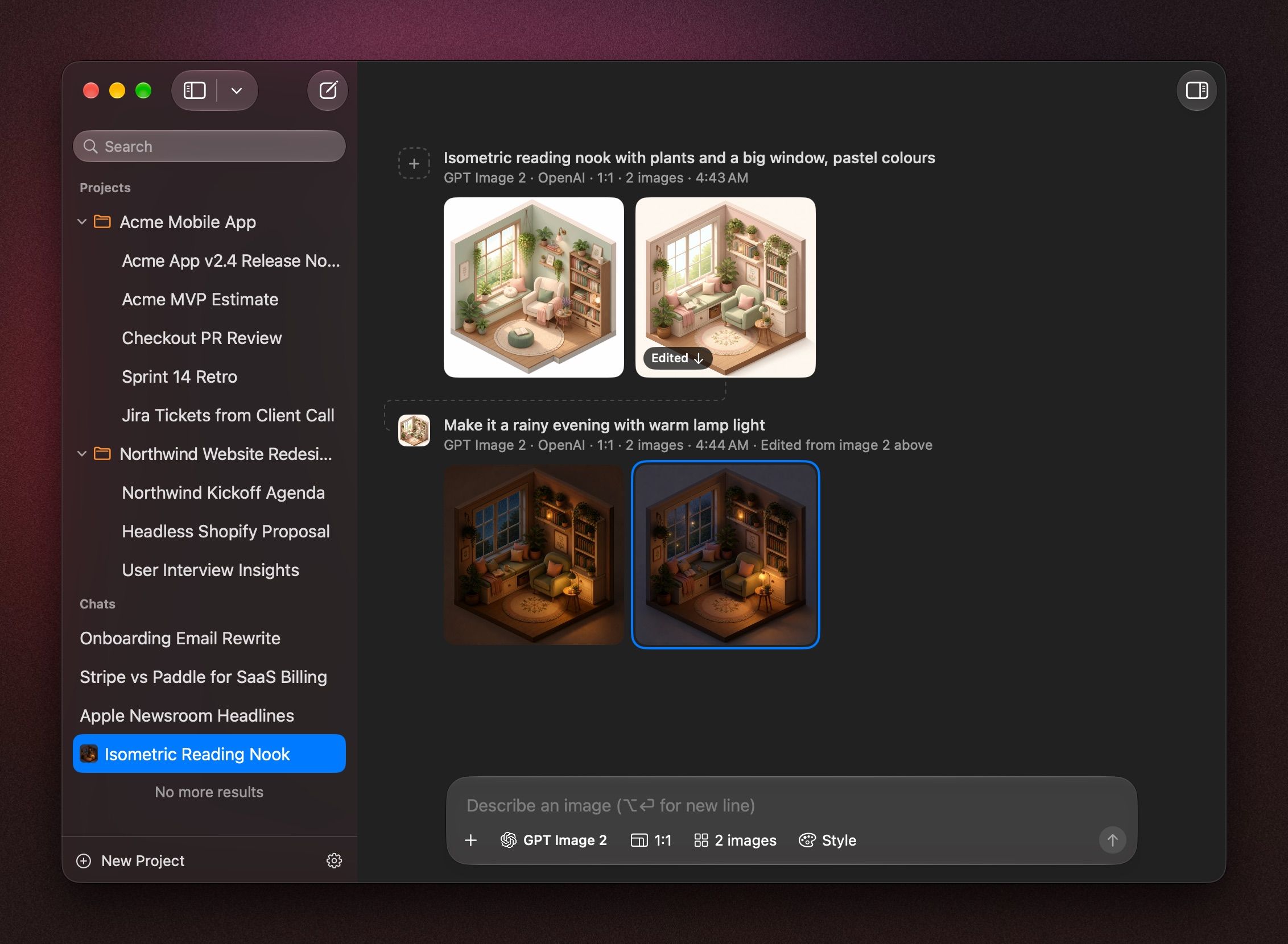
To cancel, click Stop. If something fails, click Retry.
Use your own image as a reference
Click +, or paste an image into the message box. Image Studio uses it as a reference for style or subject, for example Make this photo look like a watercolor.
Edit an image
- Double-click an image, or click Edit. The message box shows Editing.
- Describe the change, for example Make it night time, and press Return.
Each edit becomes a new version. Click Previous Version and Next Version to step through them, or open Versions to see them all.
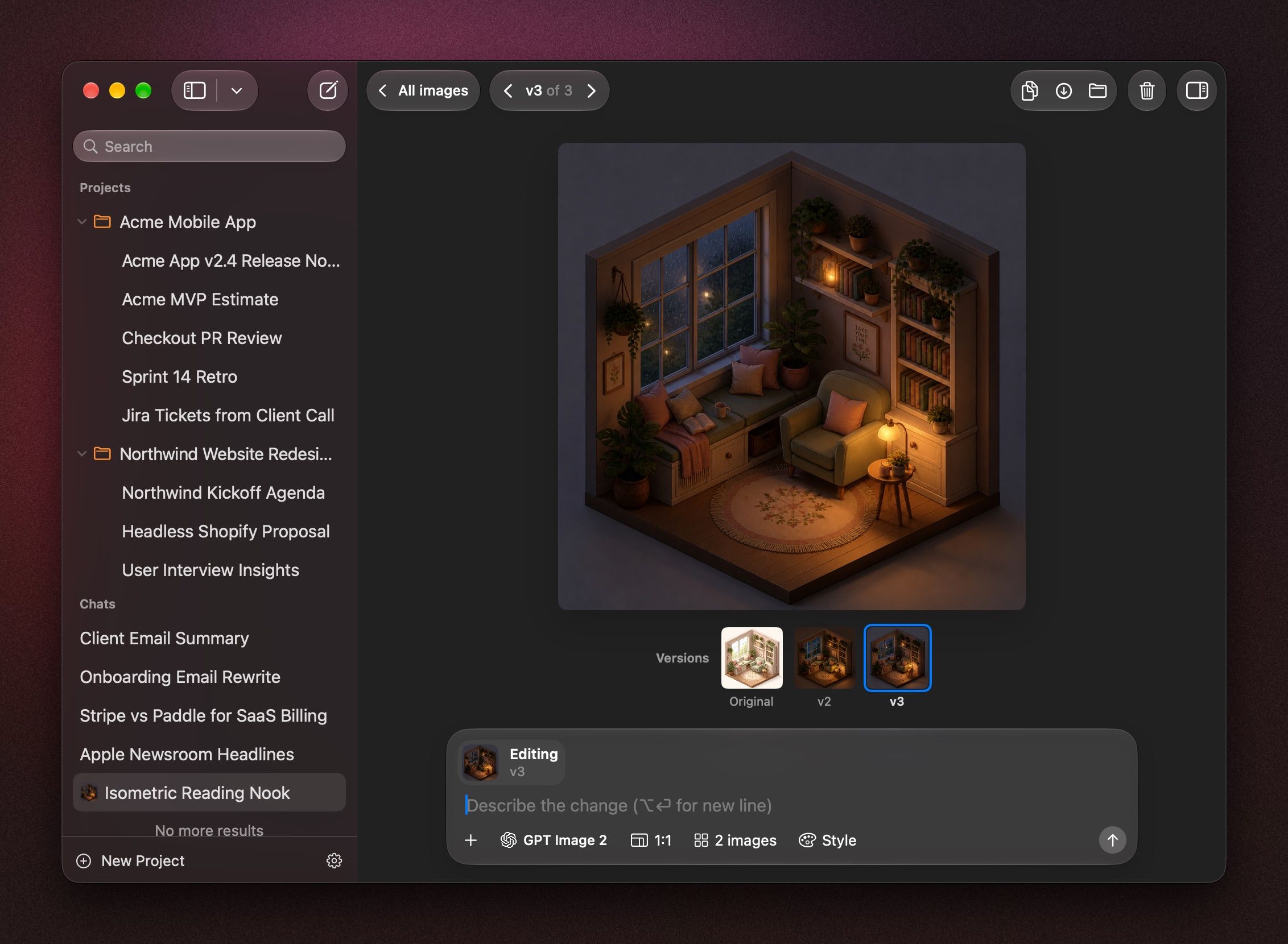
To go back to making new images, click Stop editing; the next prompt makes a new image, or press Esc to go Back to all images.
Reuse an image's prompt
Press ⌘ I and click Reuse to load its prompt, settings and source into the message box, then change what you want. Copy Prompt copies the prompt.
Keyboard shortcuts
Save or share images
- Open More on an image for Copy Image, Save…, Show in Finder and Delete.
- Conversation › Export Images… saves all of a chat's images as a zip.
- Conversation › Share… shares the chat.
Image details
Press ⌘ I to see an image's Prompt, Model, Size, Source and when it was Created.
Was this helpful?
Still need help? Ask the team