The main window
A tour of the BoltAI window: the sidebar, toolbar, chat, Inspector and menus.
Written By Daniel Nguyen
The main window is where you chat. Your projects and chats are in the sidebar on the left, the open chat fills the middle, and you type in the message box at the bottom.
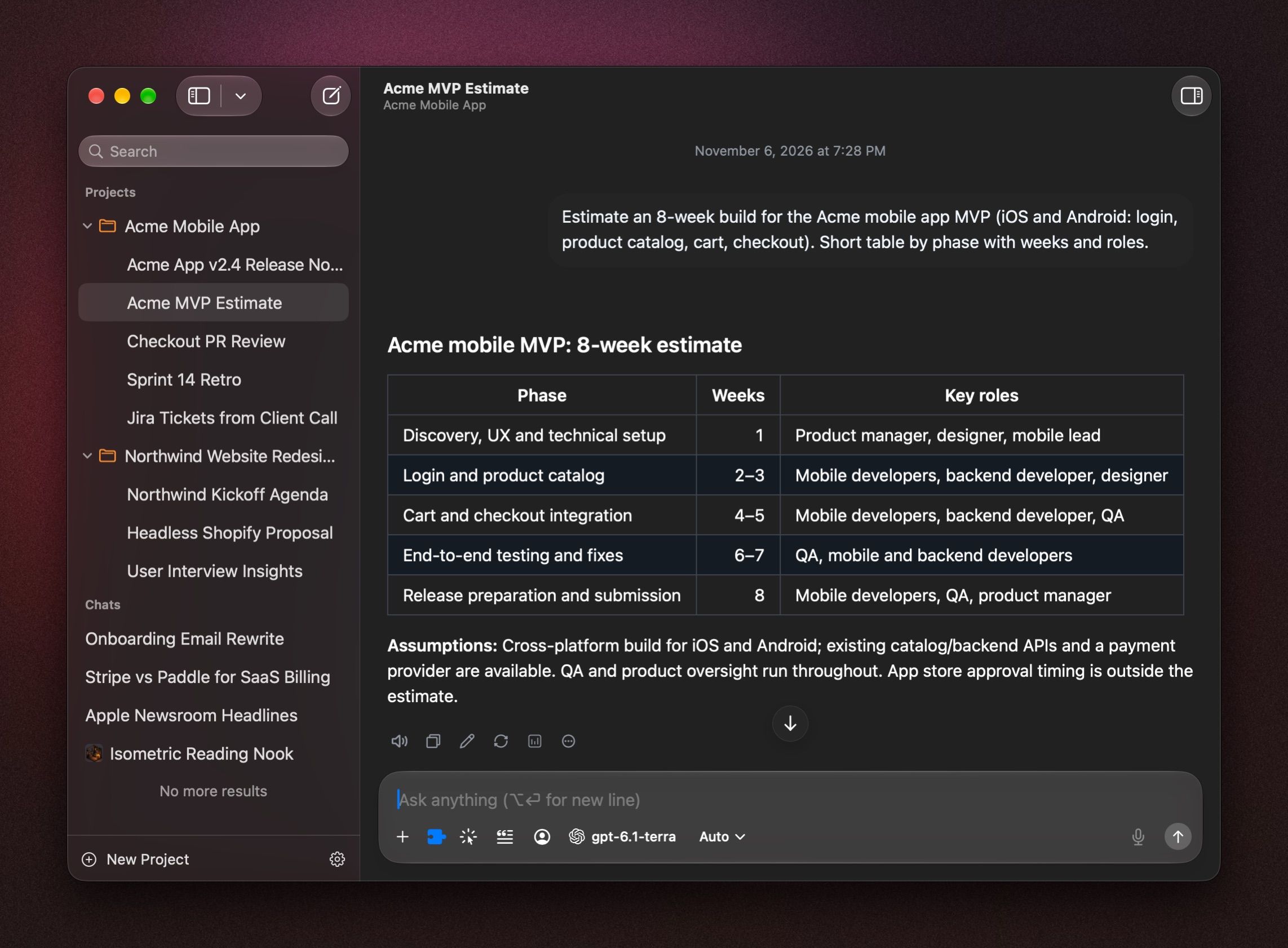
Parts of the main window
- Sidebar. Search at the top, then your Projects, then your Chats, newest first. Click a chat to open it. See Manage your chats and Projects.
- Chat. The chat's title and agent are at the top. Each reply has buttons under it to copy, edit, regenerate and more. See Work with messages.
- Message box. Type, attach files, and pick the model, agent and tools for this chat. See The message box.
- Inspector. Press ⌘ I to open it on the right. See below.
To start a chat, press ⌘ N.
The Inspector
Press ⌘ I to open the Inspector. It has three tabs:
- Parameters: the chat's system prompt, chat context and model parameters. See Chat parameters in the Inspector.
- Attachments: every file in the chat, with its size in tokens.
- Info: the chat's title, its project, links to the chat, export, and token usage.
Open chats in tabs or windows
- Tabs. Press ⌘ T for a new tab, or right-click a chat in the sidebar and choose Open in New Tab. Closed a tab by mistake? Choose File › Reopen Closed Tab. File › Restore Previous Tabs brings back the tabs from your last session.
- Companion window. Right-click a chat and choose Open in Companion Window to keep it in its own small window while you work in another app.
Hide the sidebar or change text size
- Hide the sidebar with ⌥ ⌘ S.
- Make text bigger or smaller with ⌘ = and ⌘ −. ⌘ 0 goes back to normal.
- Choose View › Enter Full Screen.
To widen the chat or change fonts and colors, see Settings › Appearance.
Customize the toolbar
Choose View › Customize Toolbar… and drag in the actions you use most, such as Share or exporting a PDF.
Other ways to open BoltAI
- Instant Chat Bar. Press ⌥ Space in any app to ask a quick question. See Inline AI.
- At login. Turn on Launch at login in Settings › General to open BoltAI when you log in.
- Menu bar. Turn on Show menu bar in Settings › General to reach BoltAI from the menu bar. To keep BoltAI out of the Dock when no window is open, turn on Hide Dock icon when last window closes.
Was this helpful?
Still need help? Ask the team