The main window
A tour of the BoltAI window on Windows: the sidebar, title bar, chat, message box and Inspector.
Written By Daniel Nguyen
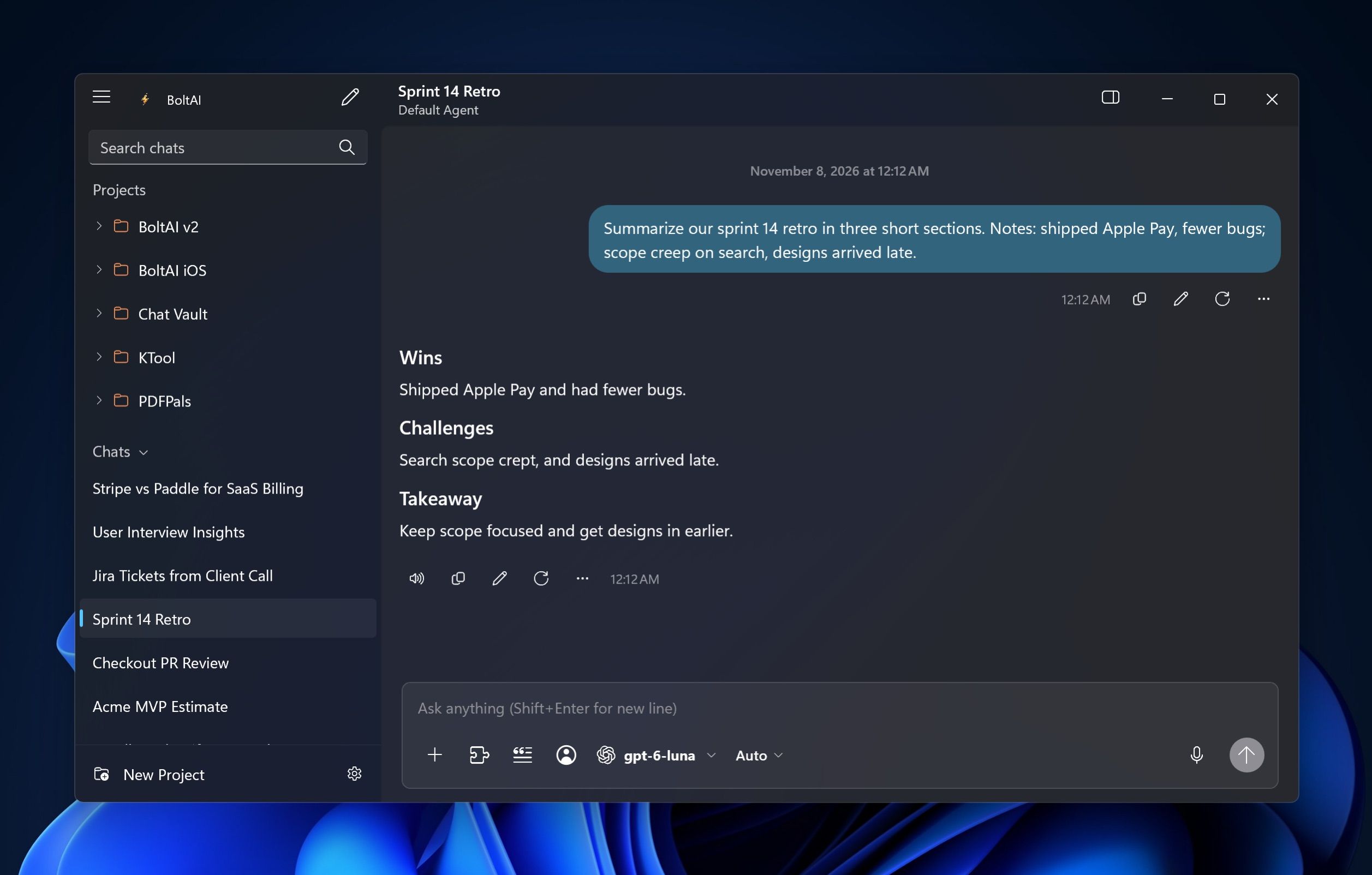
The main window is where you chat. Your projects and chats are in the sidebar on the left, the open chat fills the middle, and you type in the message box at the bottom.
Start a chat
- Press Ctrl+N, or click New chat at the top left of the window.
- Type your message and press Enter.
To pick another model, click the model name in the message box. See Choose a model.
Parts of the main window
- Sidebar. Search chats at the top, then your Projects, then your chats, newest first. Click a chat to open it. Click the Chats heading to switch to Favorites, Archived or Recently Deleted. See Manage your chats and Projects.
- Title bar. The open chat's title, with its agent below it. On an empty new chat, a button here turns on a temporary chat. In a project's chat, Back returns to the project.
- Chat. Each message has buttons under it to copy, edit, regenerate and more. See Work with messages.
- Message box. Type, attach files, and pick the model, agent and tools for this chat. See The message box.
- Inspector. Press Ctrl+I, or click Inspector at the right of the title bar, to see the chat's parameters, attachments and info. See The Inspector.
The gear menu
Click the gear at the bottom of the sidebar:
- Sync Now syncs your chats right away. See Privacy and your data.
- Help Center opens this help center.
- Send Feedback opens a form to share an idea or report a problem.
- Check for Updates… looks for a new version. See Install BoltAI for Windows.
- Settings… opens Settings.
Open Settings
Press Ctrl+,. Settings opens in the main window, with its pages listed on the left. To go back to your chats, press Esc or click Back at the top left.
Hide the sidebar or change text size
- Hide or show the sidebar with Ctrl+Shift+S. When it's hidden, a narrow strip keeps New chat, Search chats and Projects at hand.
- Make text bigger or smaller with Ctrl+= and Ctrl+-. Ctrl+0 goes back to normal.
To widen the chat or change colors, see Appearance.
Other ways to open BoltAI
- Instant Chat Bar. Press Ctrl+Alt+Space in any app to ask a quick question. See Instant Chat Bar.
- Notification area and login. Keep BoltAI running after you close the window, or open it when you sign in to Windows. See Run BoltAI in the background.
Was this helpful?
Still need help? Ask the team