The Inspector
Change one chat's system prompt, context and model parameters, and see its files, usage and export options.
Written By Daniel Nguyen
The Inspector shows the settings, files and details of the open chat. Changes you make here apply to this chat only.
To open or close it, press Ctrl+I, or click Inspector at the right of the title bar. It has three tabs: Parameters, Attachments and Info.
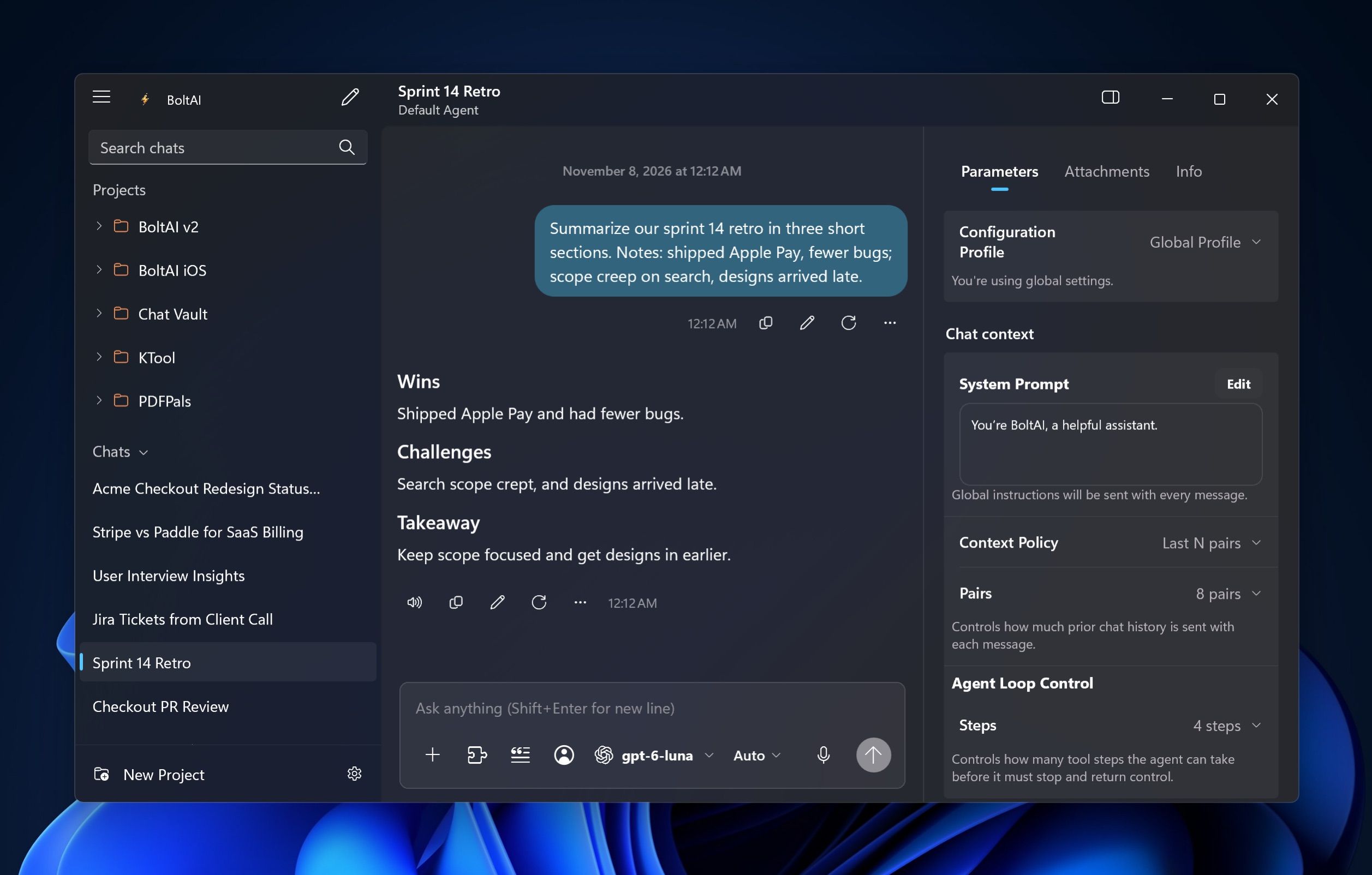
Use custom settings for one chat
At the top of Parameters, Configuration Profile shows where the chat's settings come from:
- Global Profile: your default chat settings. In a project chat, this reads Project Profile and uses the project's settings.
- Chat Profile: settings for this chat only.
- Agent: an agent's settings. Pick the agent in the Agent row below.
When you change the system prompt or a parameter, the chat switches to Chat Profile. To go back to the defaults, set Configuration Profile to Global Profile (or Project Profile).
To change the defaults for every new chat, see Default chat settings.
Change the system prompt
- Under Chat context, click Edit next to System Prompt.
- Type your instructions, for example Answer in British English.
- Click Save.
Choose how much of the chat the model sees
Set Context Policy:
- Last N pairs: the most recent messages and replies. Set how many in Pairs. Unless you change your defaults, chats send the last 8 pairs.
- First N pairs: the first messages and replies.
- All messages: the whole chat.
- No context: only your new message.
Sending fewer messages keeps replies faster and cheaper in long chats. To start fresh without changing this, see Manage your chats.
Limit tool steps
Under Agent Loop Control, Steps sets how many tool steps, such as web searches, the model can take before it has to answer.
Fine-tune the model
Under LLM parameters, click Edit next to a parameter to change it, and Reset to go back to the default:
- Temperature and Top P: lower for precise answers, higher for creative ones
- Max Tokens: the longest reply the model can write
- Top K, Frequency Penalty and Presence Penalty
- Reasoning Effort: how much a reasoning model thinks
- For Claude: Anthropic Effort and Thinking Budget
- For Gemini: Thinking Level and Thinking Budget
The list shows the parameters for the chat's model. If the model doesn't take one, BoltAI says Parameter unavailable and leaves it out of requests.
See and manage a chat's files
Click Attachments to see the files the chat can read:
- Chat attachments: files you attached in this chat
- Project attachments: files every chat in the project reads
- Assistant attachments: files that come with the chat's agent
Click a file to open it. Click … next to it, or right-click it, for Open File, Estimate Token Count and Remove Document.
See a chat's details and usage
Click Info:
- Title: click Edit to rename the chat.
- Created: when the chat started.
- Project: the chat's project. Click Reveal to show the chat in the sidebar.
- Local deep link: a link that opens this chat in BoltAI. Click the copy button to copy it.
- Export: click Export… next to Markdown (.md) to save the chat as a Markdown file.
- Usage (estimated): Input Tokens, Output Tokens, Total Tokens, Requests and Estimated Cost for the chat.
Was this helpful?
Still need help? Ask the team