How to use Ollama in BoltAI
Chat with the models you run in Ollama on your Mac.
Written By Daniel Nguyen
Ollama runs open AI models on your own computer. Add it to BoltAI to chat with the models you have in Ollama. No API key is needed.
Before you start
- Install Ollama from ollama.com and open it.
- Download at least one model. In Terminal, run
ollama pullfollowed by the model's name.
Set up Ollama in BoltAI
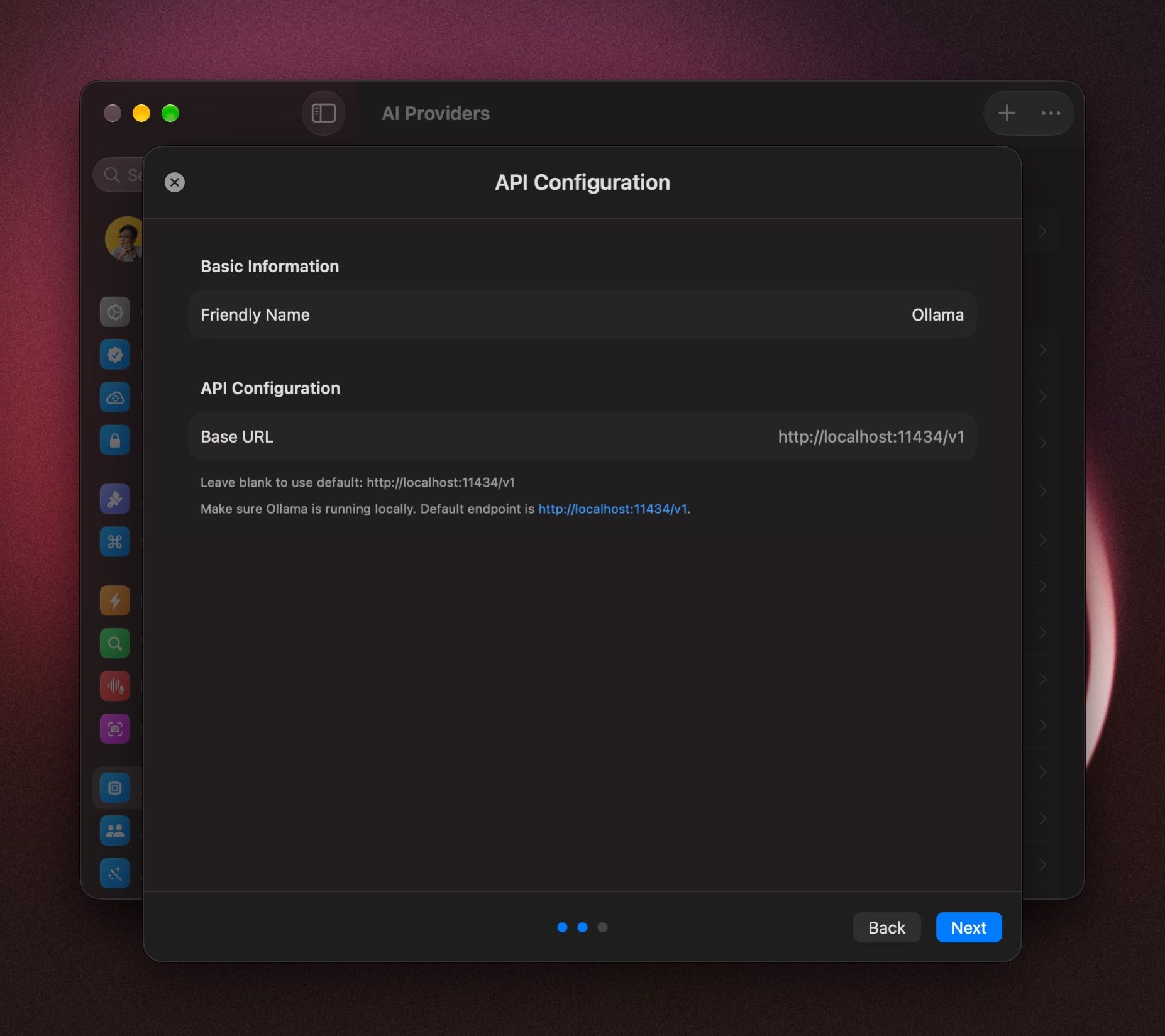
- Open Settings › AI Providers and click +.
- Click Ollama. Type in Filter providers to find it faster.
- Leave Base URL blank. If Ollama runs on another computer or port, enter that address and port only, without
/v1, for examplehttp://localhost:11434. - Click Next.
- Untick any models you don't want. Hover the model you want to start with and click Set as Default.
- Click Add Service.
Start a chat with Ollama models
In a chat, click the model name in the message box, or press ⇧ ⌘ M, and pick a model under Ollama. See Choose and switch models.
After you download a new model in Ollama, open Settings › AI Providers, click Ollama, and click Refresh Model List.
To run models without Ollama, see Local Models.
If it doesn't connect
- BoltAI couldn't reach Ollama. Make sure Ollama is open, or run
ollama servein Terminal. Then try again. - No models in the list. Download a model with
ollama pull, then click Refresh Model List. - Ollama runs somewhere else. Click Ollama, open the ⋯ menu, choose Edit Configuration, and check the Base URL and port.
- To check the connection at any time, open the ⋯ menu and choose Test Connection.
Was this helpful?
Still need help? Ask the team