Add an AI provider and API key
Connect an AI provider to BoltAI and choose which models are available.
Written By Daniel Nguyen
Add a provider to use its models in BoltAI. You will need a valid API key or the authentication method required by that provider.
Add a provider
Open BoltAI → Settings → AI Providers.
Select Add a Provider in the toolbar.
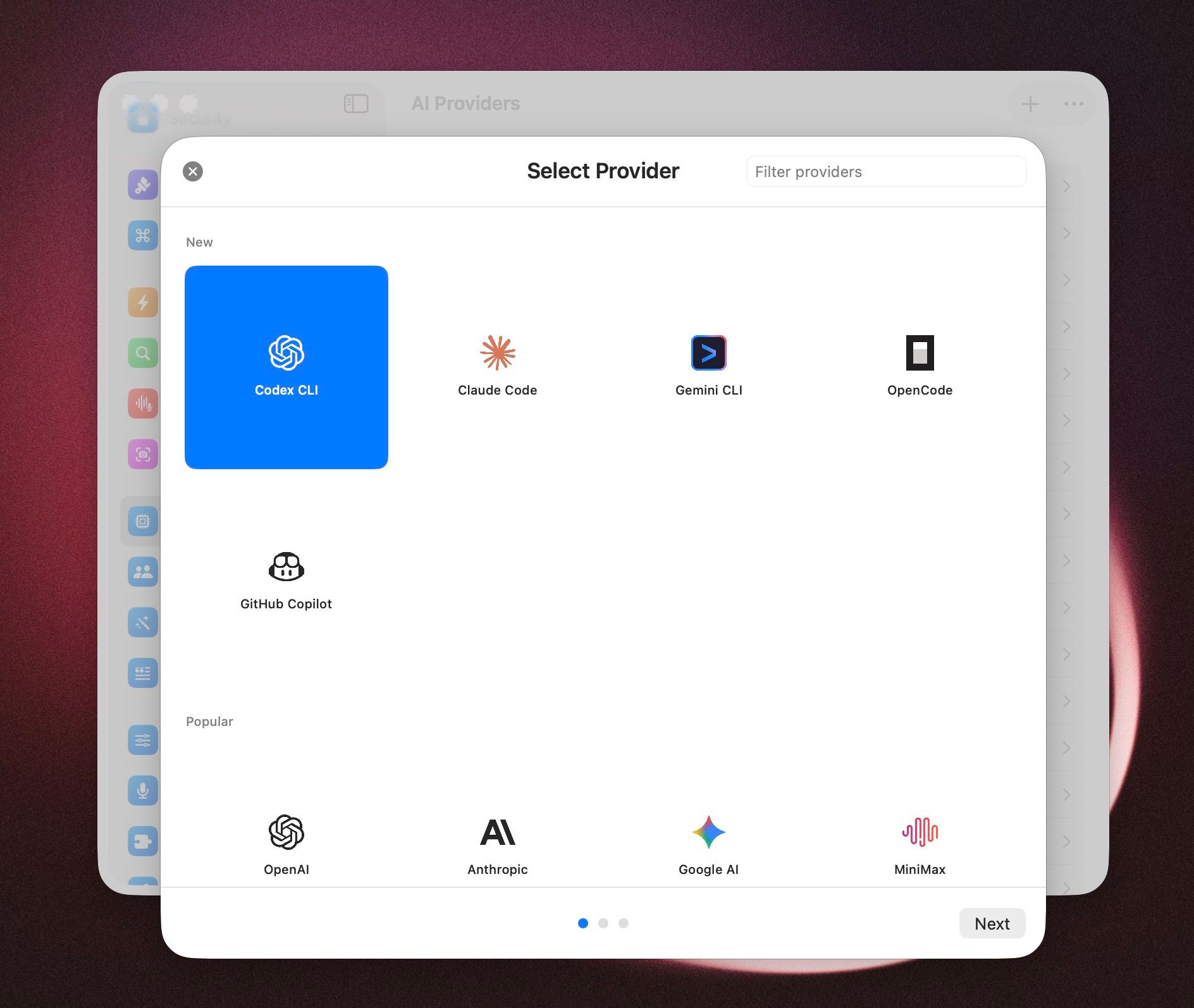
On Select Provider, choose the provider you want to connect.
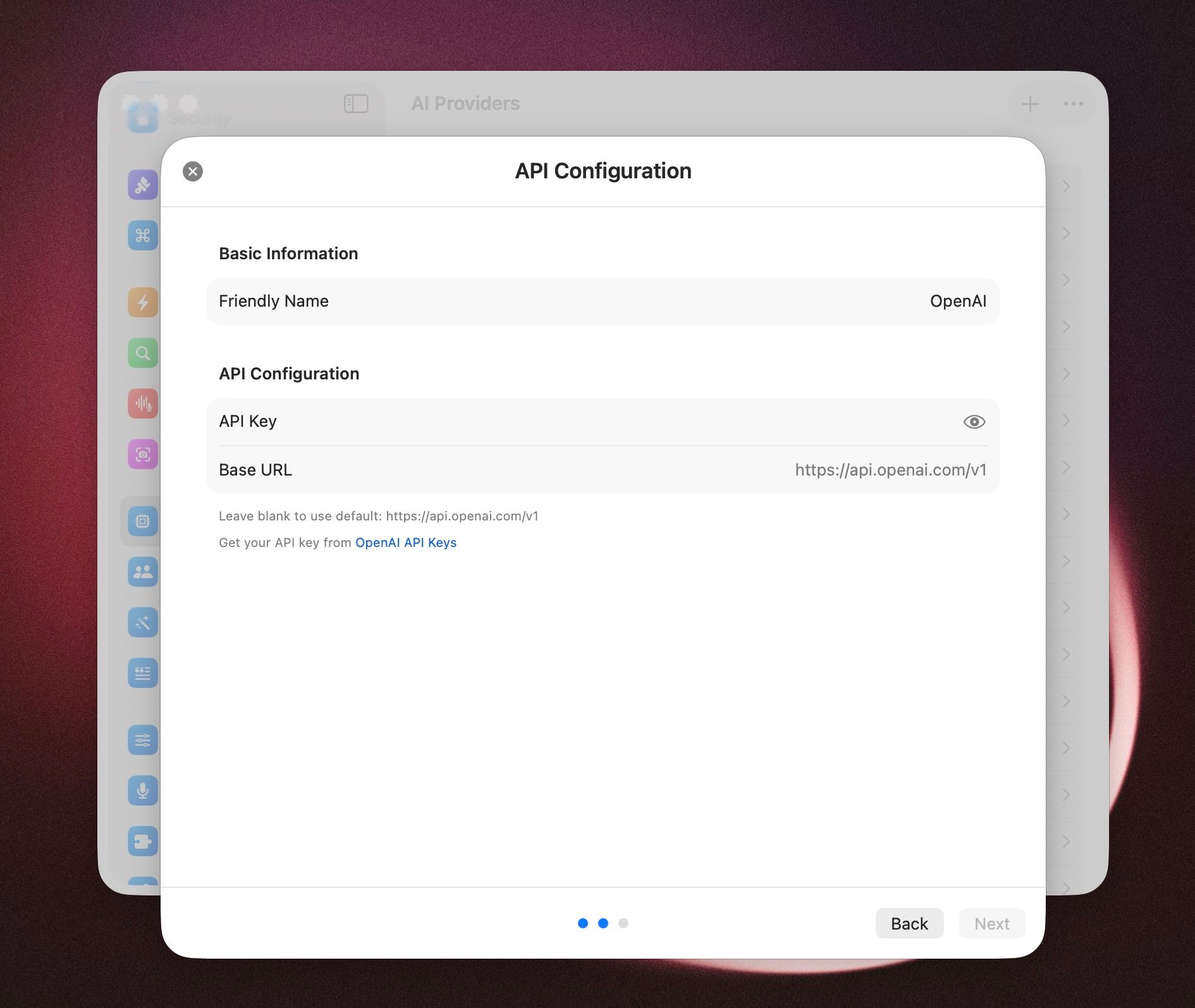
Enter the requested credentials. Most providers ask for an API key. Some providers also require a Base URL, region, project, or another provider-specific value.
Select Next. BoltAI tests the configuration and attempts to load the provider's models.
Choose which models should appear in BoltAI and select a default model if needed.
Select Add Service.
Test or edit the provider later
Open Settings → AI Providers.
Select the provider.
Use Test Connection to verify the current configuration.
Use Edit Configuration to change credentials or provider-specific settings.
To change the visible model list, open the provider and use Manage Models… under Model Management.
If the connection test fails
Confirm that the API key was copied completely and does not include extra spaces.
Confirm that the provider account has access to its API. A consumer chat subscription does not always include API access.
Leave Base URL empty when you want BoltAI to use the provider's default endpoint.
For a custom or OpenAI-compatible service, confirm that its Base URL includes the API path required by that service.
If the provider uses a project, region, deployment, or resource name, confirm each value in the provider's dashboard.
Never include a real API key in screenshots or support messages.
Was this helpful?
Still need help? Ask the team