How to use Mistral in BoltAI
Add your Mistral API key to chat with Mistral's models.
Written By Daniel Nguyen
Mistral AI makes the Mistral models. Add your API key and chat with them in BoltAI.
Before you start
An API key from the Mistral Console.
Set up Mistral in BoltAI
- Open Settings › AI Providers and click +.
- Choose Mistral under Other Providers.
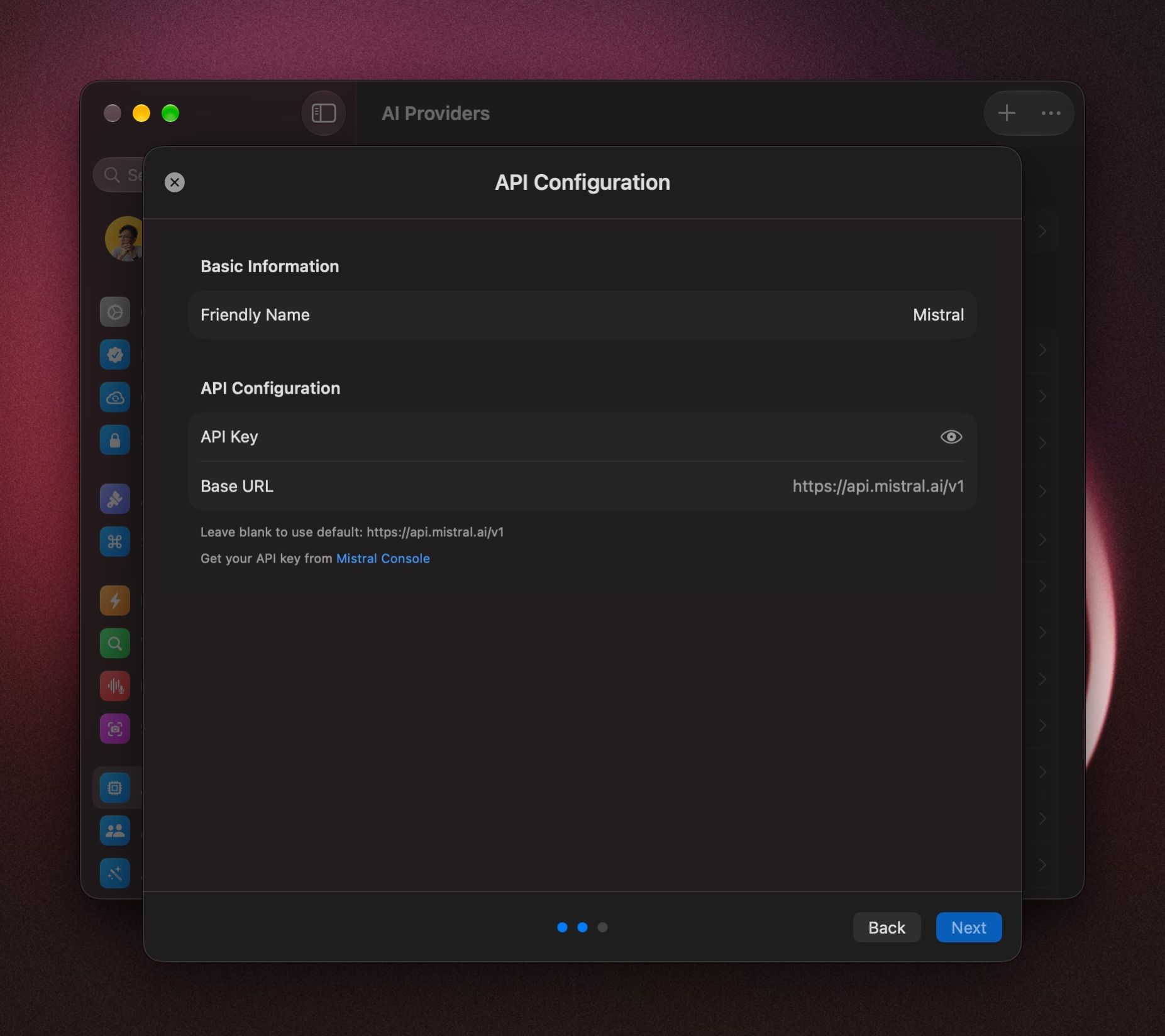
- Paste your key into API Key. Leave Base URL empty.
- Click Next.
- Keep all models, or untick the ones you don't want. To choose the model this provider starts with, hover over it and click Set as Default.
- Click Add Service.
Start a chat with Mistral models
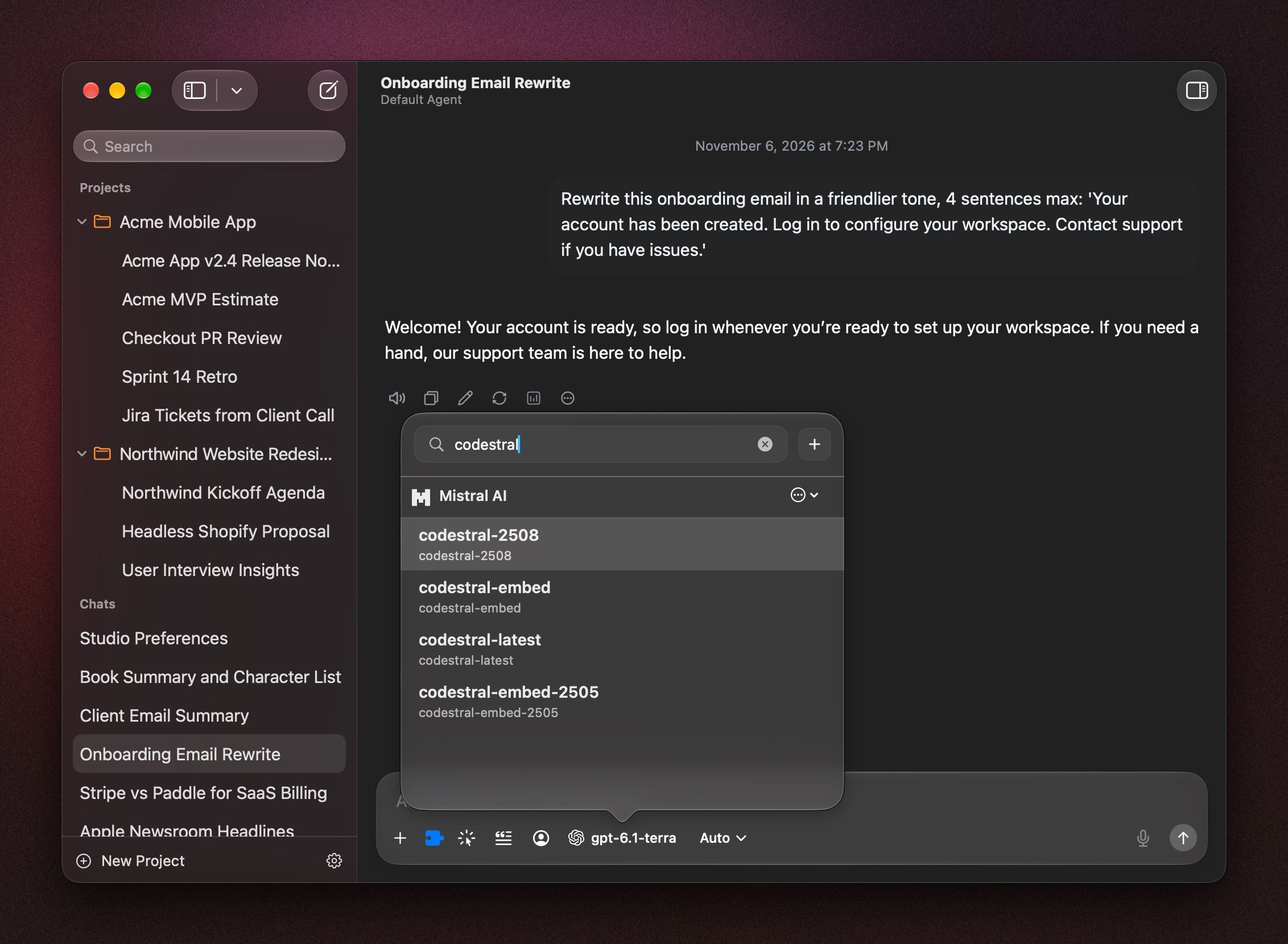
Click the model name in the message box, press ⇧ ⌘ M, or type /model, and pick a model under Mistral.
To start every new chat with it, right-click the model and choose Set Provider & Model as Default. See Choose and switch models.
If it doesn't connect
- BoltAI couldn't verify the setup. Copy the key again from the Mistral Console, paste it into API Key, and click Next. A new key can take a few minutes to start working.
- It stopped working later. Open Settings › AI Providers, click Mistral, open the ⋯ menu and choose Test Connection. To change the key, choose Edit Configuration.
- A new model is missing. Click Mistral in Settings › AI Providers and click Refresh Model List.
Was this helpful?
Still need help? Ask the team