Local Models
Run AI models on your Mac, with no account or API key, and manage them.
Written By Daniel Nguyen
Local Models run AI on your Mac. You don't need an account or an API key, and your messages aren't sent to an AI provider.
Download your first model
- Open Settings › AI Providers and click Local Models, under On This Mac.
- Under Recommended, pick a model that says Runs well on this Mac, and click Download.
- When it's done, pick it in the model picker of any chat.
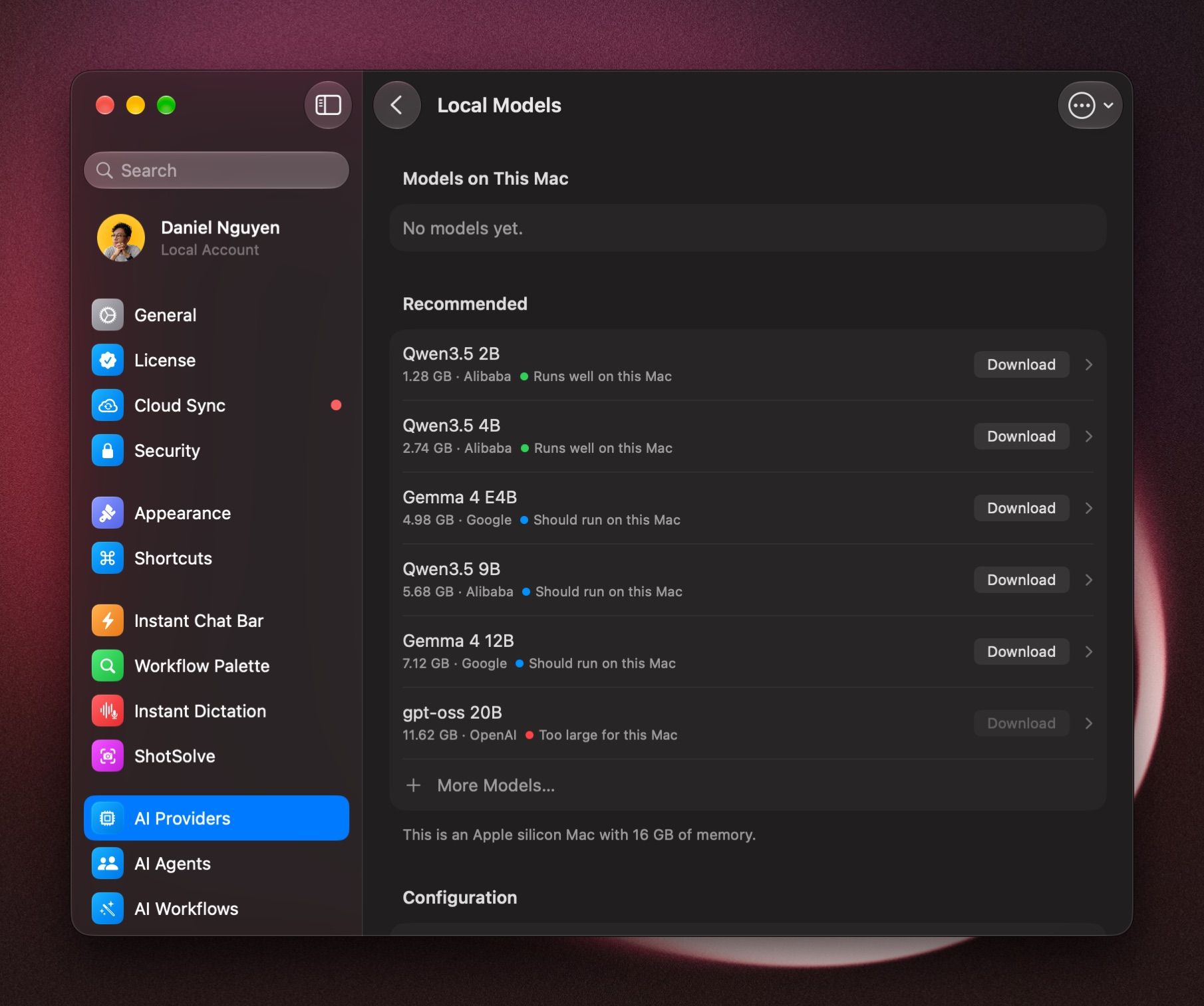
Each model shows its size and how it fits your Mac: Runs well on this Mac, Should run on this Mac, May be slow on this Mac, or Too large for this Mac.
To stop a download, click Stop downloading.
Find a model that isn't listed
Click More Models…. Search by name, such as qwen or gemma, or paste a link to the model's Hugging Face page. Only models with a single-file GGUF version work.
Load a model ahead of time
A model loads the first time a chat needs it, which takes a moment. To load it ahead of time, click the Local Models button in the toolbar and click Load next to the model.
Unload a model
A model unloads by itself after ten idle minutes. To free its memory now, click the Local Models button in the toolbar and click Unload. The button also shows how much memory local models use.
Search the web with a local model
For anything recent, turn on DuckDuckGo Search in the chat's Tools menu. It needs no API key. See Tools in a chat.
Delete a model
Click the model under Models on This Mac, then Delete Model…. This frees the disk space. Chats that used the model are kept, and you can download it again later.
Good to know
- With a local model, chat titles are made by your local model too, and no cost estimate is shown.
- To hide local models from the model picker, turn off Enable on this Mac on the Local Models page.
Was this helpful?
Still need help? Ask the team