How to use fal in BoltAI
Add your fal API key and make images with fal's models in Image Studio.
Written By Daniel Nguyen
fal runs image models in the cloud. Add your fal API key to make and edit images with them in Image Studio.
Before you start
You need a fal API key. Create one in your fal account.
Set up fal in BoltAI
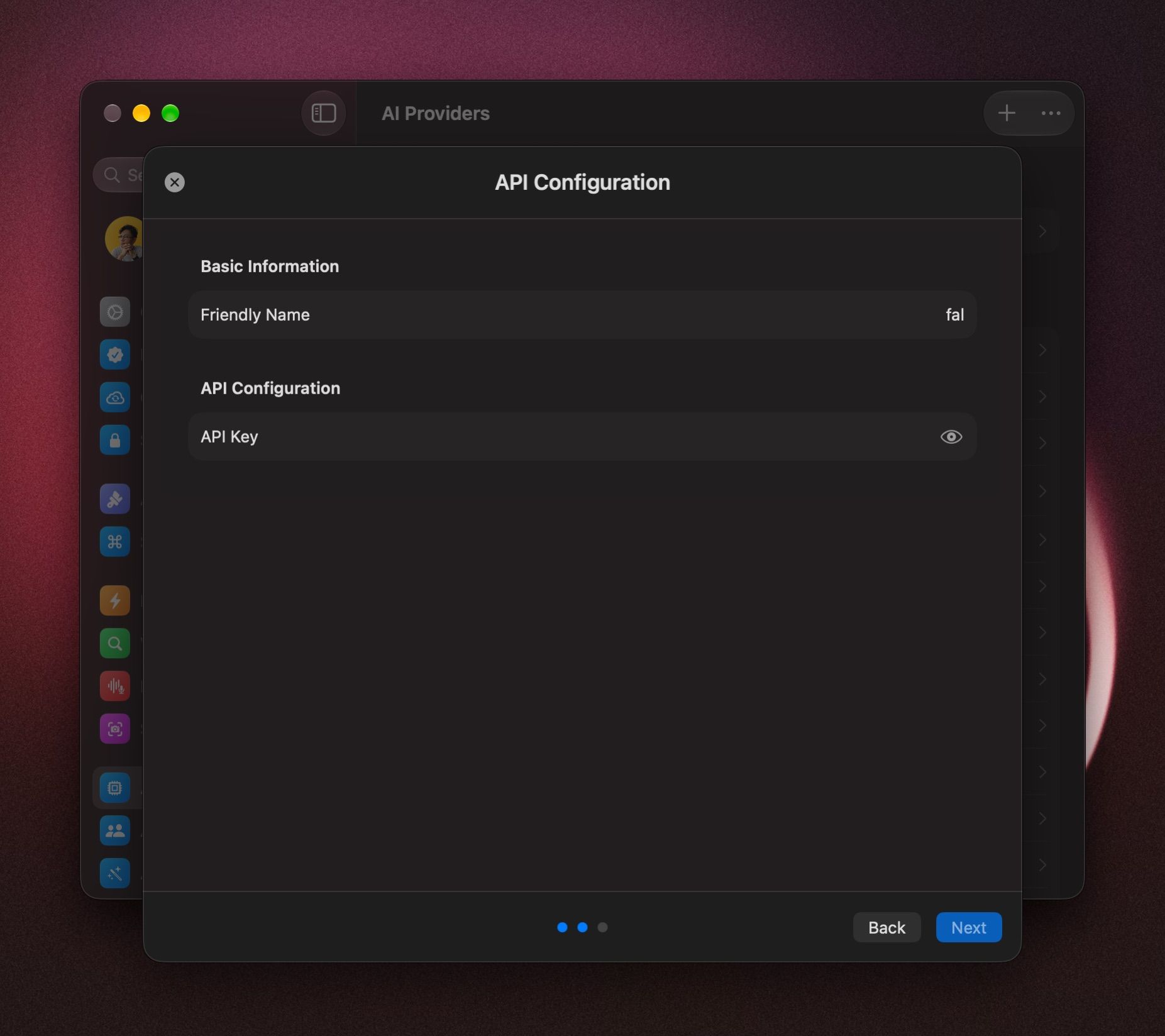
- Open Settings › AI Providers and click +.
- Under Image Generation, click fal.
- Paste your key into API Key.
- Click Next.
Make images with fal
- Press ⌃ ⌘ N, or choose File › New Image.
- Click the model and pick one under fal. Type in Search image models to find one. Some models are offered by more than one service, so check that you pick it under fal.
- Describe the image and press Return.
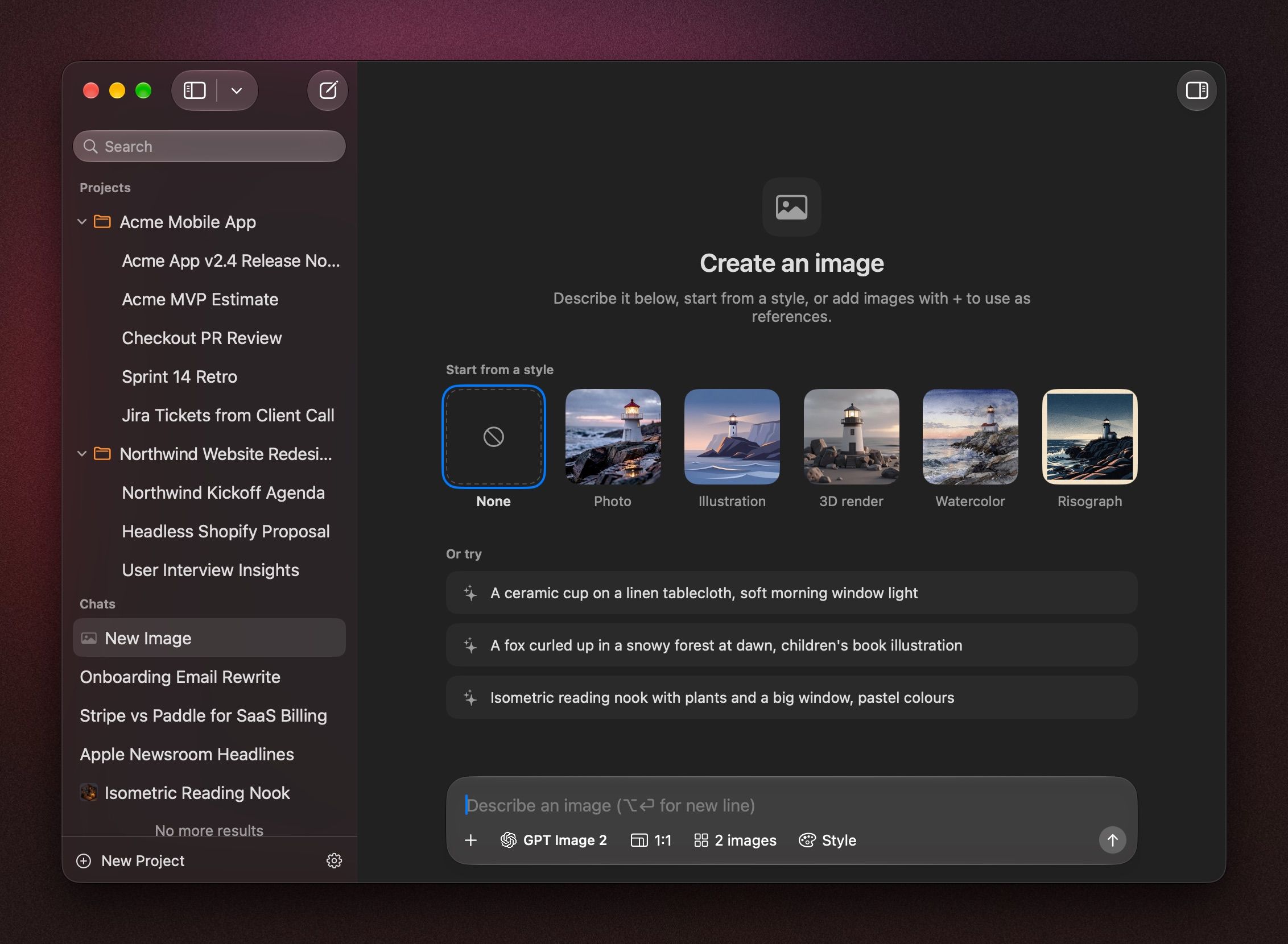
For aspect ratios, edits and versions, see Image Studio.
If it doesn't work
- BoltAI couldn't verify this API key. Copy the key again and paste it into API Key.
- fal rejected the API key. Click fal in Settings › AI Providers, open the ⋯ menu, choose Edit Configuration, and paste a new key.
- Add your fal API key. The fal provider has no key. Add it the same way.
- No fal models in Image Studio. Add fal in Settings › AI Providers first. Click + in the model list to add it from there.
Was this helpful?
Still need help? Ask the team