How to add an OpenAI-compatible provider to BoltAI
Connect any service or server that works with the OpenAI API, using the Custom provider.
Written By Daniel Nguyen
Many AI services and model servers work with the OpenAI API, such as proxies, company gateways and servers on your own network. Add one to BoltAI with the Custom provider and chat with its models.
Before you start
From the service, get:
- Its Base URL, including the version path, for example
https://api.example.com/v1. - An API key, if it needs one.
- The model IDs you want to use, if the service doesn't list its models.
Set up the provider in BoltAI
- Open Settings › AI Providers and click +.
- Under Other Providers, click Custom. Or type openai compatible in Filter providers.
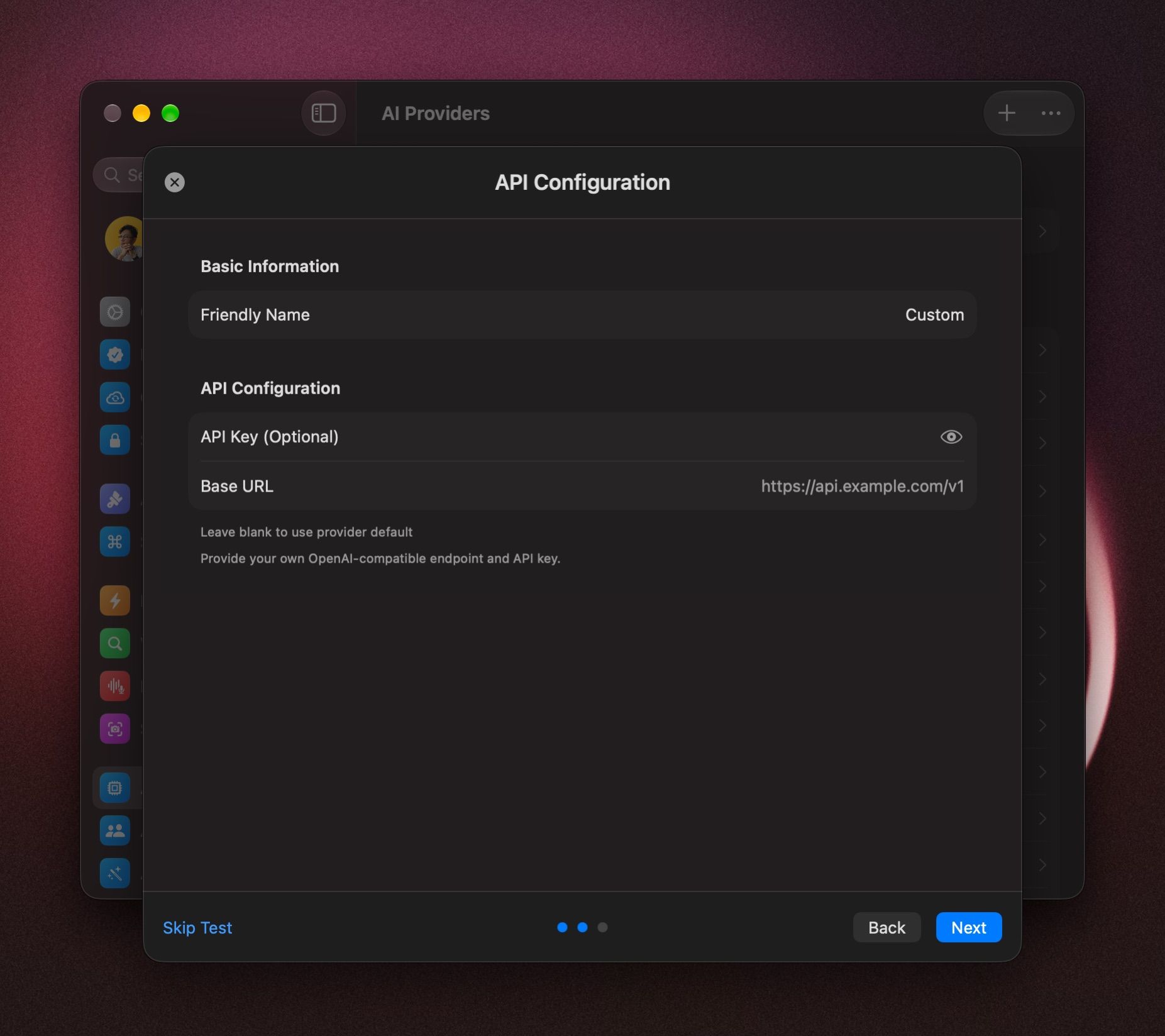
- In Friendly Name, enter the service's name. The model picker lists its models under this name.
- Paste your key into API Key (Optional), or leave it empty if the service doesn't need one.
- Enter the Base URL.
- Click Next. If the service doesn't list its models, click Skip Test instead.
- Tick the models you want. To add a model that isn't listed, click Add Models Manually, enter the model IDs one per line, and click Add Models.
- Hover the model you want to start with and click Set as Default.
- Click Add Service.
Start a chat with its models
In a chat, click the model name in the message box, or press ⇧ ⌘ M, and pick a model under the name you gave the provider. See Choose and switch models.
If the model keeps thinking with reasoning Off
Servers turn thinking off in different ways. Click the provider in Settings › AI Providers and change Thinking Off Strategy:
- OpenAI reasoning effort: the default.
- Extra body override: for endpoints that use
enable_thinking. - Chat template override: for vLLM and Qwen-style servers.
If it doesn't connect
- Custom didn't return the response BoltAI expected. The Base URL doesn't lead to the service's API. Check the address and the version path, such as
/v1. - BoltAI couldn't verify this API key. Check the key in API Key (Optional).
- The models load, but chats fail. Make sure the Base URL ends with the version path, such as
/v1. Click the provider, open the ⋯ menu and choose Edit Configuration to fix it. - To check the connection at any time, open the ⋯ menu and choose Test Connection. If the service added new models, click Refresh Model List.
Was this helpful?
Still need help? Ask the team