How to use Amazon Bedrock in BoltAI
Connect your AWS account and chat with the models you enabled in Amazon Bedrock.
Written By Daniel Nguyen
Connect your AWS account to chat with the models you enabled in Amazon Bedrock, such as Claude, in BoltAI.
Before you start
- An AWS account with access to Bedrock models in at least one region.
- One way to sign in to AWS:
- an Amazon Bedrock API key,
- an access key ID and secret access key, or
- a profile in your AWS config or credentials files on this Mac.
Set up Amazon Bedrock in BoltAI
- Open Settings › AI Providers, click + and choose Amazon Bedrock. It's under Other Providers.
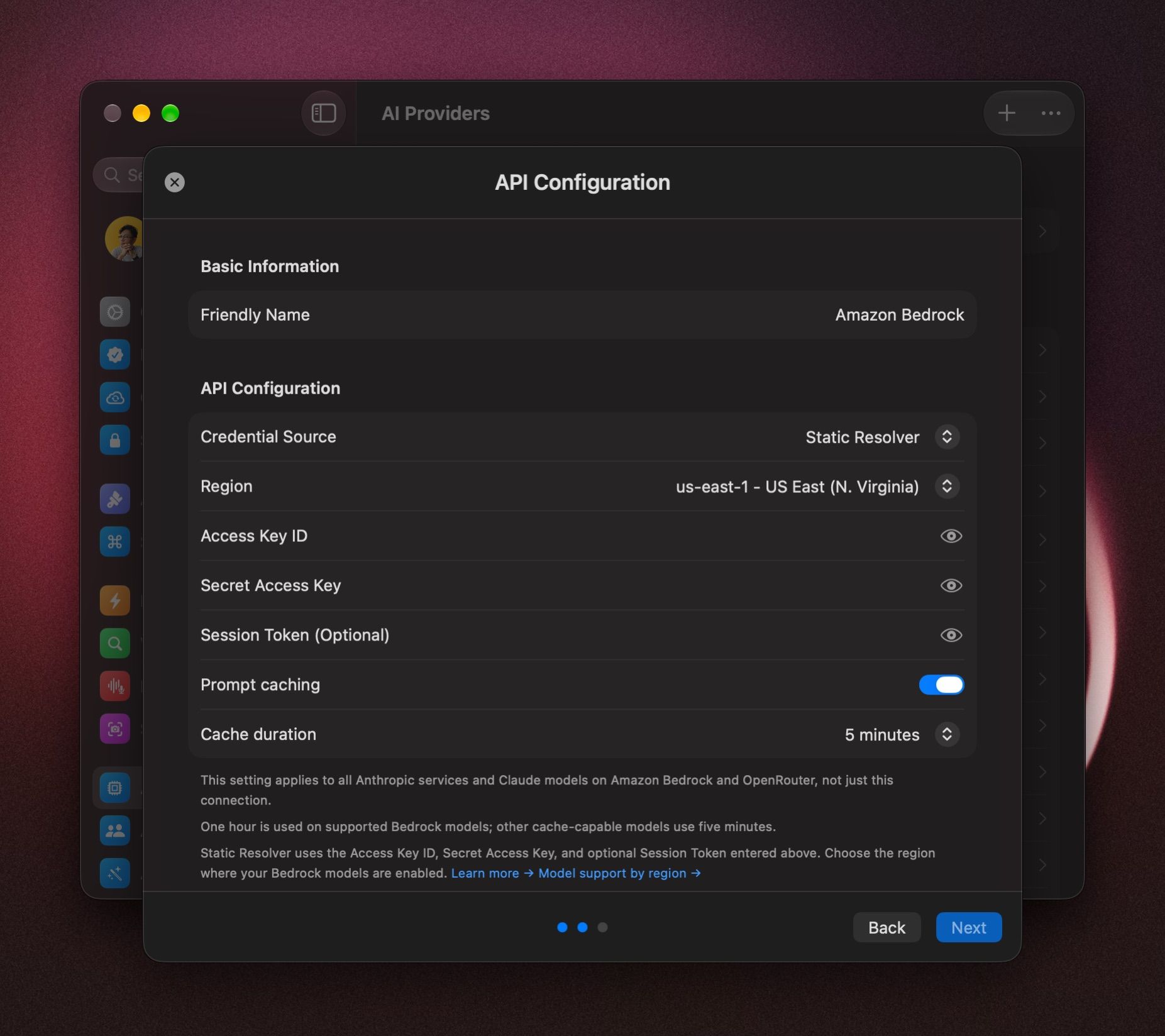
- Choose a Credential Source and fill in its fields:
- Bedrock API Key: paste your key into Bedrock API Key.
- Static Resolver: enter your Access Key ID and Secret Access Key. For temporary credentials, also enter Session Token (Optional).
- Profile Resolver: enter the Profile Name from your AWS config or credentials files. It starts as default.
- Process Resolver: enter the Profile Name of a profile that uses
credential_process.
- Choose the Region where your Bedrock models are enabled. If yours isn't listed, choose Custom… and type it in Custom Region.
- Click Next.
- Keep all models, or untick the ones you don't want. To choose this provider's default model, hover over it and click Set as Default.
- Click Add Service.
If BoltAI can't list your models
If BoltAI says it couldn't list Bedrock models for this configuration, add the models yourself:
- Click Add Models Manually.
- Enter the Bedrock model IDs, one per line, and click Add Models.
- Click Add Service.
Start a chat with Bedrock models
Click the model name in the message box, press ⇧ ⌘ M, or type /model. Pick a model under Amazon Bedrock.
To start every new chat with it, right-click the model and choose Set Provider & Model as Default. See Choose and switch models.
If it doesn't connect
- BoltAI couldn't verify this Amazon Bedrock setup: check the credentials for your Credential Source. With a profile, check that Profile Name matches a profile in your AWS files.
- No models, or a model is missing: check Region. Each region has its own models.
- A model you just enabled in AWS is missing: on the provider's page, click Refresh Model List.
- On the provider's page, open the ⋯ menu and choose Test Connection.
Was this helpful?
Still need help? Ask the team