How to use Together AI in BoltAI
Add your Together AI API key and chat with open models.
Written By Daniel Nguyen
Together AI hosts open models. Add your Together AI API key to chat with them in BoltAI.
Before you start
You need a Together AI API key. Create one in Together Settings › API keys.
Set up Together AI in BoltAI
- Open Settings › AI Providers and click +.
- Click Together AI. Type in Filter providers to find it faster.
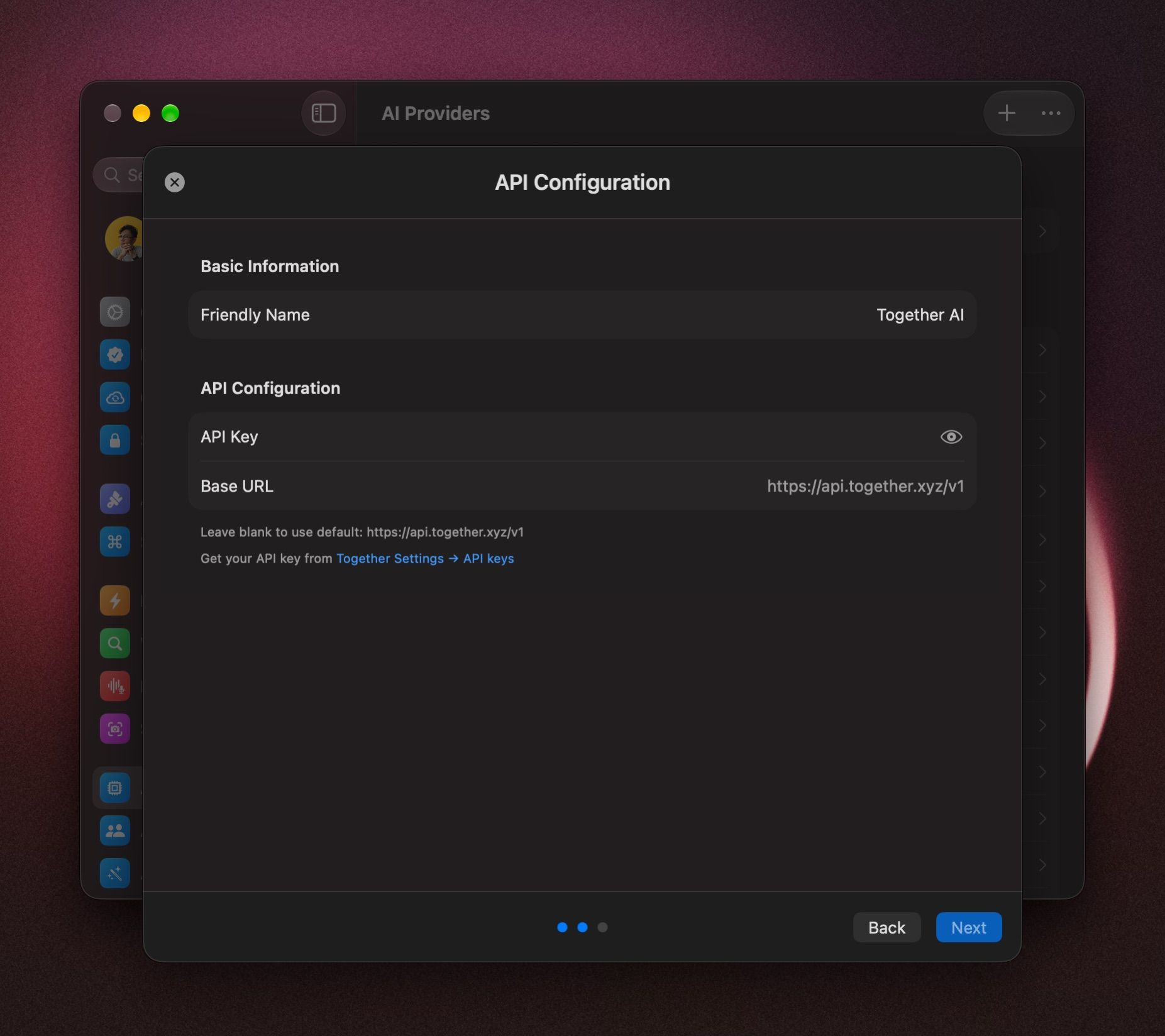
- Paste your key into API Key.
- Click Next.
- The catalog is long and includes models that don't chat, such as image and embedding models. Click Select None, then tick only the chat models you want. Type in Search models... to find them.
- Hover the model you want to start with and click Set as Default.
- Click Add Service.
Start a chat with Together AI models
In a chat, click the model name in the message box, or press ⇧ ⌘ M, and pick a model under Together AI. See Choose and switch models.
To change which models show later, click Together AI in Settings › AI Providers and click Manage Models….
If it doesn't connect
- BoltAI couldn't verify this API key. Copy the key from your Together account again and paste it into API Key.
- If the key is right but chats fail, the account may be out of credits or blocked by billing settings.
- Already added? Click Together AI in Settings › AI Providers, open the ⋯ menu and choose Test Connection. To fix the key, choose Edit Configuration.
Was this helpful?
Still need help? Ask the team