How to use Perplexity in BoltAI
Chat with Perplexity's Sonar models, which search the web and show their sources.
Written By Daniel Nguyen
Perplexity's Sonar models search the web before they answer. In BoltAI, each answer links to the pages it used.
Before you start
You need a Perplexity API key. Create one in the Perplexity API Console.
Set up Perplexity in BoltAI
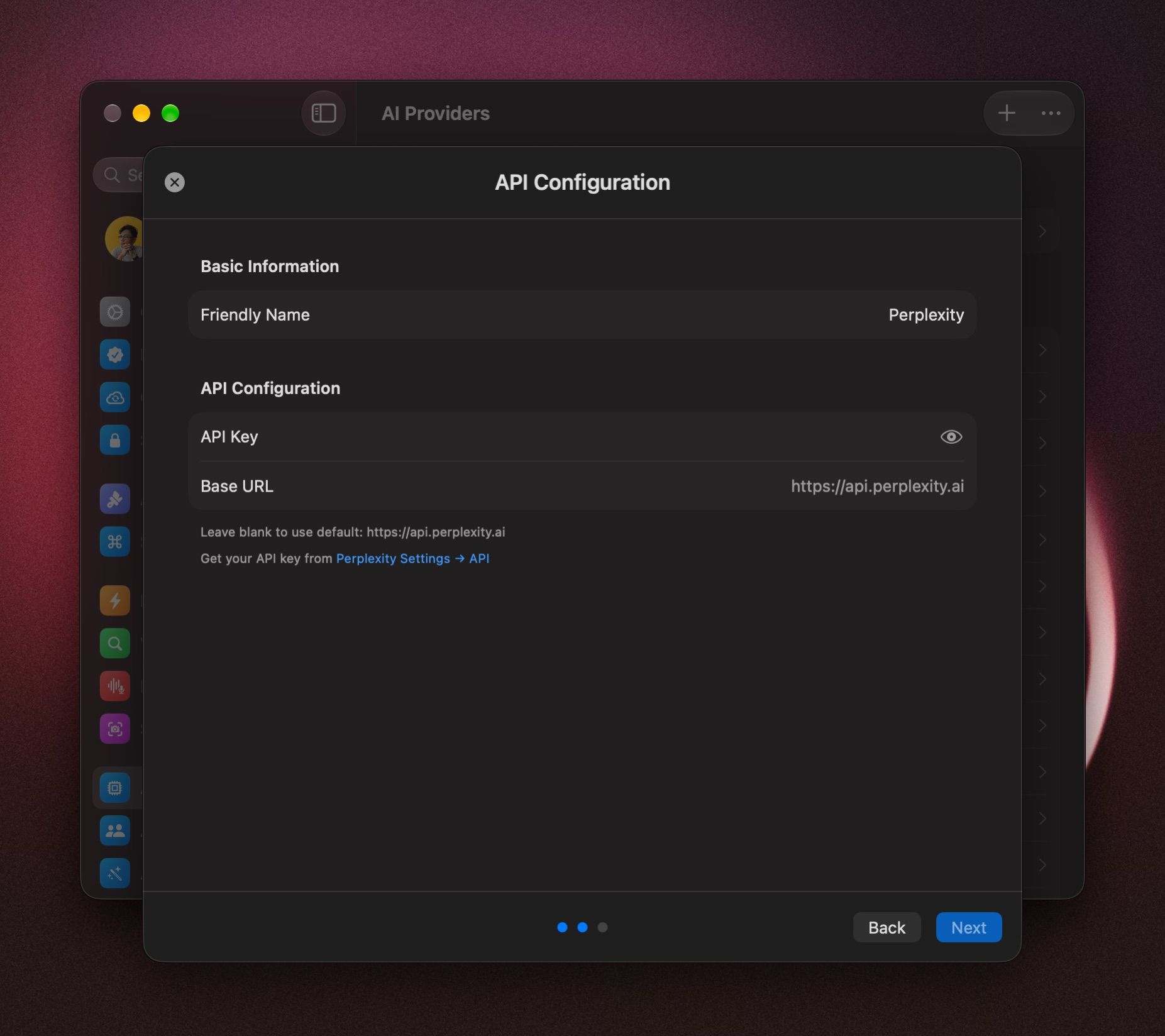
- Open Settings › AI Providers and click +.
- Click Perplexity. Type in Filter providers to find it faster.
- Paste your key into API Key.
- Click Next.
- Untick any models you don't want. Hover the model you want to start with and click Set as Default.
- Click Add Service.
Start a chat with Perplexity models
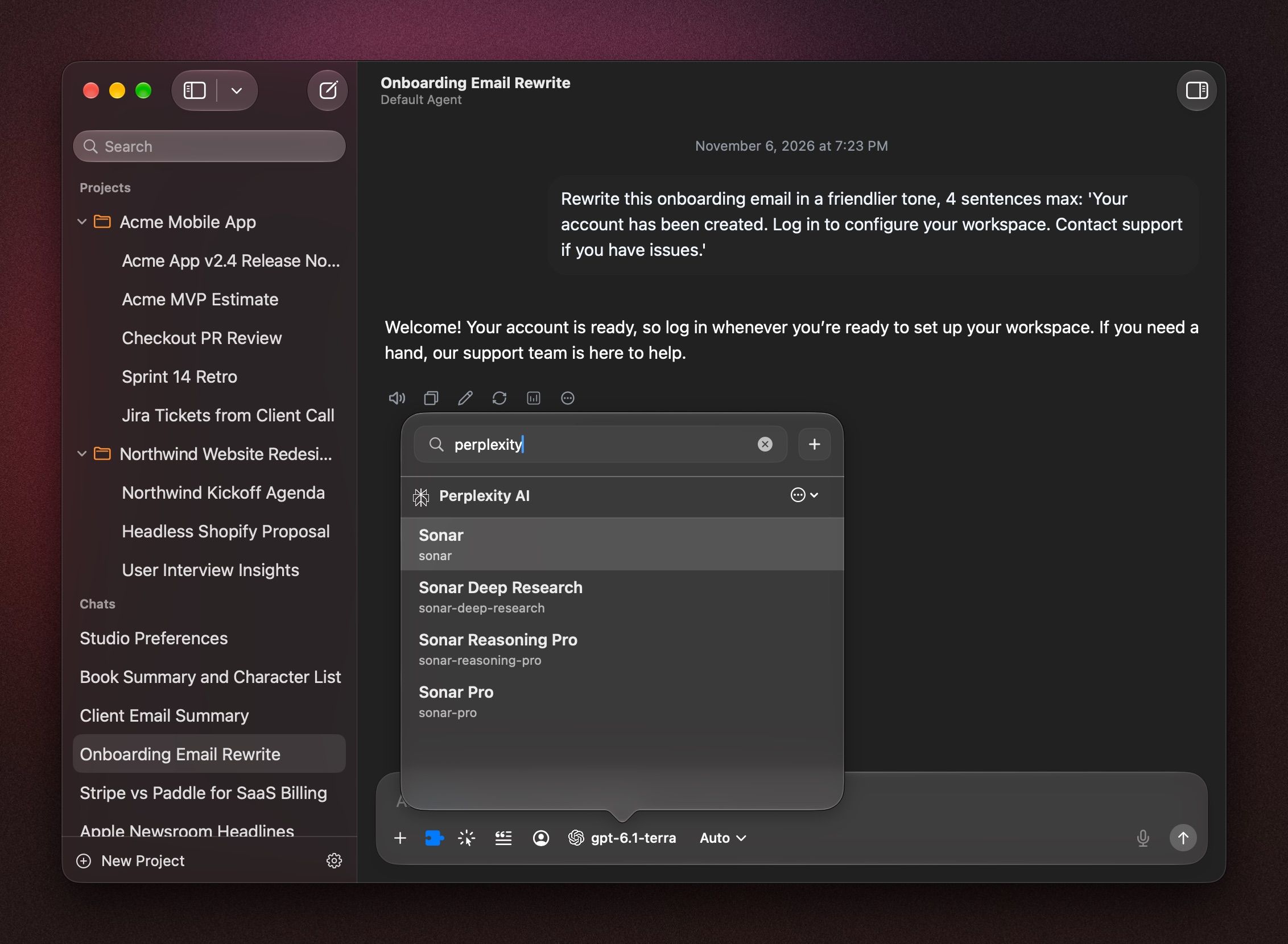
In a chat, click the model name in the message box, or press ⇧ ⌘ M, and pick a model under Perplexity. See Choose and switch models.
See the sources
Perplexity marks its sources in the answer as [1], [2] and so on. Click a number to open that page. To see all of them, click Sources under the answer.
Search with Perplexity from other models
You can also let other models search the web with Perplexity. Open Settings › Plugins, click Perplexity Search, and add your Perplexity API key. Then turn it on in a chat's Tools menu. See Tools in a chat.
If it doesn't work
- BoltAI couldn't verify this API key. Copy the key again from the Perplexity API Console and paste it into API Key.
- If the key is right but answers still fail, check that your Perplexity API account has credit.
Was this helpful?
Still need help? Ask the team