How to use Apple Intelligence in BoltAI
Chat with Apple's on-device model in BoltAI, with no account or API key.
Written By Daniel Nguyen
Apple Intelligence includes a model that runs on your Mac. Chat with it in BoltAI with no account and no API key.
Before you start
- macOS 26 or later.
- A Mac that supports Apple Intelligence.
- Apple Intelligence turned on in System Settings.
If you finished BoltAI's setup without adding a provider, BoltAI may have added it for you already, as Apple Intelligence (On-Device). Look for it in Settings › AI Providers.
Set up Apple Intelligence in BoltAI
- Open Settings › AI Providers, click + and choose Apple Foundation Models. It's under Other Providers.
- Click Next. There's nothing to fill in.
- Make sure Apple Intelligence is ticked.
- Click Add Service.
Start a chat with Apple Intelligence
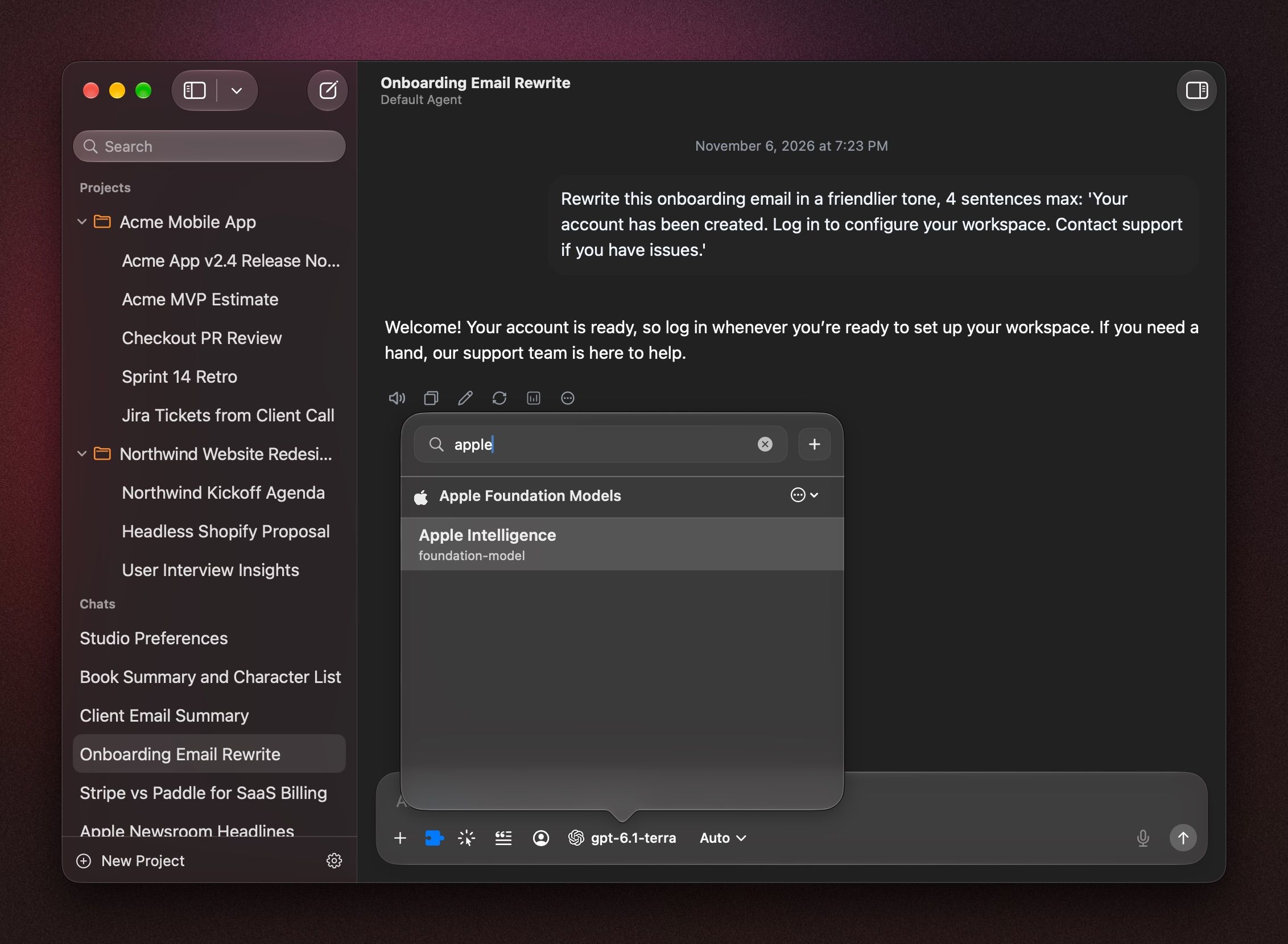
Click the model name in the message box, press ⇧ ⌘ M, or type /model. Pick Apple Intelligence.
To start every new chat with it, right-click the model and choose Set Provider & Model as Default. See Choose and switch models.
Good to know
- Tools don't work with Apple Intelligence. The Tools menu shows Not supported.
- It works best for short chats. If a chat gets too long for it, start a new chat.
- For more models that run on your Mac, see Local Models.
If it doesn't work
- Apple Foundation Models isn't in the list: update to macOS 26 or later.
- BoltAI says Apple Intelligence is turned off: turn it on in System Settings.
- BoltAI says the model isn't ready yet: macOS is still downloading or preparing it. Try again shortly.
- BoltAI says this Mac is not eligible for Apple Intelligence: use Local Models or another provider instead.
Was this helpful?
Still need help? Ask the team